
How to Set Up PDF Template
How to choose between the default Onsite PDF template and a custom template using your own header and footer images. The PDF template controls how all downloaded documents and reports appear, including Purchase Orders, Sales Invoices, GRNs, Quotations, and Reports.
Before You Start
- You need Admin access
- If you want to use a custom template, prepare your header and footer images before starting. See the image specifications in Step 3 below.
- Make sure your Company Details are up to date (name, address, GST, logo) before setting up the template. The default Onsite template pulls from Company Details automatically.
Step 1: Go to Settings
Click Setting in the left sidebar.
Step 2: Open Document & Fields
Click Document & Fields from the Settings menu. Select PDF Template.
You will see two template options.
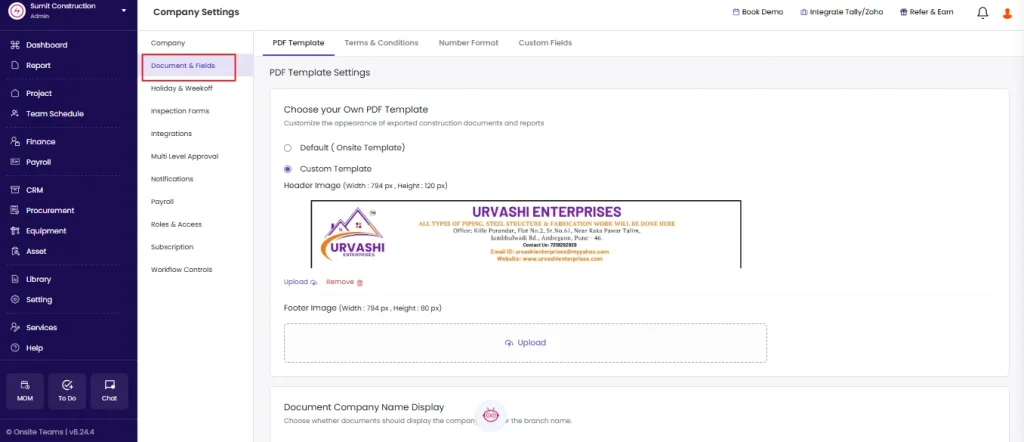
Step 3: Choose Your Template
Option A — Default Onsite Template
Select Onsite Template to use the standard Onsite PDF layout.
The default template automatically includes:
| Element | Where It Comes From |
|---|---|
| Company name | Company Details settings |
| Company logo | Uploaded in Company Details |
| Company address and GST number | Company Details settings |
| Signature and stamp | Uploaded in Company Details |
| Document title (e.g. Purchase Order, Tax Invoice) | Generated automatically by Onsite |
| Document data (line items, amounts, dates, parties) | Pulled from the document itself |
This template is ready to use as soon as Company Details are filled in. No image uploads are needed.
Use the default template when: your team needs a clean, professional document layout immediately without designing custom branding.
Option B — Custom Template
Select Custom Template to replace the standard header and footer with your own branded images.
This is useful when:
- Your company has a standard letterhead design you want on all documents
- You want to include your company’s branding, address layout, or compliance text in the header
- You want to include bank details, authorised signatory text, or terms in the footer
Upload Header Image
- Click Upload Header Image
- Select your image file from your device
- The image uploads and previews on screen
Header image specifications:
| Specification | Requirement |
|---|---|
| Dimensions | 794 x 120 pixels exactly |
| File format | JPG or PNG |
| Content to include | Company name, logo, address, GST number, phone number |
| Content to avoid | Do not include document titles (e.g. “Purchase Order”) in the header image. Onsite adds the document title automatically below the header. |
Upload Footer Image
- Click Upload Footer Image
- Select your image file from your device
- The image uploads and previews on screen
Footer image specifications:
| Specification | Requirement |
|---|---|
| Dimensions | 794 x 80 pixels exactly |
| File format | JPG or PNG |
| Content to include | Bank details, authorised signatory, company registration number, disclaimer text |
| Content to avoid | Do not repeat information already in the header |
Step 4: Save
Click Save to apply the template.
The selected template applies immediately to all new PDFs generated from the app. Existing downloaded PDFs are not affected.
Which Documents Use This Template
The PDF template applies to all downloadable documents in Onsite, including:
| Document | Where to Download |
|---|---|
| Purchase Order | Procurement section, Download icon on each PO |
| Sales Invoice | Project Estimate, Invoices tab, View then Download |
| Quotation | CRM Quotations, Download option |
| GRN (Goods Received Note) | Material tab, on each GRN entry |
| Subcontractor Work Order | Subcon Work Orders, Download option |
| Reports | Reports section, Download icon on any report |
| Daily Progress Report | Reports section, DPR Download |
| Attendance and Salary Report | Reports section |
How to Design the Header Image
If you are creating the header image for the first time, use these guidelines:
The canvas must be exactly 794 x 120 pixels. At 72 DPI, this is approximately 28 cm wide and 4.2 cm tall.
Recommended layout (left to right):
- Left section: Company logo
- Centre section: Company name in large text, address and GST below in smaller text
- Right section: Phone number, email, website
Design tools that work well: Canva, Adobe Illustrator, Microsoft PowerPoint (export as PNG at 100% size), Photoshop.
Export the image as PNG for the best quality on printed documents.
How to Design the Footer Image
The footer canvas must be exactly 794 x 80 pixels.
Recommended content:
- Bank name, account number, IFSC code, branch name
- “Authorised Signatory” label with space for signature
- Company registration number or CIN if required
- Any standard disclaimer text your company uses on documents
Keep text size at minimum 10pt equivalent at 72 DPI to ensure it is readable when printed.
Tips
- Use exactly the specified dimensions. Images that are even slightly off may appear stretched, compressed, or cut off on the PDF.
- PNG format preserves text sharpness better than JPG, especially for small fonts and fine lines in a footer.
- After saving, download a test document (such as a Purchase Order or Sales Invoice) to review how the header and footer appear before sharing with clients or vendors.
- You can switch between the default Onsite template and a custom template at any time by returning to PDF Template settings and clicking Save again.
- Custom fields added to document types (via Custom Fields settings) will appear in the document body between the header and footer, not inside the header or footer images.
- The watermark and signature uploaded in Company Details appear on documents regardless of which template is selected.
If Something Goes Wrong
| Problem | Likely Cause | What to Do |
|---|---|---|
| Cannot see Document & Fields option | Not an Admin | Ask your Admin to configure the template or grant Admin access |
| Header or footer image looks stretched or distorted on PDF | Wrong image dimensions | Resize the image to exactly 794 x 120 px (header) or 794 x 80 px (footer) and re-upload |
| Template not applying to new documents | Setting not saved | Return to PDF Template settings, confirm the correct option is selected, and click Save |
| Uploaded image not showing after upload | Unsupported file format | Use JPG or PNG only. Convert from other formats (WEBP, SVG, BMP) before uploading |
| Company name or logo not appearing on default template | Company Details not filled in | Go to Settings, open Company Details, and upload the logo and fill in the company name and address |
| Header text is too small to read on printed document | Font size too small in the image | Recreate the header image with larger text. Minimum 10pt equivalent at 72 DPI is recommended |
| Need to remove the custom template and go back to default | Easy to revert | Go to PDF Template settings, select Onsite Template, and click Save |