
How to Set Up Back Dated Entry Control
How to restrict team members from creating new entries or editing existing entries beyond a set number of days in the past. This prevents unauthorized or accidental changes to past financial records and helps enforce accounting period discipline after monthly closing.
Before You Start
- You need Admin access
- Decide your accounting cycle before setting the day limit. A 30-day restriction aligns with monthly closing. A 7-day restriction suits tighter weekly controls. Discuss with your accounts team before enabling.
How Back Dated Entry Control Works
When Back Dated Entry Control is enabled:
- The system checks the date entered on a document against today’s date
- If the document date is older than the configured number of days, the action is blocked
- The restriction applies to all non-Admin users. Admin users are not blocked by this setting.
- Two controls can be enabled independently: one for creating new entries with old dates, and one for editing already-saved entries
Example: If the restriction is set to 30 days and today is 7 May 2026, a user cannot create or edit any entry dated before 7 April 2026.
Step 1: Go to Settings
Click Setting in the left sidebar.
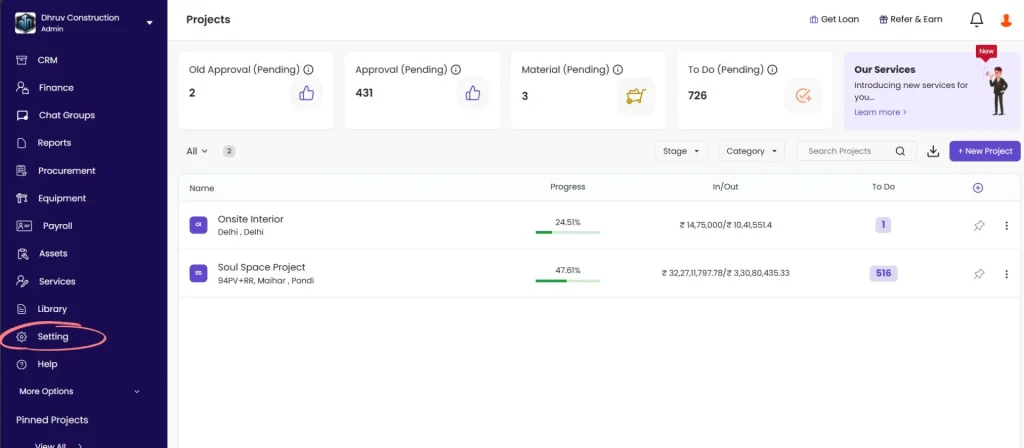
Step 2: Open Back Dated Entry Control
Click Back Dated Entry Control from the Settings menu.
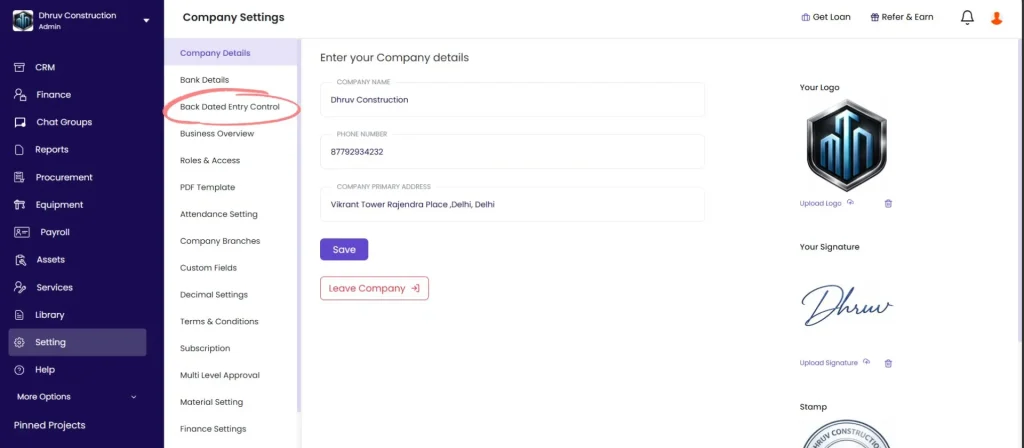
Two toggles appear: Restrict creating entries and Restrict editing entries.
Step 3: Restrict Creating Old Entries (Optional)
Toggle on Restrict creating entries.
Enter the number of days in the field that appears.
| Day Limit | What It Means |
|---|---|
| 7 | Users cannot create any entry dated more than 7 days ago |
| 30 | Users cannot create any entry dated more than 30 days ago |
| 60 | Users cannot create any entry dated more than 60 days ago |
| 90 | Users cannot create any entry dated more than 90 days ago |
When to use this restriction:
Use this when you want to prevent the team from posting transactions into a period that has already been reviewed or closed. For example, after your accounts team closes March, no one should be creating invoices or GRNs dated in March.
Step 4: Restrict Editing Old Entries (Optional)
Toggle on Restrict editing entries.
Enter the number of days in the field that appears.
When to use this restriction:
Use this to prevent changes to entries that have already been reported or reconciled. Even if creating old entries is allowed, editing them after a period close can distort reports that have already been submitted.
You can enable this restriction without enabling the creating restriction. For example:
- Allow creating entries up to 30 days old (to handle delayed site reporting)
- Block editing any entry older than 7 days (to prevent tampering with approved records)
Step 5: Save
Click Save to apply both settings.
The restrictions take effect immediately for all non-Admin users. No app restart is required.
Which Entries Are Affected
Back Dated Entry Control applies to entries where the user manually sets a date, including:
| Entry Type | Where It Is Created |
|---|---|
| Sales Invoices | Project, Estimate and Invoices tab |
| Payment Entries (In and Out) | Project, Transaction tab |
| Payment Requests | Project, Transaction, Payment Requests |
| Purchase Orders | Procurement section |
| GRN (Goods Received Note) | Material tab |
| Material Usage entries | Material tab, Material Used |
| Material Transfer | Material tab |
| Subcontractor Bills | Project, Subcon tab |
| Expense Entries (Other Expense, Site Expense) | Project, Transaction tab |
| Attendance entries | Attendance module |
| Task Progress updates | Task tab |
Entries where the date is system-generated and not editable by the user are not affected.
Choosing the Right Day Limit
| Accounting Practice | Recommended Limit |
|---|---|
| Monthly closing with strict period control | 30 days for creating, 7 days for editing |
| Relaxed monthly closing with site reporting delays | 45 to 60 days for creating, 30 days for editing |
| Weekly review cycle | 7 days for both |
| No restrictions needed | Leave both toggles OFF |
If your site team regularly submits attendance, GRNs, and daily progress reports with a lag of several days, set the creating restriction generously (45 or 60 days) to avoid blocking legitimate late entries, and set the editing restriction tighter (7 to 14 days) to lock approved records quickly.
Who Is Affected
| User Type | Affected by Restriction |
|---|---|
| Admin users | Not affected. Admins can always create or edit entries on any date. |
| All other roles (Site Engineer, Accountant, Purchase Manager, etc.) | Fully restricted based on the configured day limit |
If a specific non-Admin user needs to bypass the restriction temporarily (for example, to fix a data entry error in a closed period), an Admin must make the correction on their behalf.
Tips
- Both restrictions are independent. Enable only the ones you need. Most companies enable both together with the same day limit for consistency.
- Start with a generous limit (60 days) when first enabling this setting, especially on active projects with pending backdated entries. Tighten it gradually after the team is caught up.
- When you reduce the day limit (for example, from 60 to 30), the tighter restriction applies immediately. Entries the team was planning to post with older dates will be blocked.
- Communicate the restriction and the cutoff limit to your site team and accounts team before enabling. Unexpected blocks mid-project cause confusion and support requests.
- Admins are never blocked. If a critical correction needs to be made in a locked period, the Admin should make it directly and note the reason in the entry.
If Something Goes Wrong
| Problem | Likely Cause | What to Do |
|---|---|---|
| Cannot see Back Dated Entry Control | Not an Admin | Ask your Admin to configure the setting or grant Admin access |
| Users still able to create old entries after enabling | Setting not saved or toggle not ON | Return to Back Dated Entry Control, confirm the toggle is ON and the day limit is entered, and click Save |
| Admin cannot create or edit old entries either | Restriction does not apply to Admin | If an Admin is being blocked, check whether their role is actually set to Admin in Roles and Access |
| Legitimate late entry is being blocked | Day limit is too tight for site reporting cycle | Increase the day limit to match your actual reporting lag and save |
| Entry was blocked in error and needs to be corrected | User is not an Admin | Ask an Admin to make the correction on their behalf |
| Restriction was tightened and now blocks pending work | Day limit reduced too quickly | Temporarily increase the limit, let the team catch up on pending entries, then reduce it again |