
How to Configure Material Settings
How to configure company-level material settings in Onsite, including negative stock restrictions, material request and purchase order controls, BOM restrictions, RFQ controls, and document numbering for GRN and MR. These settings apply across all projects in your company.
Before You Start
- You need Admin access
- Decide with your procurement and site team which restrictions are needed before enabling them. Restrictions block actions for all users across all projects once enabled.
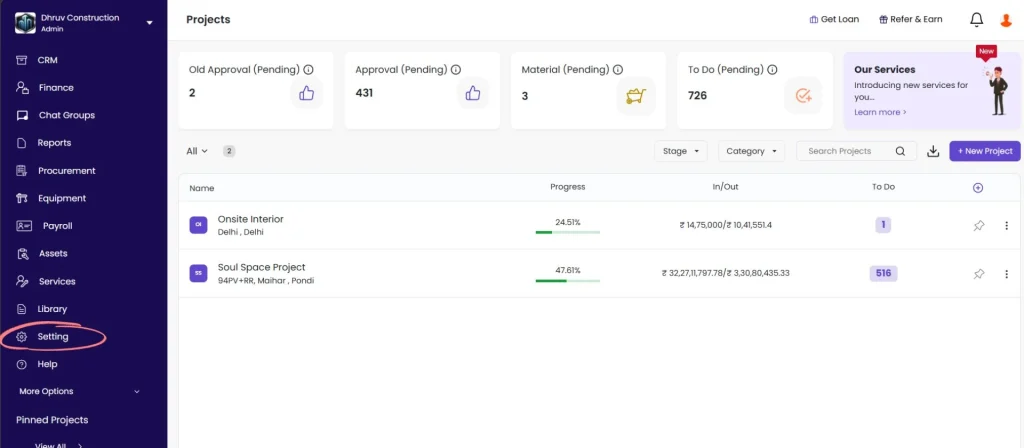
Step 1: Go to Settings
Click Setting in the left sidebar.
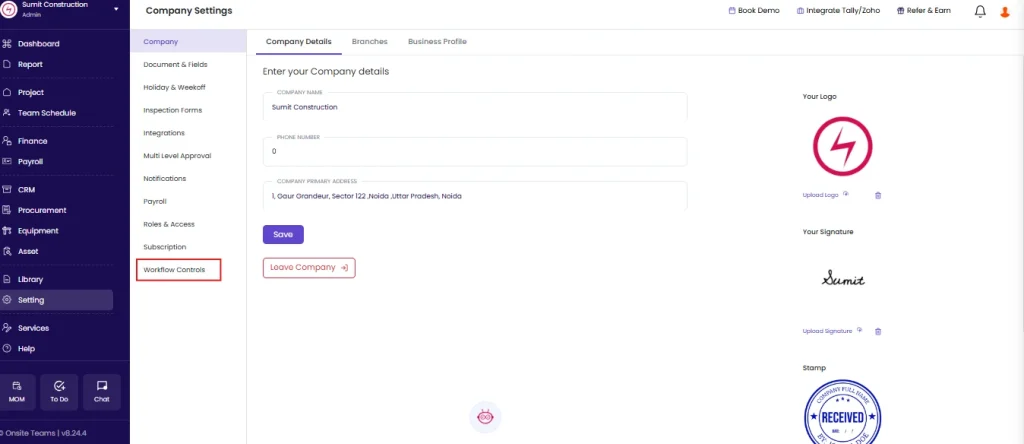
Step 2: Open Workflow Controls
Click Workflow Controls from the Settings menu.
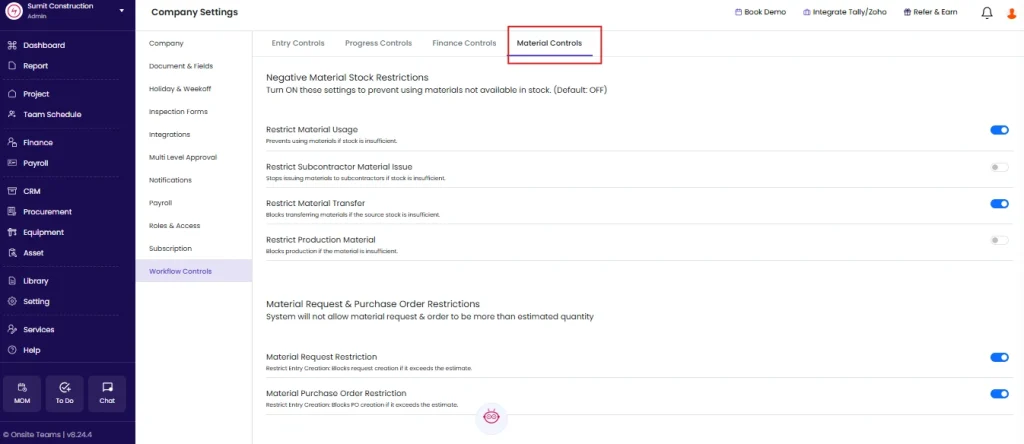
Step 3: Configure Negative Stock Restrictions
Select Material Controls.
Under Negative Stock Restrictions, control whether the system allows material actions when stock is insufficient. All toggles are OFF by default.
| Setting | What It Does |
|---|---|
| Restrict Material Usage | Prevents the team from recording material consumption if current stock is zero or insufficient |
| Restrict Subcontractor Material Issue | Stops issuing materials to subcontractors if available stock is insufficient |
| Restrict Material Transfer | Blocks transferring materials between stores or projects if the source stock is insufficient |
| Restrict Production Material | Prevents production entries if the required material is insufficient in stock |
Toggle ON the restrictions your company needs. Changes save automatically.
⚠️ These restrictions apply immediately across all projects. If your team is mid-project with incomplete stock entries, enabling these restrictions may block legitimate actions. Ensure stock entries are up to date before enabling.
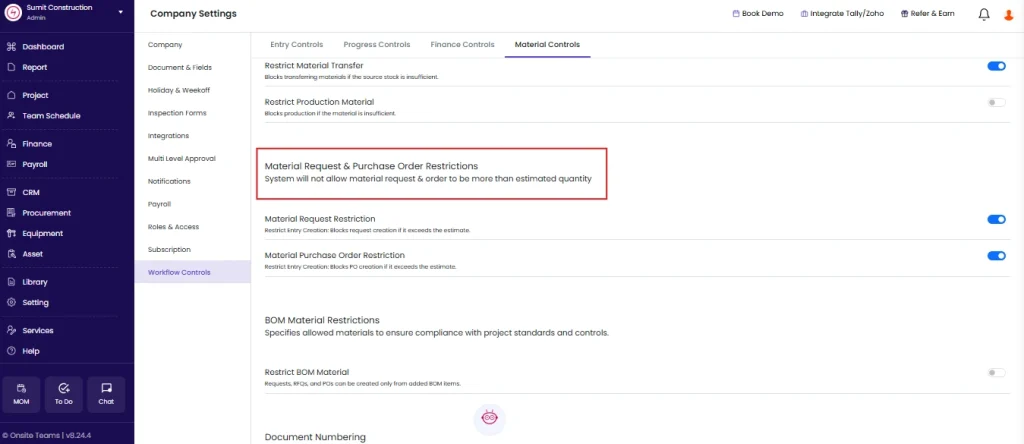
Step 4: Configure Material Request and Purchase Order Restrictions
Under Material Request and Purchase Order Restrictions, control whether requests and purchase orders can exceed the estimated quantity set in the project BOQ.
| Setting | What It Does |
|---|---|
| Material Request Restriction | Blocks a Material Request (MR) from being created if the requested quantity exceeds the estimated quantity for that material |
| Material Purchase Order Restriction | Blocks a Purchase Order (PO) from being raised if the ordered quantity exceeds the estimated quantity |
Toggle ON to enforce quantity discipline on procurement. These settings work only when a BOQ or estimate exists for the project with material quantities entered.
💡 These restrictions are useful for companies where over-ordering against the BOQ is a common issue. If your projects frequently run without a BOQ, leave these OFF to avoid blocking the team.
Step 5: Configure RFQ Restrictions
Under RFQ Restrictions, control how Requests for Quotation can be raised.
| Setting | What It Does |
|---|---|
| Material RFQ Restriction | Blocks an RFQ from being created if the quantity exceeds the estimated quantity for that material |
This restriction works alongside the MR and PO restrictions to enforce end-to-end quantity control from request through to purchase.
Step 6: Configure BOM Material Restrictions
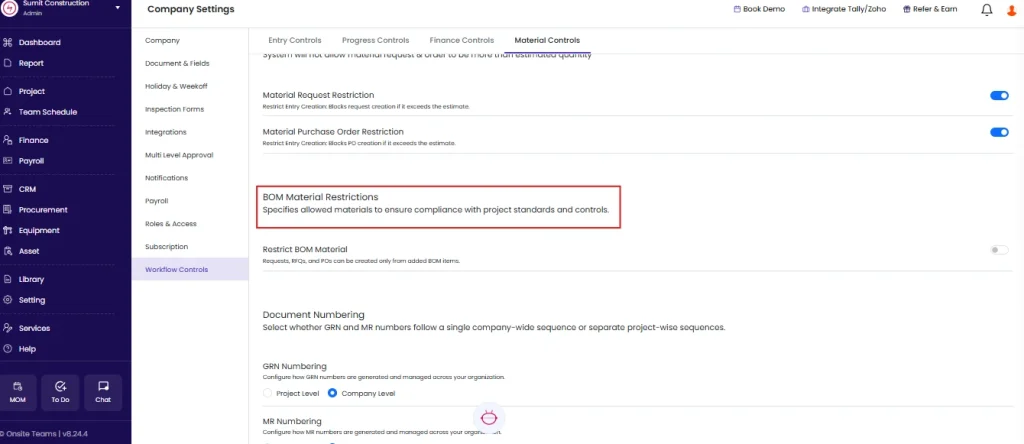
Under BOM Material Restrictions, control whether procurement can happen for materials not listed in the Bill of Materials.
| Setting | What It Does |
|---|---|
| Restrict BOM Material | When ON, Material Requests, RFQs, and Purchase Orders can only be created for materials that are already added to the project BOM. Materials not in the BOM cannot be requested or ordered. |
Default: OFF
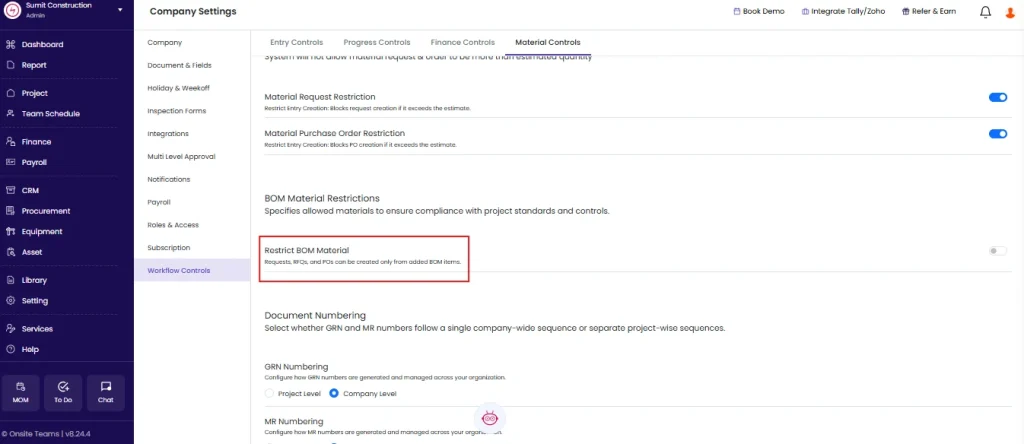
💡 Enable this only if your company maintains an active and complete BOM for every project. Enabling it on projects with incomplete BOMs will block legitimate procurement.
Step 7: Set Document Numbering
Under Document Numbering, select how GRN (Goods Received Note) and MR (Material Request) numbers are generated across your company.
| Document | Options | What It Means |
|---|---|---|
| GRN Numbering | Project Level | Each project has its own GRN number sequence starting from 1 |
| GRN Numbering | Company Level | All projects share one GRN number sequence across the company |
| MR Numbering | Project Level | Each project has its own MR number sequence starting from 1 |
| MR Numbering | Company Level | All projects share one MR number sequence across the company |
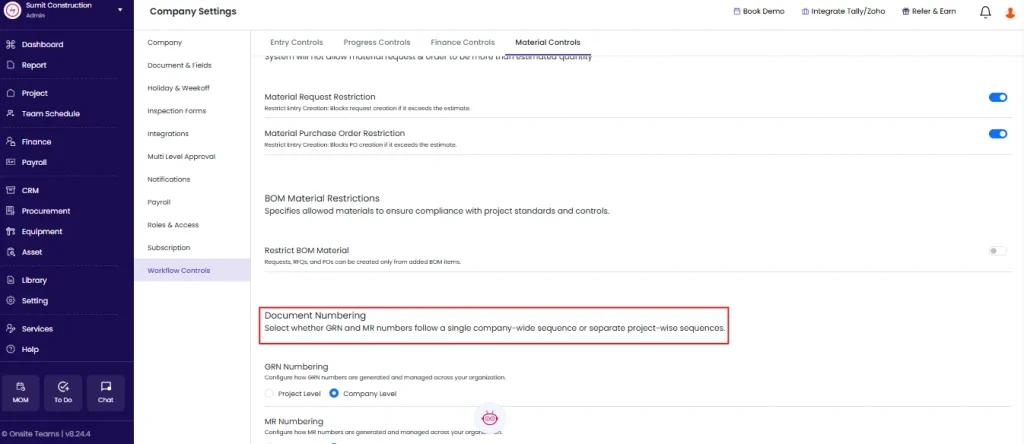
Select the option that matches your company’s document control requirements. The selection saves automatically.
Which option to choose:
Use Project Level if your team needs each project to have its own set of document numbers, for example when sharing GRN records with clients per project.
Use Company Level if your accounts or procurement team tracks all documents in a single register across projects and needs a unified running sequence.
Tips
- All stock restriction toggles are OFF by default. Enable them only when your team is ready and stock entries are consistently maintained.
- BOM restrictions only apply when BOMs are actively maintained and complete. Incomplete BOMs with restrictions enabled will block legitimate procurement.
- Company Level numbering gives one running sequence across all projects. Project Level resets the sequence for each new project.
- MR and PO restrictions both require a BOQ or estimate to exist in the project. Without one, these restrictions have no reference quantity to check against.
- If you are switching from manual procurement tracking to Onsite mid-project, set the starting GRN or MR number to continue from your last manually issued number. Contact your Admin to adjust this.
If Something Goes Wrong
| Problem | Likely Cause | What to Do |
|---|---|---|
| Cannot see Workflow Controls | Not an Admin | Ask your Admin to configure the settings or grant Admin access |
| Toggle not saving | Browser issue | Reload the page and toggle again |
| Materials still going negative after enabling restriction | App cache not refreshed | Reload the app completely and test again |
| Team cannot raise an MR even for a valid quantity | MR Restriction enabled but BOQ not set up | Either set up the BOQ for the project or turn OFF the MR Restriction |
| Team cannot raise a PO even when stock is needed | PO Restriction enabled, BOQ estimate exceeded | Review the BOQ estimate for that material or turn OFF the PO Restriction for that project |
| RFQ blocked for a material in the library | RFQ Restriction enabled, quantity exceeds estimate | Revise the BOQ estimate or turn OFF the RFQ Restriction |
| BOM restriction blocking materials the team needs | Restrict BOM Material is ON, material not in BOM | Add the material to the project BOM first, then proceed |