
How to Configure Decimal Settings
How to set the number of decimal places used for currency amounts and quantities across all documents in your company. This setting controls how numbers display on invoices, purchase orders, BOQs, material records, and reports throughout Onsite.
Before You Start
- You need Admin access
- Decide on your decimal preferences before the team starts creating documents. Changing this setting mid-project changes how new entries display but does not recalculate previously saved records.
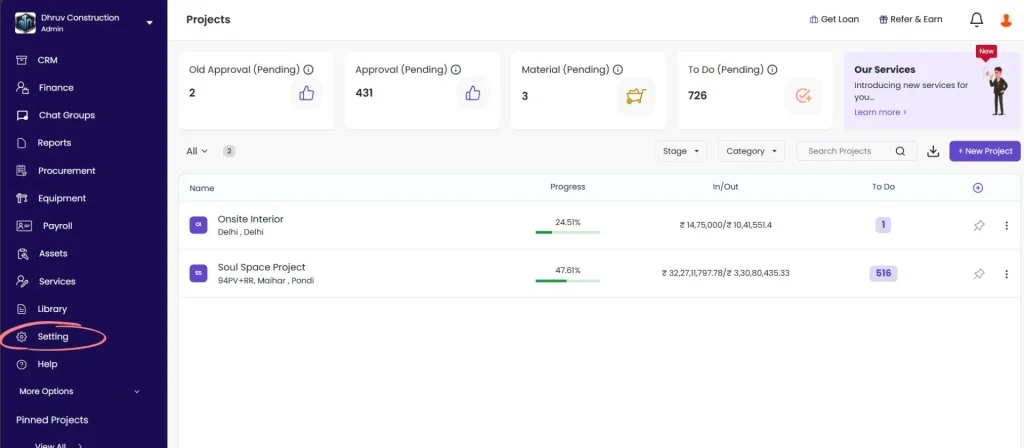
Step 1: Go to Settings
Click Settings in the left sidebar.
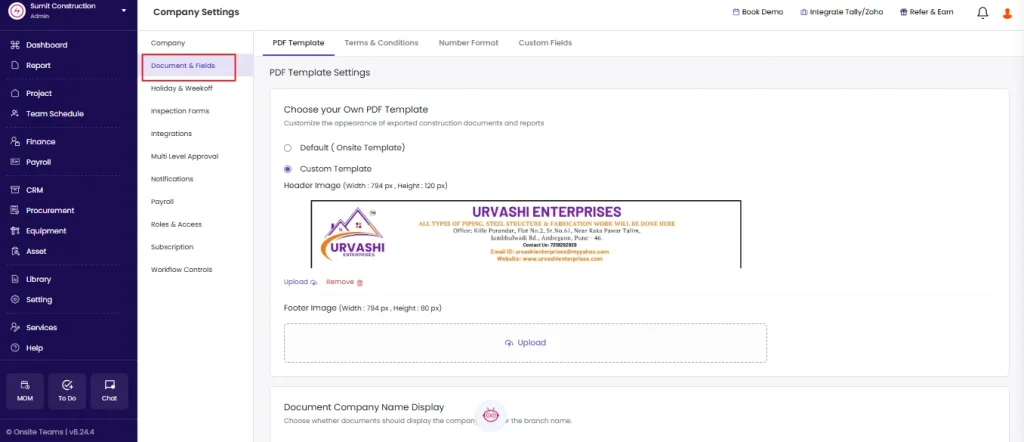
Step 2: Open Document & Fields
Click Document & Fields from the Settings menu.
Step 3: Select Number Format
Click Number Format within the Document & Fields menu.
Step 4: Set Currency Decimal Places
Under Number Format, find the Currency Decimal Places field.
This controls how many decimal places appear on all monetary amounts across the platform — invoices, purchase orders, expense entries, payment records, BOQ values, and financial reports.
| Value | How Amounts Display | When to Use |
|---|---|---|
| 0 | Rs 10,000 | When your company works in whole rupee amounts only |
| 2 | Rs 10,000.50 | Standard for most Indian businesses (default) |
| 3 | Rs 10,000.500 | When working with currencies or rates that require three decimal precision |
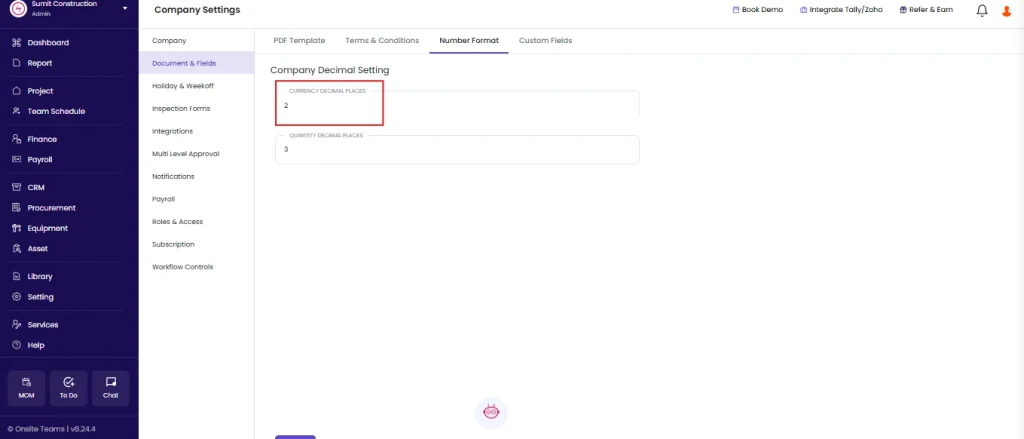
Click the field and enter your preferred value.
Step 5: Set Quantity Decimal Places
Find the Quantity Decimal Places field.
This controls how many decimal places appear for material quantities, measurements, and units across purchase orders, GRNs, BOQ quantities, material usage records, and inventory.
| Value | How Quantities Display | When to Use |
|---|---|---|
| 0 | 10 kg | When your team works only in whole unit quantities |
| 2 | 10.50 kg | For standard quantity precision |
| 3 | 10.500 kg | When materials are measured in precise fractions (default) |
| 4 | 10.5000 kg | For high-precision material tracking (lab, pharma, specialty work) |
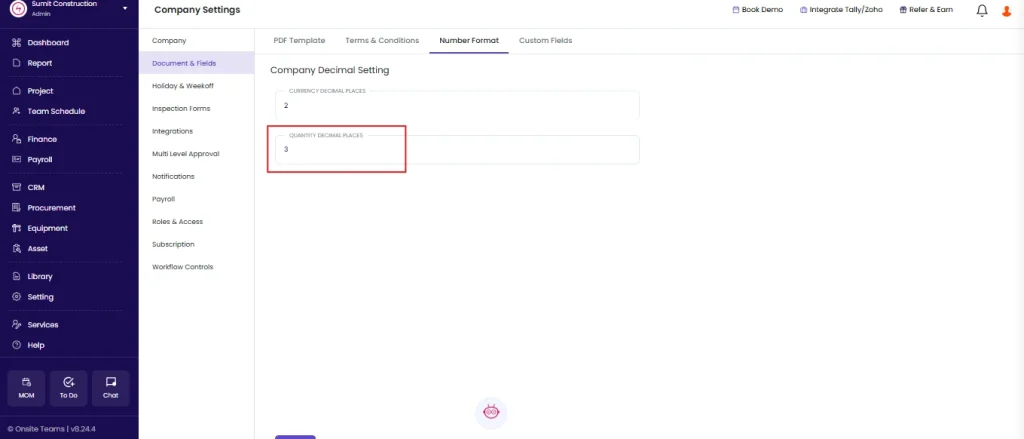
Click the field and enter your preferred value.
Step 6: Save
Click Save to apply both settings.
The changes take effect immediately across the platform. Reload the app if existing documents still show the old format.
How This Setting Affects Different Parts of Onsite
| Area | What Changes |
|---|---|
| Sales Invoices | Line item amounts and totals display with the new currency decimal places |
| Purchase Orders | Item unit rates, quantities, and totals reflect both settings |
| BOQ / Estimate | Item quantities use quantity decimal places; item rates and values use currency decimal places |
| Material Records | GRN quantities, material usage, and stock levels display with quantity decimal places |
| Expense and Payment entries | All amounts display with currency decimal places |
| Reports | All quantity and currency columns reflect the updated settings |
Tips
- Set decimal places before the team starts creating documents. Changing the setting later updates how new numbers display, but previously saved entries keep their original stored values. The display format updates but the underlying number does not change.
- For most Indian construction companies, the default settings work well: 2 decimal places for currency (matching standard rupee invoicing) and 3 for quantities (covering materials measured in kilograms, litres, or metres with fractional values).
- Infrastructure and road projects that track materials like bitumen or cement in tonnes often benefit from 3 quantity decimal places to correctly display values like 14.750 MT.
- Interior and fit-out companies using supply-and-install BOQs with per-sqft rates may find 2 currency decimal places sufficient since rates rarely go beyond paise.
- If your team reports that quantities are getting cut off or rounded unexpectedly on documents, increase the quantity decimal places by one and save.
If Something Goes Wrong
| Problem | Likely Cause | What to Do |
|---|---|---|
| Cannot see Number Format | Not an Admin | Ask your Admin to configure the settings or grant Admin access |
| Numbers still showing old decimal format after saving | App not refreshed | Reload the browser or mobile app fully after saving |
| Quantities showing as whole numbers despite setting decimals | Setting saved but cache not cleared | Log out and log back in, then check again |
| Invoice totals look different after changing decimal places | Display rounding changed | The stored value is unchanged. The visual rounding has updated to match the new setting. Verify with your accounts team if concerned. |
| Cannot enter more than a certain number of decimal places in a field | Field input cap | The field accepts up to the number set in Decimal Settings. If you need more precision, increase the setting and save first. |