
How to Configure Attendance Settings
How to configure company-level attendance settings in Onsite, including self-punch, AI face recognition, selfie verification, geo-location enforcement, site boundary radius, grace period, and shift configuration. These settings control how attendance is recorded for all workers across all projects.
Before You Start
- You need Admin access
- Decide with your site and HR team which verification methods your company needs before enabling them. Face recognition requires workers to have face photos uploaded in Payroll before they can punch.
- If you plan to use geo-location or site boundary, make sure each project has its location set correctly.
Step 1: Go to Settings
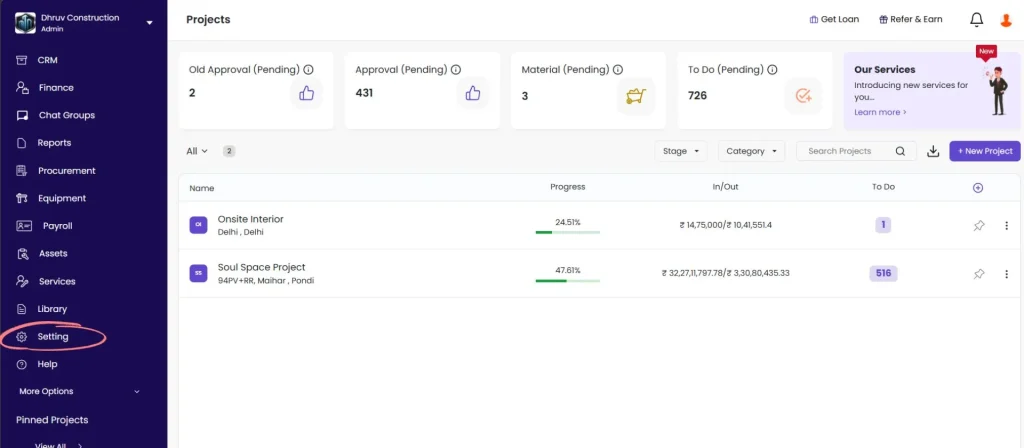
Click Settings in the left sidebar.
Step 2: Open Payroll
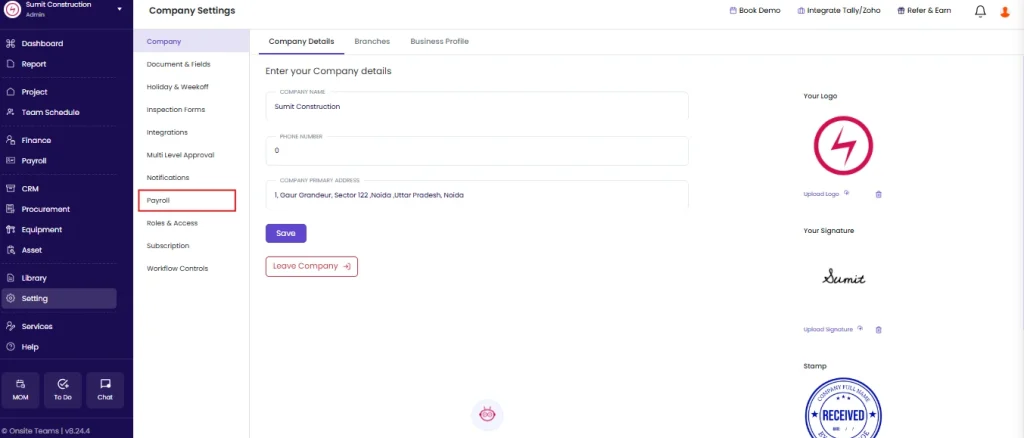
Click Payroll from the Settings menu.
Step 3: Open Punch Settings
Click on Punch Settings within the Payroll Menu.
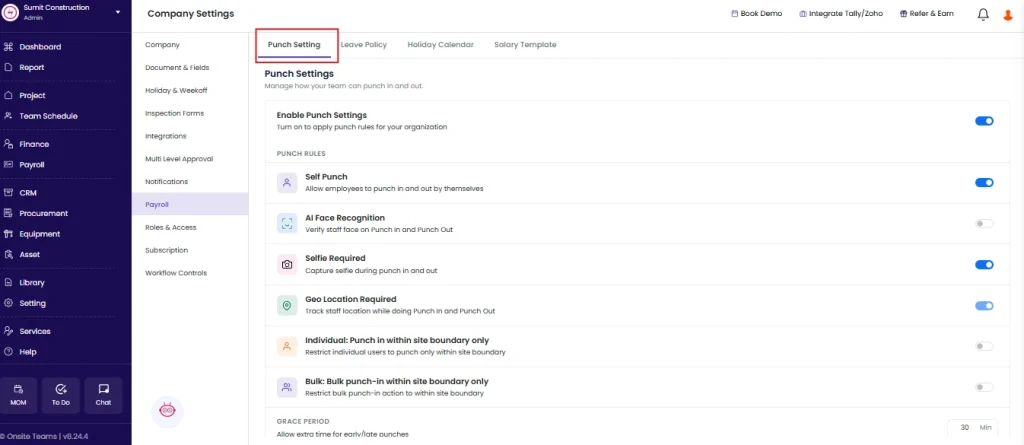
Under Punch Settings, the first toggle controls whether workers can mark their own attendance.
| Setting | What It Does |
|---|---|
| Self Punch | When ON, team members can punch in and out themselves using the Onsite mobile app. When OFF, only a supervisor or Admin can mark attendance on their behalf. |
Default: OFF
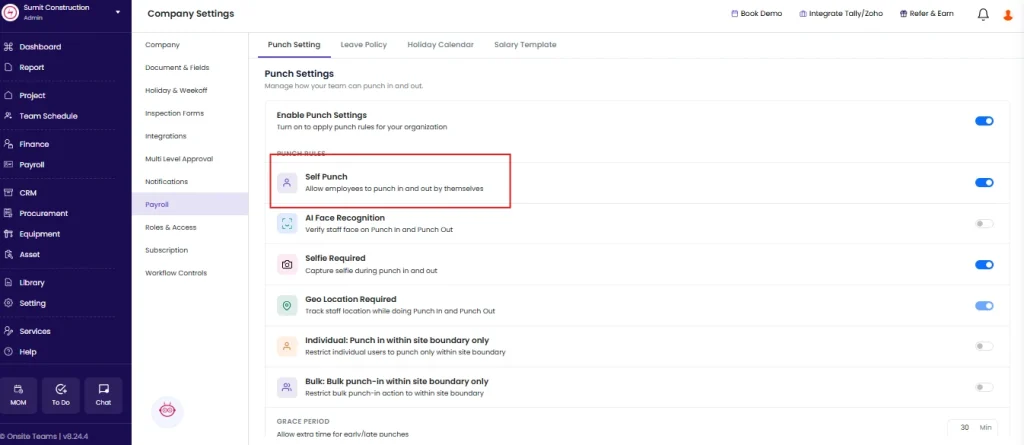
Enable Self Punch if you want workers to mark their own attendance directly from their phones. This is the recommended setting for companies using the Onsite mobile app for site attendance.
Step 4: Configure Face Verification
Control whether face recognition is required at the time of punching.
| Setting | What It Does |
|---|---|
| AI Face Recognition | Requires the app to verify the worker’s face using AI before the punch is recorded. The system matches the live camera image against the face photo uploaded in Payroll. |
| Selfie Required | Requires the worker to take a selfie at the time of punch, without running AI verification. The photo is saved as a record alongside the attendance entry. |
Default: Both OFF
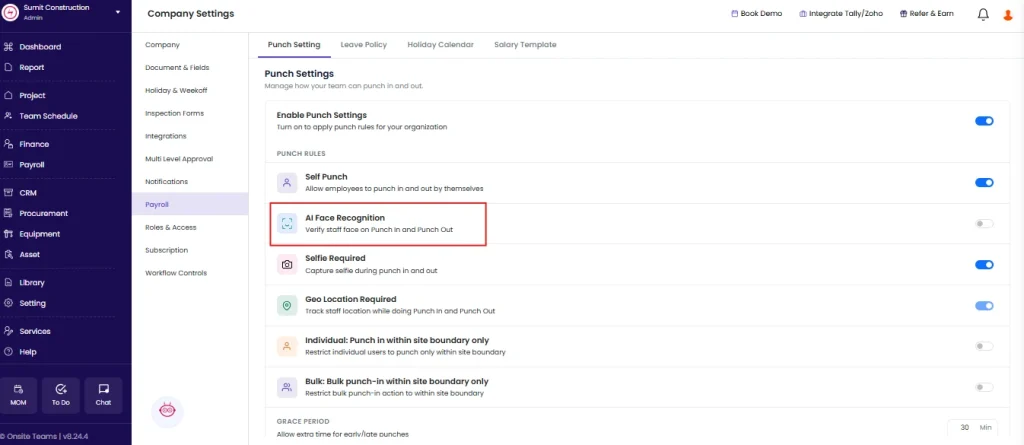
Use AI Face Recognition when you need identity verification to prevent proxy attendance. Use Selfie Required when you want a photo record of the punch without enforcing automated matching.
⚠️ AI Face Recognition will not work unless face photos are uploaded for each worker in Payroll People. Workers without uploaded photos will be blocked from punching. Upload at least one clear face photo per worker before enabling this setting.
💡 Upload face photos in different lighting conditions to improve recognition accuracy across different site environments.
Step 5: Configure Geo-Location and Site Boundary
Control whether workers must be physically on site to punch attendance.
| Setting | What It Does |
|---|---|
| Geo Location Required | When ON, the app captures the worker’s GPS coordinates at the time of punch. The punch is recorded along with the location. |
| Individual Site Boundary | Sets the maximum distance in meters from the project location within which a worker must be to punch individually. Workers outside this radius cannot punch. |
| Bulk Site Boundary | Sets the maximum distance in meters within which a supervisor must be to use the Bulk Punch feature. |
Default: All OFF
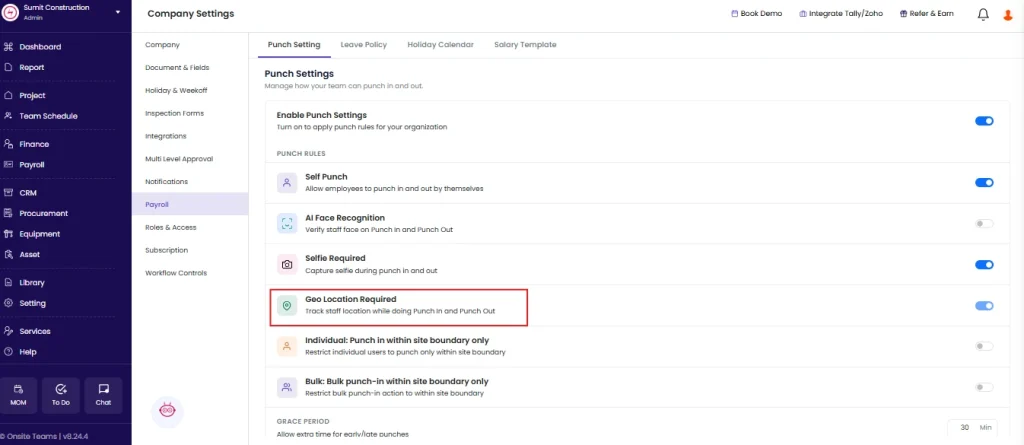
How to set the boundary radius
- Toggle Geo Location Required ON first
- Toggle Individual Site Boundary ON
- Enter the distance in meters (for example, enter 100 to require workers to be within 100 meters of the project location)
- Repeat for Bulk Site Boundary if supervisors use bulk punch
⚠️ Geo Location and Site Boundary enforcement only works correctly if the project location has been set on each project. If no project location is configured, the boundary check has no reference point and may not restrict correctly.
💡 A boundary of 50 to 150 meters works well for most construction sites. Set it tighter for enclosed sites (factories, interiors) and wider for large open sites (roads, infrastructure projects).
Step 6: Configure Grace Period
The grace period controls how many minutes after a shift starts a worker can punch in without being marked late.
| Field | What It Does |
|---|---|
| Grace Period (Min) | Number of minutes allowed after the shift start time before the system marks the worker as late. For example, a grace period of 15 means workers who punch in within 15 minutes of shift start are still counted as on time. |
Enter the number of minutes in the Grace Period field.
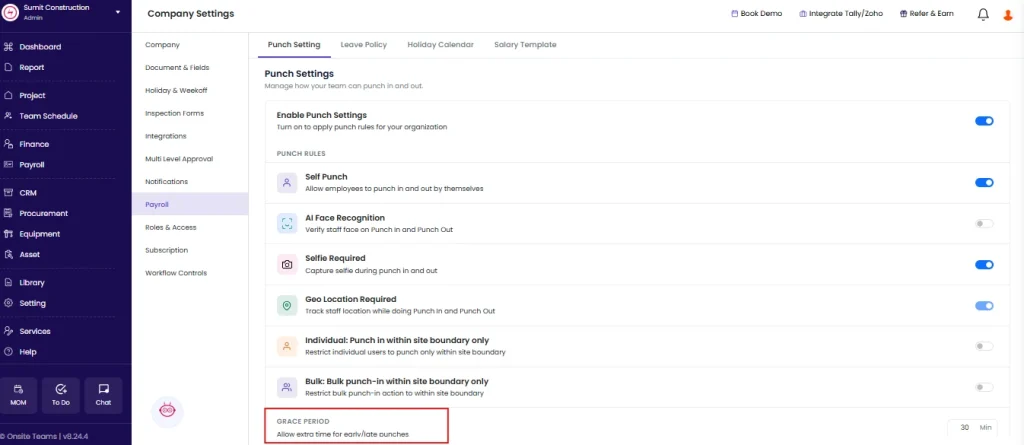
⚠️ Grace period only applies if shifts with a defined start time are configured for the team. If no shift start time is set, the grace period has no effect.
Step 7: Save
Click Save to apply all settings.
Toggle changes (face recognition, geo-location, self punch) save when you click Save. The settings apply to all new attendance entries from that point forward. Entries already recorded are not affected.
How These Settings Work Together
Different combinations of these settings support different attendance workflows. Use the table below to choose the right setup for your team.
| Scenario | Recommended Settings |
|---|---|
| Workers mark their own attendance, no verification | Self Punch ON. All other settings OFF. |
| Workers mark attendance with selfie photo record | Self Punch ON, Selfie Required ON |
| Workers mark attendance with identity verification | Self Punch ON, AI Face Recognition ON |
| Workers must be on site to punch | Self Punch ON, Geo Location Required ON, Individual Site Boundary set |
| Full control: face verified, on-site only, shift-based | Self Punch ON, AI Face Recognition ON, Geo Location ON, Individual Site Boundary set, Grace Period set |
| Supervisor marks attendance for all workers in bulk | Self Punch OFF, Bulk Site Boundary set if supervisor must also be on site |
Tips
- Enable Geo Location Required together with Individual Site Boundary for location enforcement to work. Geo Location alone captures the location but does not restrict where the punch can happen.
- AI Face Recognition and Selfie Required can be enabled together. In this case, the app runs AI verification and also saves the selfie photo.
- Grace Period applies per shift. If your team has multiple shifts with different start times, the grace period applies to all of them equally.
- Workers who share a phone to punch should use Bulk Punch under supervisor management rather than Self Punch to avoid identity issues.
- Test the settings with one or two workers before rolling out to the full team, especially when enabling face recognition or geo-location for the first time.
If Something Goes Wrong
| Problem | Likely Cause | What to Do |
|---|---|---|
| Cannot see Payroll Setting | Not an Admin | Ask your Admin to configure the settings or grant Admin access |
| Settings not saving | Browser issue | Refresh the page and click Save again |
| Face recognition not working for a worker | Face photo not uploaded | Go to Payroll People, open the worker’s profile, and upload at least one clear face photo |
| Workers punching from outside the site | Geo Location or Site Boundary not enabled | Enable Geo Location Required and set a value for Individual Site Boundary |
| Grace period not applying | Shifts not configured | Set up shifts with a defined start time for the team in Payroll |
| Worker blocked from punching due to radius | Worker is outside the set boundary | Either ask the worker to move closer to the site, or increase the boundary radius in Attendance Settings |
| Bulk punch not enforcing location | Bulk Site Boundary not set | Enter a value in the Bulk Site Boundary field and click Save |
| AI recognition failing frequently | Poor lighting or low-quality photos | Upload additional face photos in better lighting conditions via Payroll People |