
How to Configure Alert Settings
How to enable WhatsApp alerts for different events in Onsite and assign which roles receive each alert. Notification Settings control which team members get notified automatically when key actions happen across your projects, such as a material request being raised, a GRN recorded, or a task progress update submitted.
Before You Start
- You need Admin access
- Team members must have their correct WhatsApp number registered in their Onsite profile. Alerts are delivered to the WhatsApp number on file.
- Roles must be assigned to team members before alerts can reach them. A role with no users assigned will not deliver any alerts.
Step 1: Go to Settings
Click Settings in the left sidebar.
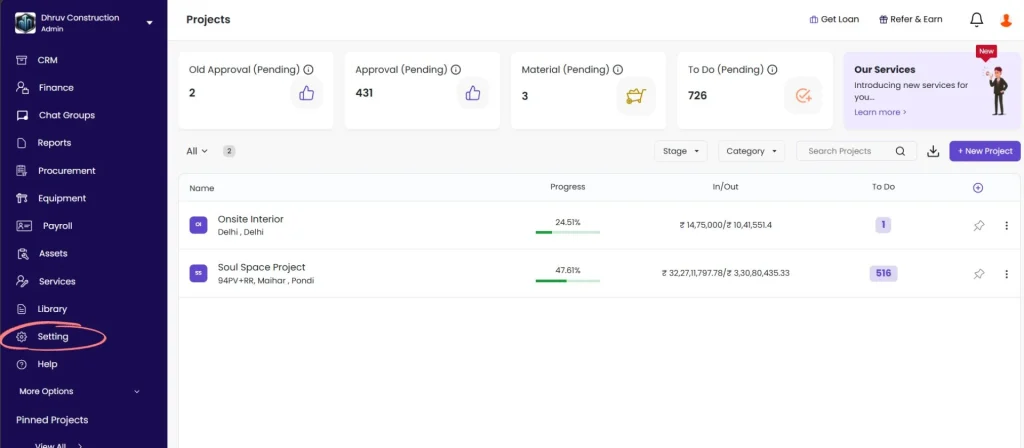
Step 2: Open Notifications
Click Notifications from the Settings menu.
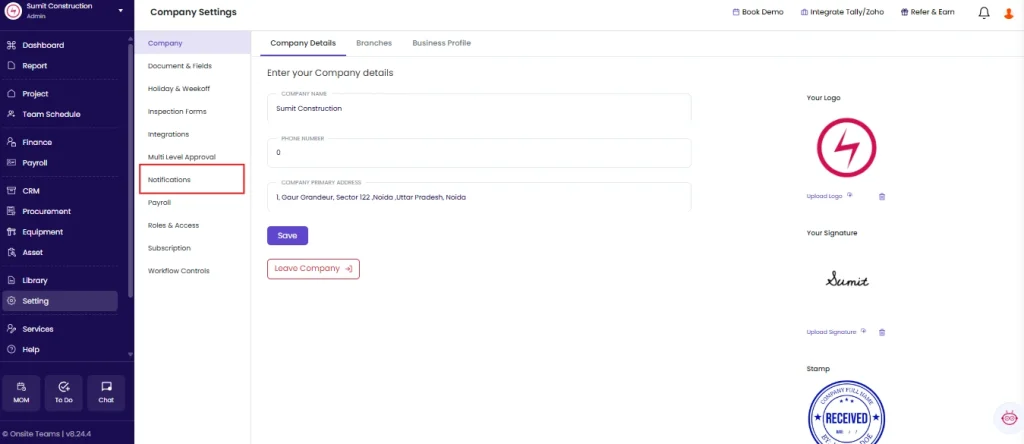
The Alert Preferences table appears, listing all available alert types.
Step 3: Enable an Alert
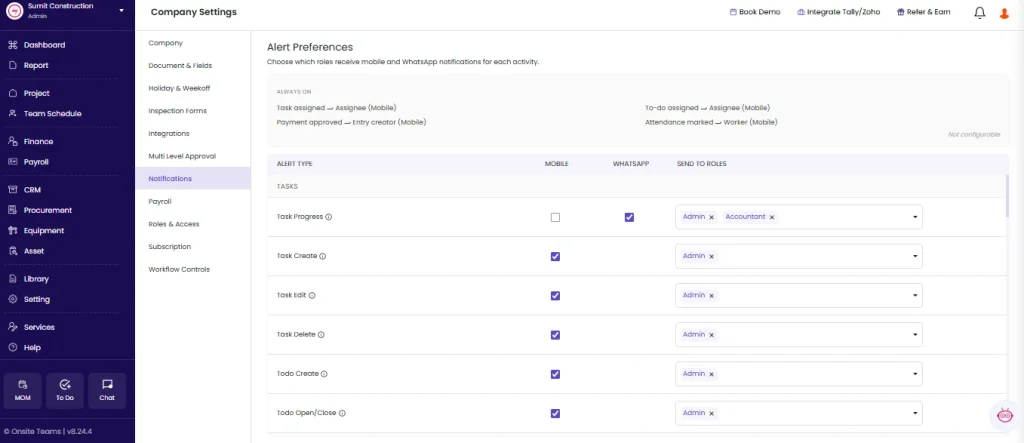
For each alert type you want to activate:
- Check the WhatsApp checkbox in that row to enable the alert
- Click the Roles dropdown in that row and select all roles that should receive this alert
- Click Save on that row
Repeat for each alert type you want to configure. Each row has its own Save button. Saving one row does not save changes to other rows.
💡 You can assign multiple roles to a single alert. For example, assign both Admin and Purchase Manager to the Material
Step 4: Review All Alert Types
The table below covers every alert available and when it fires.
| Alert Type | When It Triggers | Who Typically Receives It |
|---|---|---|
| Sales Invoice Due | When a sales invoice payment date is reached or past due | Admin, Accountant, Sales Manager |
| Material Received | When a GRN is created and material is recorded as received at site | Purchase Manager, Warehouse Manager, Admin |
| Task Progress | When a team member submits a task progress update | Project Manager, Senior Manager, Admin |
| Staff Punch In/Out | When a staff member punches in or punches out via the app | Admin, Supervisor, Associate HR |
| Material Request Raised | When a site team member submits a Material Request (MR) | Purchase Manager, Admin, Warehouse Manager |
| Material Shortage Alert | When available stock falls below the quantity required for an active task or request | Purchase Manager, Admin, Warehouse Manager |
Step 5: Assign the Right Roles
Click the Roles dropdown on each row to see all available roles. Select all roles that need to receive that alert.
Available roles in Onsite:
Admin, Accountant, Site Engineer, Senior Manager, Sales Manager, Project Partner, Data Entry Operator, Associate HR, Design Engineer, Purchase Manager, Warehouse Manager, Sub Contractor, Operator, Client, Manager, Supervisor, Viewer
Role assignment guidance:
| Alert Type | Avoid Assigning |
|---|---|
| Staff Punch In/Out | Sub Contractor, Client, Viewer — these roles do not need operational punch notifications |
| Material Shortage Alert | Client, Viewer — shortage alerts contain internal procurement data |
| Sales Invoice Due | Site Engineer, Supervisor, Operator — these roles do not handle billing |
| Task Progress | Warehouse Manager, Accountant — not directly relevant to task execution oversight |
Keep role assignments targeted. Assigning too many roles to every alert leads to notification fatigue and important alerts being ignored.
Tips
- Each row has its own Save button. If you configure multiple alerts in one session, save each row before moving to the next.
- Alerts are sent via WhatsApp only. There is no in-app notification or email option for these alerts at this time.
- Only roles with active users assigned will receive alerts. Assigning a role that has no users in your company does nothing.
- To stop a specific role from receiving an alert, click the Roles dropdown on that row, deselect the role, and click Save.
- To disable an alert entirely, uncheck the WhatsApp checkbox on that row and click Save.
- The Staff Punch In/Out alert can generate a high volume of messages on large teams. Assign it only to roles that need real-time attendance visibility, such as Admin or HR.
- Material Shortage Alerts are most useful when the team actively maintains stock levels in Onsite. If stock entries are not consistently recorded, this alert may not fire accurately.
If Something Goes Wrong
| Problem | Likely Cause | What to Do |
|---|---|---|
| Cannot see Notification Setting | Not an Admin | Ask your Admin to configure alerts or grant Admin access |
| Alert enabled but no one is receiving it | Role not saved or no users in that role | Re-open the row, confirm the role is selected, click Save, and verify users are assigned to that role |
| WhatsApp message not received by a specific person | Incorrect WhatsApp number on their profile | Go to that team member’s profile and update their WhatsApp number |
| Alert fires but wrong people are receiving it | Too many roles assigned | Edit the Roles dropdown on that alert row, deselect unnecessary roles, and click Save |
| Cannot save a row | Browser issue | Refresh the page, re-enter the role selection, and click Save again |
| Material Shortage Alert not firing | Stock entries not maintained | Ensure the team is recording material usage and GRNs consistently so stock levels are accurate |
| Punch In/Out alert flooding WhatsApp | Too many roles assigned | Limit this alert to Admin or HR only and remove other roles |