
How to Add Terms and Conditions
How to add default terms and conditions for five document types in Onsite: Sales Invoices, Quotations, Subcontractor Work Orders, BOQ Estimates, and Purchase Orders. Terms entered here appear automatically on each new document of the corresponding type, so your team does not need to type them manually every time.
Before You Start
- You need Admin access
- Draft your terms for each document type before starting. See the sample terms in Step 3 below if you need a starting point.
How Terms and Conditions Work in Onsite
Terms entered in Settings appear as the default text on all new documents of that type. They are not locked. The person creating the document can edit or replace the terms on individual documents before saving.
This means:
- Your standard terms appear pre-filled on every new document, saving time
- The team can adjust terms for a specific client or project directly on the document
- Changing the default in Settings does not update terms on documents already created
How Terms and Conditions Work in Onsite
Step 1: Go to Settings
Click Settings in the left sidebar.
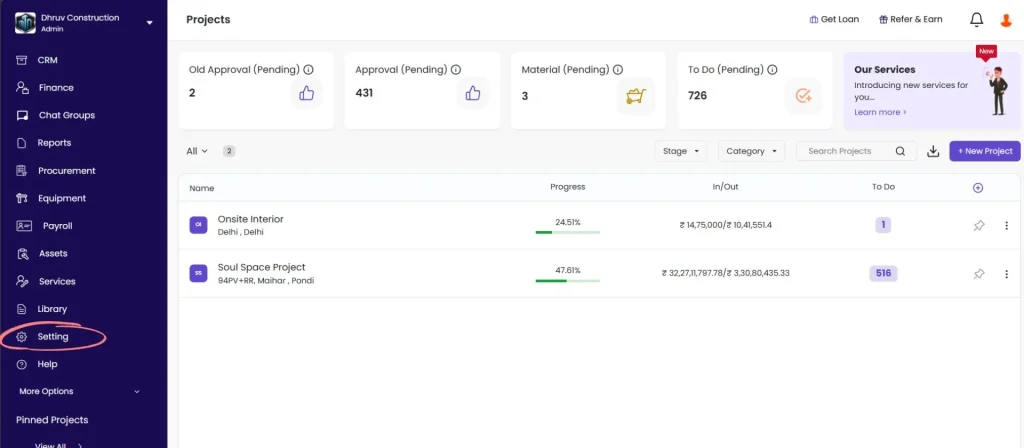
Step 2: Open Document & Fields
Click Document & Fields from the Settings menu.
Select Terms & Conditions
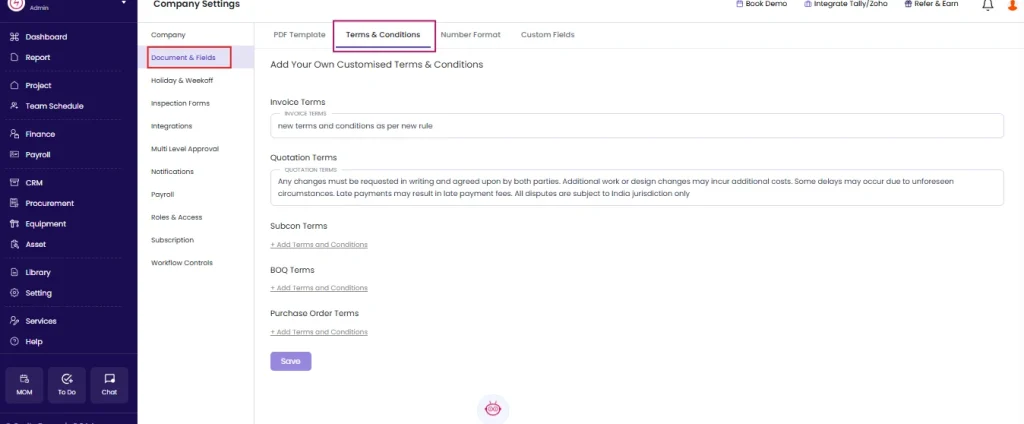
The page shows five text areas, one for each document type.
Step 3: Enter Terms for Each Document Type
Click the Add Description field under the document type you want to update and type your terms.
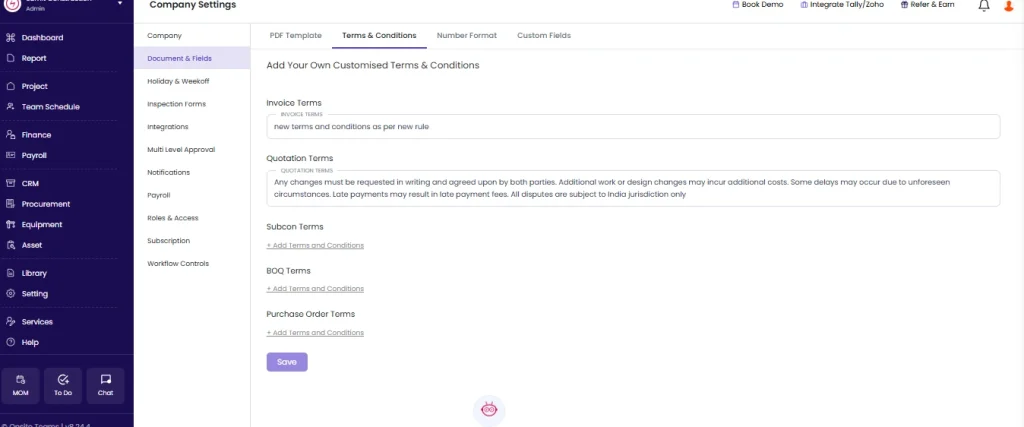
Repeat for each document type you want to configure. You can update all five before clicking Save.
Document types and where the terms appear
| Document Type | Where Terms Appear |
|---|---|
| Invoice Terms | Bottom section of the Sales Invoice PDF, visible to the client |
| Quotation Terms | Terms and Conditions section at the bottom of the CRM Quotation |
| Subcon Terms | Terms section of the Subcontractor Work Order |
| BOQ Terms | Terms section of the BOQ or Project Estimate document |
| Purchase Order Terms | Terms section of the Purchase Order PDF sent to the vendor |
Sample Terms by Document Type
Use these as a starting point and adjust to match your company’s standard terms.
Invoice Terms (for clients)
1. Payment is due within 30 days of invoice date.
2. Late payments are subject to interest at 18% per annum.
3. All disputes must be raised within 7 days of invoice receipt.
4. This invoice is subject to applicable GST as per Government regulations.
5. Payment to be made via NEFT/RTGS to the bank account mentioned above.
Quotation Terms (for clients)
1. This quotation is valid for 30 days from the date of issue.
2. Prices are subject to change based on material cost fluctuations.
3. GST and other applicable taxes are not included unless stated.
4. Work will commence within 15 days of receipt of advance payment.
5. Any scope changes will be quoted separately.
Purchase Order Terms (for vendors)
1. Delivery must be completed by the date mentioned in this PO.
2. Materials must conform to the specifications listed.
3. Payment will be processed within 15 days of GRN confirmation.
4. Any shortage or damage at delivery must be reported immediately.
5. Partial deliveries must be communicated in advance.
Subcontractor Work Order Terms
1. Work must be completed as per the scope and drawings provided.
2. All safety norms as per site standards must be followed.
3. Any variation in scope must be approved in writing before execution.
4. Payment will be released against certified work measurements only.
5. Retention of [X]% will be held until defect liability period ends.
BOQ Terms
1. Quantities are indicative and subject to site measurement.
2. Rates are valid for the duration of the project unless revised.
3. Any additional items outside this BOQ require separate approval.
4. Measurements will be taken jointly and signed by both parties.
💡 Keep terms concise. Most construction clients and vendors read terms on printed PDFs. Long blocks of dense text are often skipped. Use numbered points, keep sentences short, and include only clauses that are genuinely enforced.
Step 4: Save
Click Save to apply all terms.
Terms take effect on all new documents created after saving. Existing documents are not updated.
How to Edit Terms on an Individual Document
If you need different terms for a specific client, project, or transaction, you can edit the terms directly on that document when creating or editing it.
On a Sales Invoice: Open the invoice, click Edit, scroll to the Terms and Conditions field, and update the text. Click Save.
On a Quotation: Open the quotation in CRM, scroll to the Terms and Conditions section at the bottom, and edit directly.
On a Purchase Order: Open the PO, click Edit, update the Payment Terms or Terms field, and save.
Editing terms on an individual document does not change the default set in Settings.
How to Update the Default Terms
To change the default terms that appear on all future documents:
- Go to Setting, then click Document & Fields, select Terms and Conditions
- Update the text in the relevant field
- Click Save
The new default applies to all documents created after saving. Documents already created keep their existing terms.
Tips
- Leave a document type’s text area blank if you do not want any default terms on that document type. A blank field means no terms will pre-fill.
- You can update all five document types in one session before clicking Save. One Save button applies all changes together.
- Terms set here are defaults only. The team can always edit terms on individual documents before saving them.
- For Purchase Orders, consider including delivery timelines and payment terms as these are the most frequently referenced clauses in vendor disputes.
- For Subcontractor Work Orders, always include a retention clause if your company holds retention. The percentage can be updated per document, but the clause should be in the default.
- Terms entered here are plain text only. Formatting such as bold or bullet points is not supported. Use numbered points for readability.
If Something Goes Wrong
| Problem | Likely Cause | What to Do |
|---|---|---|
| Cannot see Document & Fields option | Not an Admin | Ask your Admin to configure the terms or grant Admin access |
| Terms not appearing on new documents | Setting not saved | Return to Terms and Conditions, confirm the text is in the field, and click Save |
| Terms not showing on existing documents | Terms apply to new documents only | Existing documents are not updated. Edit the terms on that document directly, or re-issue the document. |
| Terms showing on all documents but one type is blank | That document type’s field was left empty in Settings | Go to Terms and Conditions, add text for that document type, and click Save |
| Terms appear on screen but not on printed PDF | PDF template does not render terms | Check that the correct PDF template is selected in Settings. If using Custom Template, confirm the header and footer do not push the terms section off the page. |
| Terms were changed in Settings but old terms still appear on new documents | App cache not refreshed | Reload the page fully after saving. Then create a new document to confirm the updated terms appear. |