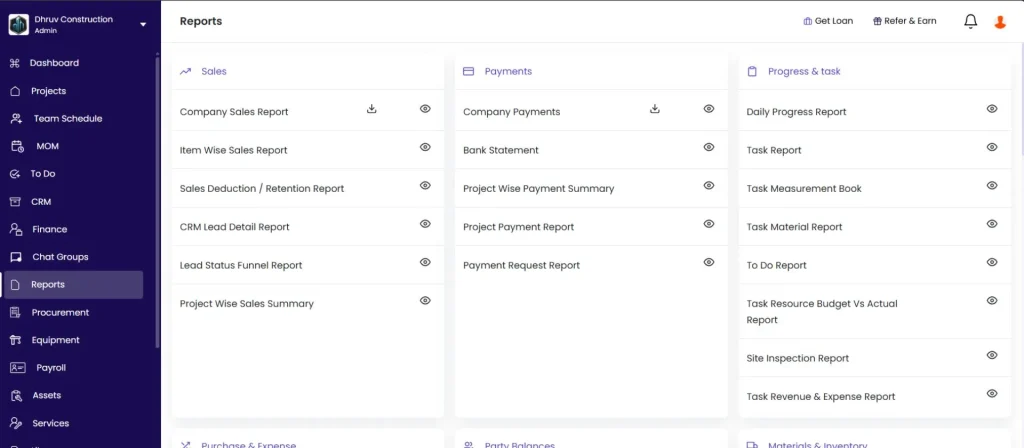
An overview of the Reports section in Onsite — what reports are available, how to open and filter them, how to download them, and which article covers each category in detail.
Before You Start
You need at minimum a role with Report access enabled. Admins and Senior Managers can see all reports by default.
Some reports (Salary, Payroll) require Payroll data to be set up first. Others (Materials, PO) require data to be recorded in the respective modules.
How to Open Reports
Click Reports in the left sidebar.
The Reports page shows all 16 categories at a glance. Each category displays its individual report names.
How to Open and Filter a Report
Each report has two icons:
Icon
What It Does
Settings (gear) icon
Opens the report in full view with all filters available. Use this when you want to apply date ranges, project filters, or party filters before downloading.
Download icon
Downloads the report immediately with default filters, without opening the full view. Use this for quick exports when no custom filtering is needed.
Common filters available inside most reports:
Filter
What It Does
Date Range
Limit the report to a specific period
Project
Show data from one project or all projects
Party
Filter by a specific vendor, client, or subcontractor
Status
Filter by Paid, Unpaid, or Partially Paid where applicable
After applying filters, click Download PDF or Download Excel inside the report view.
All Report Categories
Sales
Report
What It Shows
Company Sales Report
All sales invoices across all projects
Item Wise Sales Report
Sales broken down by line item
Deduction and Retention
Deductions and retention amounts across all invoices
CRM Lead Detail Report
Detailed CRM lead data
Lead Status Report
Status-wise summary of CRM leads
Project Wise Sales Summary
Sales totals per project
For detailed guidance see: How to Use Sales Reports in Onsite.
Payments
Report
What It Shows
Company Payments
All payment transactions across the company
Bank Statement
Bank-wise transaction log
Project Wise Payment Summary
Payment totals per project
Project Payment Report
Detailed payment entries per project
Payment Request Report
Status of all payment requests across projects
For detailed guidance see: How to Use Payment Reports in Onsite.
Progress and Task
Report
What It Shows
Daily Progress Report (DPR)
Work summary, labour, materials, equipment, and site photos for a date range
Task Report
Task-wise progress summary across projects
Task Measurement Book
Measurement entries recorded against tasks
Task Material Report
Materials allocated and used against tasks
To Do Report
To Do items and their status across projects
Task Resource Budget vs Actual
Planned vs actual resource usage per task
Site Inspection Report
Inspection findings across projects
For detailed guidance see: How to Use Progress and Task Reports in Onsite and Daily Progress Report (DPR) in Onsite.
Purchase and Expense
Report
What It Shows
Company Expense Report
All expenses across the company
Cost Code Wise Expense Analysis
Expenses broken down by cost code category
Project Wise Expense Summary
Expense totals per project
For detailed guidance see: How to Use Purchase and Expense Reports in Onsite.
Party Balances
Report
What It Shows
Party Ledger
Full transaction history for a single party
All Party Balances
Outstanding balances across all parties
Project Level Party Balance Report
Party balances per project
For detailed guidance see: How to Use Party Balance Reports in Onsite.
Materials and Inventory
Report
What It Shows
Material Request Item Report
All material requests by item across projects
Material Received and Used Report
GRN vs consumption summary
Material Stock Report
Current stock levels across projects
Unbilled Item Report
Materials received but not yet invoiced
PO Summary Report
Purchase order summary
Material Received without PO
GRNs raised without a linked PO
Purchase Order Item Report
Item-wise PO details
Production Material Report
Materials used in production
Material Purchase Item Report
Purchase details by material item
For detailed guidance see: How to Use Materials and Inventory Reports in Onsite.
Attendance and Salary
Report
What It Shows
Attendance and Salary Report
Combined attendance and salary data
OT and Shift Report
Overtime and shift details
Company Attendance
Company-wide attendance summary
Staff Monthly Salary Slip
Salary slips for individual staff members
Staff Salary Report
Salary details per staff member
Staff Punch Report
Punch-in and punch-out log
Staff Muster Roll
Muster roll across projects
For detailed guidance see: How to Use Attendance and Salary Reports in Onsite.
Equipment
Report
What It Shows
Equipment Usage Detail Report
Detailed equipment usage log
Fuel Efficiency Report
Fuel consumption per equipment item
Daily Based Equipment Used Report
Day-wise equipment usage
For detailed guidance see: Equipment Expense Summary Report.
Asset
Report
What It Shows
Asset Allocation Report
Which assets are assigned where across the company
Asset Status Report
Current status of all assets
Tax
Report
What It Shows
Sales — GSTR-1
GST output tax report for all sales invoices
Purchase — GSTR-2
GST input tax report for all purchase invoices
Warehouse
Report
What It Shows
Warehouse Stock Report
Current stock in each warehouse
Warehouse Transaction Report
All transactions in and out of warehouses
Warehouse Current Stock
Real-time stock snapshot across all warehouses
Subcontractor
Report
What It Shows
Subcon Workorder Summary Report
Summary of all subcontractor work orders
Subcon Measurement Book
Measurement book for subcontractor work
Deduction and Retention for Subcon
Deductions and retention held against subcontractors
Subcon Material Issue Summary
Materials issued to subcontractors
Miscellaneous
Report
What It Shows
Project Financial Summary
Overall financial summary per project (revenue, expense, margin)
Project Operational Summary
Operational metrics per project
Company Transactions Report
All financial transactions company-wide
PnL Report
Profit and Loss summary across the company
Project Activity Leaderboard
Activity ranking across projects
Company User Activity Leaderboard
User activity ranking across the team
Library
Downloadable exports of all library data: Party Library, Cost Code Library, Material Library, Asset Library, Rate Card Library, Payroll Library, and Equipment Library.
BOQ
Report
What It Shows
BOQ
Full BOQ document for a project
BOQ Item Report
Item-wise BOQ data across projects
Quotation Report
All CRM quotations
Quotation Item Report
Item-wise quotation breakdown
Budget
Report
What It Shows
Bill of Material (BOM)
Material list with quantities from the project BOQ
Budget vs Actual — Material Cost
Planned material cost vs actual recorded cost
Budget vs Actual — Material Qty
Planned material quantities vs actual quantities used
Tips
Use the Settings icon when you need to filter by date, project, or party before downloading. Use the Download icon when you want the full report quickly with default filters.
Most reports default to the last 30 days. Always check the date range filter when the report opens to ensure it covers the period you need.
The Party Ledger report is the fastest way to get a full transaction history for any vendor or client. Filter by party name and set the date range to cover the full project duration.
The PnL Report and Project Financial Summary are the best starting points for a management review meeting. Both give a quick revenue vs expense overview across all projects.
The Unbilled Item Report in Materials and Inventory identifies GRNs with no matching purchase invoice. Run this weekly to keep accounts payable accurate.
The Cost Code Wise Expense Analysis is the most useful report for overhead tracking when expenses are recorded with consistent cost codes.
Library reports (Material Library, Party Library, etc.) are useful for auditing master data — checking for duplicates or inconsistencies before a bulk upload.
If Something Goes Wrong
Problem
Likely Cause
What to Do
Cannot see the Reports section
Role does not have Report access
Ask Admin to check your role permissions and enable Download Reports
Report shows no data
Date range filter set incorrectly, or no data recorded for the selected period
Open the report via the Settings icon and adjust the date range
Report shows data from all projects but only one is needed
Project filter not applied
Open via the Settings icon, apply the Project filter, then download
Cannot download as Excel for a specific report
That report only supports PDF format
Check the download options inside the report. Not all reports support both formats.
Salary or attendance data missing from reports
Payroll not set up or attendance not recorded
Set up Payroll first and ensure attendance is being marked consistently
GSTR-1 report showing incorrect GST totals
Invoices created without correct GST percentage
Review invoices for the period and correct GST rates where needed