
How to Use Sales Reports in Onsite
Before You Start
- Sales invoices must be created before the sales reports show data
- CRM leads must be added before the CRM reports show data
- You need a role with Download Reports permission to access these reports
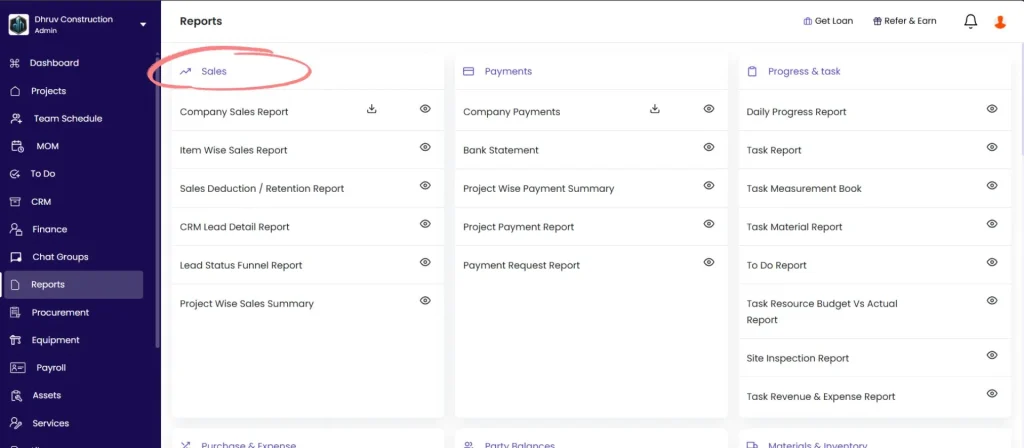
How to Open Sales Reports
- Click Reports in the left sidebar
- Scroll to the Sales section
- Click the gear icon next to the report to open with full filters
- Click the download icon to download directly with default settings
The Company Sales Report also has a direct download icon on the Reports page for quick export without opening.
Report 1 — Company Sales Report
Shows all sales invoices across all projects in one view.
Filters:
| Filter | What It Does |
|---|---|
| Client Name | Filter by a specific client |
| Project Name | Filter to one project or show all |
| Invoice Date | Set a date range |
| Sale Type | Filter by invoice type (Sales Invoice or Material Sales) |
| Creator Name | Filter by the person who created the invoice |
Columns:
| Column | What It Shows |
|---|---|
| Invoice Date | Date the invoice was created |
| Sale Type | Sales Invoice or Material Sales |
| Client Name | Client the invoice is for |
| Project Name | Project the invoice is linked to |
| Invoice Number | Invoice reference number (e.g. INV-25-001) |
| Total Amount | Gross invoice amount before retention and deductions |
| Retention Amount | Amount withheld as retention on this invoice |
| Post Tax Deduction | Deductions applied after tax (TDS, advance recovery, etc.) |
| Net Amount | Total Amount minus Retention minus Post Tax Deduction — the amount actually payable by the client |
| Due Date | Payment due date |
| Payment Received | Total amount received from the client against this invoice |
| Balance Due | Net Amount minus Payment Received — the outstanding receivable |
| Payment Status | Paid, Partially Paid, or Unpaid |
| Notes | Notes added to the invoice |
| Creator Name | Person who created the invoice |
💡 Balance Due is the most important column for accounts receivable tracking. Filter by Payment Status = Unpaid or Partially Paid to see all invoices with outstanding amounts. Sort by Due Date ascending to prioritise the oldest overdue invoices.
Best used for: Accounts receivable review, generating a client-wise outstanding invoice list, or preparing a collection summary for management.
Report 2 — Item Wise Sales Report
Shows sales broken down by individual line item across all invoices.
Filters:
| Filter | What It Does |
|---|---|
| Project Name | Filter to one project |
| Client Name | Filter by a specific client |
| Invoice Date | Set a date range |
| Item Name | Filter by a specific BOQ item or line item name |
| Sales Type | Sales Invoice or Material Sales |
Columns:
| Column | What It Shows |
|---|---|
| Sales Type | Type of invoice |
| Project Name | Project |
| Client Name | Client |
| Invoice Number | Invoice reference |
| Invoice Date | Date of the invoice |
| Item Name | Name of the line item |
| Unit | Unit of measurement |
| Quantity | Quantity billed on this invoice for this item |
| Item Rate | Rate per unit |
| Tax % | Tax rate applied to this item |
| Tax Amount | Tax amount for this line |
| Gross Amount | Quantity multiplied by Item Rate before tax |
| Total Amount | Gross Amount plus Tax Amount |
| Invoice Created Date | Date the invoice was created in the system |
Best used for: Reviewing billing history for a specific BOQ item across multiple invoices, or verifying that the correct quantities and rates have been applied to each line item.
Report 3 — Deduction and Retention (Sales)
Shows all deduction and retention entries linked to sales invoices.
Filters:
| Filter | What It Does |
|---|---|
| Item Name | Filter by a specific deduction or retention type name |
| Party Name | Filter by a specific client |
| Invoice Number | Filter by a specific invoice |
| Project Name | Filter to one project |
| Type | Deduction or Retention |
Columns:
| Column | What It Shows |
|---|---|
| Item Name | Name of the deduction or retention type (e.g. TDS 2%, Retention 5%) |
| Amount | Amount deducted or withheld |
| Project Name | Project the invoice is for |
| Party Name | Client the invoice is for |
| Invoice Number | Invoice the deduction or retention is linked to |
| Creator Name | Person who created the invoice |
| Type | Deduction or Retention |
| Entry Creation Date | Date the invoice was created |
| Due Date | Due date of the retention (applicable for Retention entries) |
💡 Filter by Type = Retention and Due Date (set to past dates) to see all retention entries whose release date has already passed. These are retention amounts that should now be collected from the client.
Best used for: Tracking all TDS deductions made by clients across invoices for TDS filing purposes, or monitoring retention balances and their release due dates
Report 4 — CRM Lead Detail Report
Shows a detailed list of all CRM leads with contact information and status.
Columns:
| Column | What It Shows |
|---|---|
| Lead Date | Date the lead was created |
| Lead Name | Name of the lead or project opportunity |
| Contact Name | Primary contact person |
| Contact No. | Contact phone number |
| Lead Status | Current stage (e.g. New Lead, Follow-Up, Proposal, Won, Lost) |
| Lead Priority | Priority level assigned to the lead |
| Lead Source | Where the lead came from (e.g. Reference, Website, Cold Call) |
| Contact email address |
Best used for: Exporting the full lead list for a CRM review meeting, or sharing lead data with the sales team for follow-up planning.
Report 5 — Lead Status Report
Shows a visual funnel chart of leads grouped by stage.
Filter: Lead Date (set a date range).
The report shows each stage of the lead pipeline with the count of leads at each stage and the percentage of the total. Stages include: New Lead, Follow-Up, and any other stages configured in your CRM.
Click Insights to generate an AI-powered analysis of the pipeline. The Insights summary highlights which stages have the highest lead counts, where leads are dropping off, and the overall conversion rate for the selected period.
Best used for: Sales pipeline reviews and identifying which stage of the funnel is losing the most leads before conversion.
Report 6 — Project Wise Sales Summary
Shows a summary of sales figures grouped by project.
Filter: Project Name.
Columns:
| Column | What It Shows |
|---|---|
| Project Name | Project |
| No. of Invoices | Total number of invoices raised |
| Total Sales | Gross invoice value across all invoices |
| Retention Amount | Total retention withheld across all invoices |
| Post Tax Deduction | Total deductions applied after tax |
| Net Amount | Total Sales minus Retention minus Post Tax Deduction |
| Payment Received | Total amount received from the client |
| Balance Due | Net Amount minus Payment Received — the total outstanding receivable for this project |
A Grand Summary row at the bottom totals all projects.
Best used for: Management-level sales review across all projects, or comparing revenue and outstanding balances project by project at a glance.
How to Export Any Report
All reports in Onsite support exporting as CSV, Excel, PDF, or HTML. These export options are available inside every report view.
Export as CSV or Excel
Click the Export icon inside the report and select Export as CSV or Export as Excel. The file downloads immediately with no configuration needed.
Export as PDF
- Click the Export icon and select Export as PDF
- A configuration panel opens:
| Setting | What to Configure |
|---|---|
| File Name | Pre-filled with the report name. Edit if needed. |
| Language | Default: English |
| Title position | At Top or At Bottom of each page |
| Description position | At Top or At Bottom |
| Column Width Ratio | Auto adjust (default) or set manually |
| Column Header | Include or exclude column headers on each page |
| User Filter Criteria | Include the filters applied so the reader can see what was filtered |
| Row Numbers | Include or exclude row numbers |
| Select Columns | Choose which columns to include in the PDF |
- Expand PDF Settings to configure:
| Setting | Options |
|---|---|
| Paper Size | A4, Letter, etc. |
| Margins | Default 0.25 inches |
| Header | Title on the left, Date and Time on the right |
| Footer | Page number centred |
| Password | Optional. Set a password to protect the PDF. |
- Click Export
💡 Enable User Filter Criteria when sharing a filtered report with a client or management. This prints the active filters at the top of the PDF so the reader knows what date range or project the report covers.
Other Report Actions
| Action | What It Does |
|---|---|
| Refresh | Reload the report with the latest data |
| Filter | Add or change filter conditions on any column |
| Sort | Sort any column ascending or descending |
| More | Show or hide columns, freeze a column, or open in spreadsheet view |
| Search Data | Search within the current report results |
Tips
- Use Company Sales Report with Payment Status = Unpaid or Partially Paid to generate your full accounts receivable list. Sort by Due Date to prioritise the oldest overdue invoices.
- Use Project Wise Sales Summary for a quick management overview of revenue and outstanding balances across all projects. The Grand Summary row gives company-wide totals instantly.
- Use Item Wise Sales Report when a client queries a specific line item on their invoice. Filter by Invoice Number to see exactly what was billed.
- Use Deduction and Retention with Type = Retention and a past Due Date to identify retention amounts that are now due for collection.
- When exporting a report for a client or auditor, enable User Filter Criteria in the PDF settings so they can see which date range or project the report covers.
- The Lead Status Report Insights feature is most useful after at least one full month of lead data is available. Running it on fewer than two weeks of data produces limited observations.
If Something Goes Wrong
| Problem | Likely Cause | What to Do |
|---|---|---|
| Company Sales Report shows no data | No invoices created or date range filter too narrow | Check the date range and confirm invoices exist in the project’s Transaction or Estimate tab |
| Balance Due showing for a fully paid invoice | Payment not settled against the invoice | Open the payment record, click Edit Settlement, link it to the invoice, and save |
| Deduction and Retention report is empty | No deductions or retention applied on any invoices | Apply deductions or retention when creating sales invoices |
| CRM Lead Detail Report showing no leads | No leads added in CRM | Add leads in the CRM module under the Sales section |
| PDF export missing some columns | Columns deselected in the PDF configuration | Re-open the PDF export panel and ensure all required columns are checked under Select Columns |
| Cannot access the reports | Role does not have Download Reports permission | Ask Admin to enable Download Reports on your role in Settings, then Roles and Access |