
How to Use Purchase and Expense Reports in Onsite
Before You Start
- Expenses must be recorded in the Transaction tab before they appear in expense reports
- Cost codes must be assigned to transactions before the Cost Code Wise Expense Analysis shows meaningful breakdowns
- You need a role with Download Reports permission to access these reports
How to Open Purchase and Expense Reports
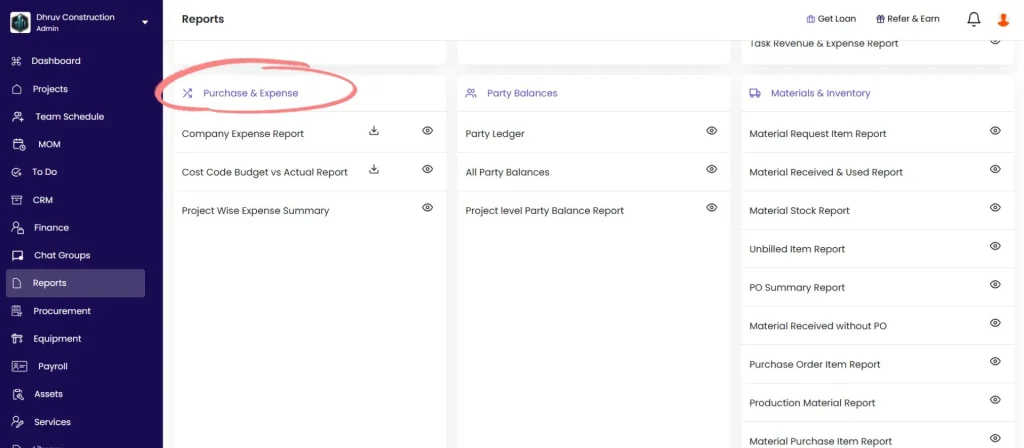
- Click Reports in the left sidebar
- Scroll to the Purchase and Expense section
- Click the gear icon next to the report to open with full filters
- Click the download icon to download directly with default settings
Both the Company Expense Report and the Cost Code Wise Expense Analysis have direct download icons on the Reports page for quick export without opening.
Report 1 — Company Expense Report
Shows all expense transactions across all projects with full payment, approval, and cost code details.
Filters:
| Filter | What It Does |
|---|---|
| Project Name | Filter to one project or show all |
| Party Name | Filter by a specific vendor, subcontractor, or party |
| Expense Date | Set a date range |
| Expense Type | Filter by transaction type (Material Purchase, Subcon Expense, Other Expense, etc.) |
| Expense Status | Paid, Partially Paid, or Unpaid |
| Cost Code | Filter by cost code category |
| Settlement By | Filter by the person who settled the payment |
| Creator Name | Filter by the person who created the expense entry |
| Due Date | Filter by payment due date |
| Approval Status | Pending, Approved, or Rejected |
Columns:
| Column | What It Shows |
|---|---|
| Txn Date | Date the transaction was recorded |
| Txn Type | Expense type (e.g. Material Purchase, Subcon Bill, Other Expense, Equipment Expense) |
| Project Name | Project the expense belongs to |
| Description | Description added to the expense |
| Party Name | Vendor or party the expense is for |
| Txn Status | Paid, Partially Paid, or Unpaid |
| Base Amount | Total before tax, discount, and additional charges |
| Tax Amount | GST or tax applied |
| Bill Discount | Discount deducted |
| Additional Charges | Extra charges added |
| Total Amount | Final gross amount (Base plus Tax minus Discount plus Additional Charges) |
| Net Amount | Amount after deductions (Total Amount minus any deductions applied) |
| Paid Amount | Amount paid to date |
| Unpaid Amount | Amount still outstanding |
| Due Date | Payment due date |
| Settlement By | Person who recorded the settlement or payment |
| Payment Mode | Cash, Bank Transfer, or Cheque |
| Cost Code | Cost category assigned to the expense |
| Sub Cost Code | Sub-category if applicable |
| Notes or Remarks | Notes added to the entry |
| Reference No. | Vendor invoice number or other reference |
| Creator Name | Person who created the expense entry |
| Approval Status | Approval state (Pending, Approved, or Rejected) |
💡 Net Amount is Total Amount minus any deductions (TDS, royalty, advance recovery, etc.) applied on the transaction. It is the actual amount payable to the vendor. Unpaid Amount is Net Amount minus Paid Amount — what remains outstanding.
Best used for: Reviewing all outstanding expenses across the company, auditing expense entries by type or party, or generating a vendor payment list filtered by Expense Status = Unpaid.
Report 2 — Cost Code Wise Expense Analysis
Shows total expenses grouped by cost code, compared against the BOQ amount and budget amount for each code.
Filters:
| Filter | What It Does |
|---|---|
| Project Name | Filter to one project or show all |
| Expense Date | Set a date range |
| Cost Code | Filter to a specific cost code |
Columns:
| Column | What It Shows |
|---|---|
| Cost Code | Cost category name (expandable to see sub-codes) |
| Total Expense Amount | Actual expenses recorded under this cost code |
| Total BOQ Amount | Estimated value of BOQ items tagged to this cost code |
| Total Budget Amount | Separately entered budget amount for this cost code (if configured) |
How to expand a cost code: Click the expand icon next to any cost code row to see the individual sub-cost code breakdown underneath.
A Grand Summary row at the bottom totals all cost codes across the company or selected project.
Understanding the three amount columns:
| Column | Source | What to Compare |
|---|---|---|
| Total Expense Amount | Actual expenses recorded in the Transaction tab | The number that matters — what has actually been spent |
| Total BOQ Amount | Sum of BOQ item values tagged with this cost code | Whether actual spend is tracking against the estimated contract value |
| Total Budget Amount | Separately configured budget per cost code | Whether actual spend is within the internal budget ceiling |
💡 If Total Expense Amount exceeds Total BOQ Amount for a cost code, actual costs are running ahead of what was estimated in the BOQ for that category. This signals a potential overrun for that cost type.
Best used for: Monthly cost control reviews. Filter by project and set the date range to month-to-date, then scan for cost codes where Total Expense Amount is approaching or exceeding Total BOQ Amount
Report 3 — Project Wise Expense Summary
Shows a complete breakdown of all expense types per project in a single wide table.
Filters:
| Filter | What It Does |
|---|---|
| Project Name | Filter to one project or show all |
| Txn Date | Set a date range |
| Party Name | Filter by a specific party |
| Due Date | Filter by payment due date |
Columns:
Each expense category below has two sub-columns: Total Amount (gross before deductions) and Net Amount (after deductions).
| Expense Category | What It Covers |
|---|---|
| Material Purchase | All materials bought from vendors |
| Subcon Expense | All subcontractor bills and payments |
| Salary Expense | Payroll expenses processed through Payroll |
| Other Expense | Miscellaneous project expenses |
| Site Expense | On-site direct expenses |
| Debit Note | Debit note adjustments (credit back to the company) |
| Material Return | Materials returned to vendors (shown as negative amounts, reducing total expense) |
| Material Transfer In | Materials received from another project |
| Material Transfer Out | Materials sent to another project |
| Equipment Expense | Equipment hire and maintenance costs |
| Summary | Total Amount, Net Amount, Paid Amount, and Unpaid Amount across all categories |
AI Insights: Click the Insights button above the report table to generate an AI-powered summary of the expense data across projects. The summary highlights which projects have the highest spend, which categories are driving costs, and any notable patterns across the date range.
Best used for: Getting a complete financial expense picture per project in one view, or comparing how different expense categories (material vs subcon vs salary) are distributed across projects.
Tips
- Use Company Expense Report with Expense Status set to Unpaid to generate a complete list of outstanding vendor dues across the company. This is the fastest way to prepare a payment priority list.
- Use Cost Code Wise Expense Analysis for monthly cost control. Focus on cost codes where Total Expense Amount is approaching Total BOQ Amount — these are the categories most at risk of overrun.
- Assign cost codes consistently to all expense entries. Without cost codes, the Cost Code Wise report shows all expenses lumped under uncategorised and provides no useful breakdown.
- Use Project Wise Expense Summary when you need a full picture of one project’s cost structure, or when comparing expense category distribution across multiple projects.
- Material Return rows show as negative amounts in the Project Wise Expense Summary. This is correct — returns reduce the total material expense for the project.
- The AI Insights button in Project Wise Expense Summary is most useful after a full month of data is available. Running it mid-month on partial data produces less reliable observations.
- Use the Due Date filter in Company Expense Report to see expenses with overdue payment dates — these are the most urgent items for the accounts team to action.
If Something Goes Wrong
| Problem | Likely Cause | What to Do |
|---|---|---|
| Company Expense Report shows no data | No expenses recorded for the selected date range | Check the date range filter and confirm expense entries exist in the Transaction tab |
| Cost Code Wise report showing no breakdown | Cost codes not assigned to expense entries | Edit existing expense entries to add cost codes, or establish a process to assign codes at entry time |
| Project Wise Expense Summary showing zero for a category | No expenses of that type recorded for the project | Record the relevant transactions in the project’s Transaction tab |
| Net Amount differs from Total Amount | Deductions applied on the transaction | Check the transaction entry for deductions (TDS, royalty, etc.) |
| Unpaid Amount showing for settled expenses | Settlement not recorded | Open the transaction, click Edit Settlement, link the payment, and save |
| AI Insights button not generating a summary | Insufficient data or server delay | Wait a moment and click again. If it continues to fail, refresh the page and retry. |
| Cannot access the reports | Role does not have Download Reports permission | Ask Admin to enable Download Reports on your role in Settings, then Roles and Access |