
How to Use Payment Reports in Onsite
Before You Start
- Payments must be recorded in the Transaction tab before they appear in payment reports
- Bank accounts must be configured in Settings before the Bank Statement report shows account-specific data
- You need a role with Download Reports permission to access these reports
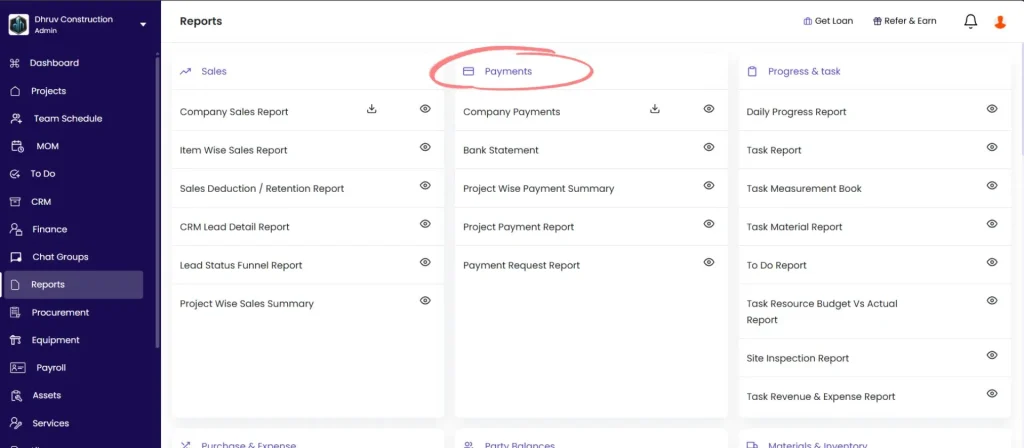
How to Open Payment Reports
- Click Reports in the left sidebar
- Scroll to the Payments section
- Click the gear icon next to the report to open it with full filters
- Click the download icon to download directly with default settings
The Company Payments report also has a direct download icon on the Reports page for quick export without opening
Report 1 — Company Payments
Shows all payment transactions (in and out) across all projects and the entire company.
Filters:
| Filter | What It Does |
|---|---|
| Payment Date | Set a date range |
| Creator Name | Filter by the person who recorded the payment |
| Party Name | Filter by a specific vendor, client, or subcontractor |
| Project Name | Filter to one project or show all |
| Payment Type | Payment In or Payment Out |
| Payment Mode | Cash, Bank Transfer, or Cheque |
| Cost Code | Filter by cost code assigned to the payment |
| Account Name | Filter by a specific bank or cash account |
| Settlement Type | Settled or Unsettled |
| Category | Filter by category (Labour, Material, Fuel, Salary, etc.) |
Columns:
| Column | What It Shows |
|---|---|
| Payment Date | Date the payment was recorded |
| Project Name | Project the payment belongs to |
| Creator Name | Person who recorded the payment |
| Party Name | Vendor, client, or party the payment is for |
| Amount | Total payment amount |
| Unsettled Amount | Portion of the payment not yet linked to a bill or invoice |
| Settlement Type | Settled (linked to a bill) or Unsettled (floating payment) |
| Remark | Notes added to the payment |
| Payment Type | Payment In or Payment Out |
| Payment Mode | Cash, Bank Transfer, or Cheque |
| Account Name | Bank or cash account used |
| Cost Code | Cost category assigned |
| Sub Cost Code | Sub-category if applicable |
| Category | Cash flow category (Labour, Material, Transport, Equipment, Subcontractor, Customer, Designer, Food and Travel, Fuel, Salary, Others) |
| Created Date | Date the entry was created in Onsite |
| Reference No. | Cheque number, NEFT reference, or other reference |
💡 Unsettled Amount shows the portion of a payment that has not yet been matched to any bill or invoice. A non-zero Unsettled Amount means the payment is sitting as a floating balance and should either be settled against a bill or investigated.
Best used for: Reviewing all money movement across the company for a period, identifying unsettled payments, or generating a cash flow summary for management.
Report 2 — Bank Statement
Shows all transactions recorded against a specific bank account with a running balance.
Filters:
| Filter | What It Does |
|---|---|
| Account Name | Select the bank account to view (required) |
| Bank Name | Filter by bank name |
| Project Name | Filter to transactions from one project |
| Party Name | Filter by a specific party |
| Payment Date | Set a date range |
Columns:
| Column | What It Shows |
|---|---|
| Account Name | Bank account name |
| Bank Name | Bank name |
| Project Name | Project the transaction is from |
| Party Name | Party involved in the transaction |
| Payment Date | Date of the transaction |
| Credit | Amount received into the account |
| Debit | Amount paid out of the account |
| Balance | Running balance after each transaction |
| Remarks | Notes or reference added to the transaction |
Report structure: The first row for each account shows the Opening Balance (set in the Balance Modal under Finance tab). Each subsequent row shows the Credit or Debit amount and the updated running Balance. A Grand Summary row at the bottom shows total Credit and Debit for the period.
⚠️ The Balance column is only accurate if the Opening Balance was correctly set when the bank account was first configured. If the Opening Balance is wrong, every running balance row in the report will be off by the same amount.
Best used for: Reconciling Onsite payment records against a physical bank statement. Compare the running Balance column row-by-row against your bank account statement to identify any missing or incorrect entries.
Report 3 — Project Wise Payment Summary
Shows payment totals per project broken down by payment mode.
Filters:
| Filter | What It Does |
|---|---|
| Payment Date | Set a date range |
| Project Name | Filter to one project or show all |
Structure:
Each project row shows:
| Column Group | Columns |
|---|---|
| Bank | Payment In, Payment Out, Balance |
| Cash | Payment In, Payment Out, Balance |
| Others | Payment In, Payment Out, Balance |
| Summary | Overall Balance (Bank plus Cash plus Others net) |
A Grand Total row at the bottom sums all project rows.
Best used for: Getting a quick net cash flow view per project, or comparing payment volumes across projects for a given period. The three payment mode columns (Bank, Cash, Others) make it easy to see what proportion of payments are going through formal bank channels vs cash.
Report 4 — Project Payment Report
Shows detailed payment entries for a specific project or across all projects.
Filters:
| Filter | What It Does |
|---|---|
| Payment Date | Set a date range |
| Project Name | Filter to one project or show all |
| Payment Type | Payment In or Payment Out |
| Party Name | Filter by a specific party |
| Account Name | Filter by bank or cash account |
Columns:
| Column | What It Shows |
|---|---|
| Payment Date | Date of the payment |
| Project Name | Project the payment is from |
| Creator Name | Person who recorded the payment |
| Party Name | Party involved |
| Amount | Payment amount |
| Remark | Notes added |
| Reference No. | Cheque number, NEFT reference, or other reference |
| Payment Type | Payment In or Payment Out |
| Payment Mode | Cash, Bank Transfer, or Cheque |
| Account Name | Bank or cash account used |
| Category | Cash flow category |
| Cost Code | Cost category assigned |
Best used for: Detailed project-level payment review. Use this when you need to see all payments for one project without the extra columns in the Company Payments report, or when a client or auditor asks for a project-specific payment register.
Report 5 — Payment Request Report
Shows all payment requests across projects with their approval and payment status.
Filters:
| Filter | What It Does |
|---|---|
| Party Name | Filter by a specific party |
| Project Name | Filter to one project or show all |
| Approval Status | Pending, Approved, or Rejected |
| Payment Status | Paid or Unpaid |
| Payment Date | Set a date range |
Columns:
| Column | What It Shows |
|---|---|
| Payment Request ID | Internal system ID |
| Payment Request No. | Reference number (e.g. PR-3) |
| Project Name | Project the PR is for |
| Party Name | Party the payment is for |
| Amount | Requested amount |
| Payment Date | Date the actual payment was recorded |
| Due Date | Date the payment was requested by |
| Creator Name | Person who raised the PR |
| Request Type | e.g. Advance against PO, Petty Cash, Other |
| Order or Bill No. | Linked PO or work order reference |
| Approval Status | Pending, Approved, or Rejected |
| Payment Status | Paid or Unpaid |
| Remark | Notes |
| Account Name | Bank or cash account used for payment |
Best used for: Tracking which payment requests are still pending approval or unpaid, or generating a summary of all advances and requests for an accounting period.
Tips
- Use Company Payments for a full company-wide cash flow view. The Settlement Type filter set to Unsettled shows all floating payments that need to be matched against bills.
- Use Bank Statement to reconcile Onsite records against your bank account. The running Balance column should match your bank statement row by row. Any discrepancy indicates a missing or incorrectly recorded transaction.
- Use Project Wise Payment Summary at the end of each month to compare net cash flow across all projects quickly. The Bank vs Cash breakdown is useful for identifying projects running heavily on cash, which may indicate a control gap.
- Use Payment Request Report with Approval Status set to Pending to see all requests awaiting approval. Set Payment Status to Unpaid to see approved requests that have not yet been disbursed.
- The Opening Balance in the Bank Statement is pulled from the Balance Modal in the Finance tab. If the Bank Statement balance is off from day one, check and correct the Opening Balance first.
- Use the Category field filter in Company Payments to separate cash flows by type (e.g. show only Labour payments or only Fuel payments) for cost category analysis.
If Something Goes Wrong
| Problem | Likely Cause | What to Do |
|---|---|---|
| Company Payments report shows no data | No payments recorded for the selected date range | Check the date range filter and confirm payments exist in the Transaction tab |
| Bank Statement running balance is wrong | Incorrect opening balance | Go to Finance tab, open the Balance Modal, and correct the opening balance for that account |
| Unsettled Amount showing on old payments | Payments not settled against bills | Open the payment records and settle them against the outstanding bills using Edit Settlement |
| Payment Request Report shows no pending items | All requests approved or no requests raised | Confirm requests were raised in the Transaction tab’s Payment Requests sub-tab |
| Cannot filter Bank Statement by account | Account name not configured in Settings | Go to Settings, then Bank Details, and ensure the bank account is set up |
| Cannot access the reports | Role does not have Download Reports permission | Ask Admin to enable Download Reports on your role in Settings, then Roles and Access |