
How to Use Party Balance Reports in Onsite
Before You Start
- Parties must be added in CRM or the project’s Party tab before they appear in party balance reports
- Transactions (purchases, invoices, payments) must be recorded before balances show data
- You need a role with Download Reports permission to access these reports
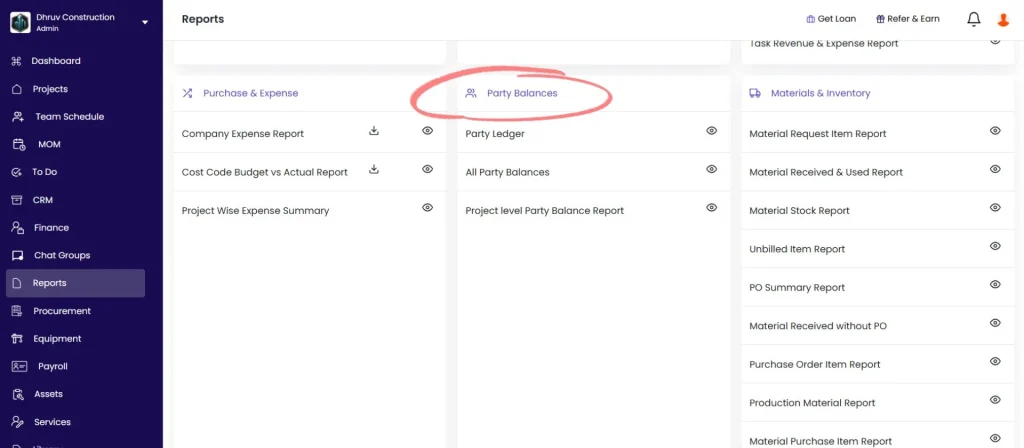
How to Open Party Balance Reports
- Click Reports in the left sidebar
- Scroll to the Party Balances section
- Click the gear icon next to the report to open with full filters
- Click the download icon to download directly with default settings
Understanding Balance Types
The Balance Type column appears across all three reports. It indicates the direction of the outstanding balance for each party:
| Balance Type | What It Means |
|---|---|
| To Pay | Your company owes this party money (vendor dues, subcontractor dues, etc.) |
| To Receive | This party owes your company money (client invoices outstanding, etc.) |
| Settled | No outstanding balance in either direction |
| Advance Paid | You have paid this party an advance that has not yet been recovered against bills |
| Advance Received | This party has paid your company an advance that has not yet been adjusted against invoices |
Report 1 — Party Ledger
Shows a full chronological transaction history for one party (or all parties) with every debit, credit, and running balance.
Filters:
| Filter | What It Does |
|---|---|
| Party Name | Filter to a specific party (leave blank to see all parties) |
| Party Type | Filter by type (Client, Vendor, Subcontractor, Labour Contractor, etc.) |
| Project Name | Filter to transactions from one project |
| Transaction Type | Filter by transaction type (Material Purchase, Payment In, Sales Invoice, etc.) |
| Transaction Date | Set a date range |
Columns:
| Column | What It Shows |
|---|---|
| Party Name | Name of the party |
| Party Type | Type of party (Client, Vendor, etc.) |
| Project Name | Project the transaction is linked to |
| Creator Name | Person who recorded the transaction |
| Transaction Type | Type of entry (e.g. Material Purchase, Payment Out, Sales Invoice, Other Expense) |
| Description | Description or notes from the transaction |
| Cost Code | Cost code assigned to the entry |
| Transaction Date | Date the transaction was recorded |
| Party Debit | Amount charged to the party (money they owe you, or money you have paid out on a purchase) |
| Party Credit | Amount credited to the party (payment you received from them, or bill you owe them) |
| Balance | Running balance after each transaction |
Understanding Party Debit and Party Credit:
| Direction | Party Debit | Party Credit |
|---|---|---|
| For a vendor (To Pay party) | Material Purchase, Subcon Bill, Other Expense recorded | Payment Out made to the vendor |
| For a client (To Receive party) | Sales Invoice raised | Payment In received from the client |
A positive running Balance means the party owes your company. A negative running Balance means your company owes the party.
Best used for: Full audit of all transactions with a specific vendor or client. Filter by Party Name and set a date range to get every entry in sequence. Share with a CA or auditor for party-level reconciliation.
Report 2 — All Party Balances
Shows the current outstanding balance for every party across the company in one view.
Filters:
| Filter | What It Does |
|---|---|
| Party Name | Search for a specific party |
| Balance Type | To Pay, To Receive, Settled, Advance Paid, or Advance Received |
| Party Type | Client, Vendor, Subcontractor, Labour Contractor, etc. |
Columns:
| Column | What It Shows |
|---|---|
| Party Name | Name of the party |
| Party Type | Type (Client, Vendor, Subcontractor, etc.) |
| Balance Amount | Net outstanding balance across all projects |
| Balance Type | Direction of the balance (see Balance Types above) |
| Petty Cash Balance | Petty cash transferred to this party that has not yet been spent or returned |
| Salary Balance | Outstanding salary balance for this party (relevant for labour contractors and staff) |
Best used for: Company-wide outstanding dues review. Filter by Balance Type = To Pay to see every vendor and subcontractor your company owes money to, sorted by amount. This is the starting point for any accounts payable reconciliation.
Report 3 — Project Level Party Balance Report
Shows a project-wise breakdown of the full financial relationship with each party — all expense types, sales, and payments in one row per party-project combination.
Filters:
| Filter | What It Does |
|---|---|
| Party Name | Filter to a specific party |
| Project Name | Filter to one project |
| Party Type | Filter by type |
| Balance Type | To Pay, To Receive, Settled, or Advance Paid |
Columns:
| Column | What It Shows |
|---|---|
| Party Name | Name of the party |
| Party Type | Type of party |
| Project Name | Project this row is for |
| Salary | Total salary expenses recorded for this party on this project |
| Material Purchase | Total material purchases from this vendor on this project |
| Other Expense | Total other expenses recorded against this party on this project |
| Subcon Amount | Total subcontractor bills for this party on this project |
| Site Expense | Total site expenses against this party on this project |
| Sales Invoice | Total sales invoices raised to this client on this project |
| Party Received | Total payments received from this party on this project |
| Party Paid | Total payments made to this party on this project |
| Net Balance | Party Paid plus Sales Invoice minus Material Purchase minus Subcon Amount minus Other Expense minus Salary minus Site Expense |
| Balance Type | Direction of the net balance (To Pay, To Receive, Settled, or Advance Paid) |
💡 The Net Balance column gives the single number that summarises the complete financial relationship with a party on a project. A positive Net Balance means the party owes your company. A negative Net Balance means your company owes the party.
Best used for: Understanding the total financial exposure with a subcontractor or vendor on a specific project. Shows all expenses raised, all payments made, and the resulting net position in one row — without having to add up individual transaction entries.
Tips
- Use Party Ledger with a specific party name to audit every transaction with that party in date order. This is the equivalent of a party account statement and is what a CA typically asks for during a review.
- Use All Party Balances with Balance Type = To Pay for a weekly vendor payment priority list. Sort by Balance Amount descending to see the largest outstanding dues first.
- Use All Party Balances with Balance Type = Advance Paid to see all advances that have not yet been recovered against bills. Each entry here represents money paid out with no bill matched against it yet.
- Use Project Level Party Balance when you need to understand the complete financial relationship with one party on one project — for subcontractor final account settlement or client reconciliation before project close.
- The Party Ledger is the only report that shows the running balance row-by-row. Use it when you need to pinpoint which transaction caused a balance discrepancy.
- Opening balances set in the Finance tab affect the starting balance in the Party Ledger. If a party’s opening balance is wrong, all subsequent running balance entries in the ledger will be off by the same amount.
If Something Goes Wrong
| Problem | Likely Cause | What to Do |
|---|---|---|
| Party not appearing in any report | Party not added to the system | Add the party in CRM or the project’s Party tab first |
| All Party Balances showing incorrect balance | Opening balance set incorrectly for the party | Go to Finance tab, open the party’s detail view in the Petty tab, and correct the opening balance |
| Party Ledger showing no transactions | Party name filter empty or date range too narrow | Clear the Party Name filter to see all parties, or widen the date range |
| Net Balance in Project Level report not matching Party Ledger | Transactions posted at company level (not project level) | Company-level payments appear in All Party Balances but may not appear in the Project Level report if they were not linked to a specific project |
| Balance Type showing Settled but party is still owed money | Transactions not yet recorded | Check the Transaction tab for unrecorded purchases or payments and enter them |
| Cannot access the reports | Role does not have Download Reports permission | Ask Admin to enable Download Reports on your role in Settings, then Roles and Access |