
How to Use Materials and Inventory Reports in Onsite
Before You Start
- Materials must be created in the Material Library before material reports show items
- Material requests, GRNs, and usage entries must be recorded before the relevant reports show data
- You need a role with Download Reports permission to access these reports
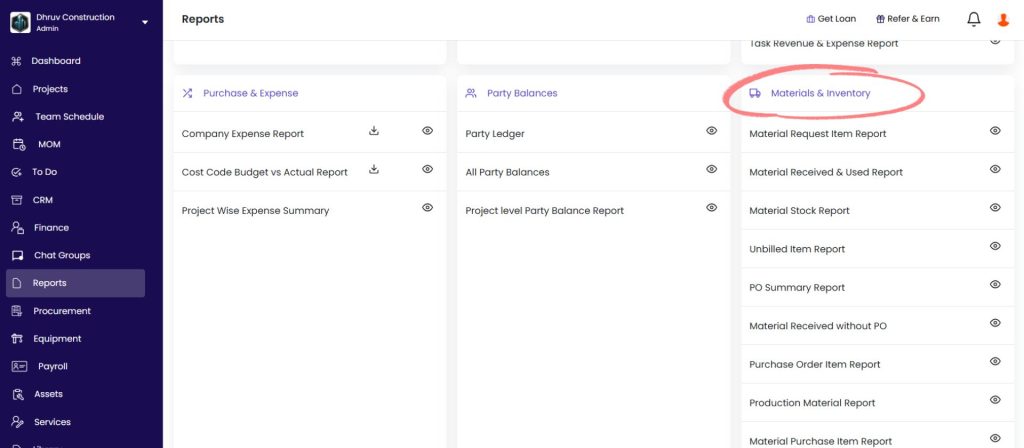
How to Open Materials and Inventory Reports
- Click Reports in the left sidebar
- Scroll to the Materials and Inventory section
- Click the gear icon next to the report you want to open with full filters
- Click the download icon to download directly with default settings
Report 1 — Material Request Item Report
Shows all material request line items across projects with ordering status.
Filters:
| Filter | What It Does |
|---|---|
| Material Name | Filter to a specific material |
| Project Name | Filter to one project or show all |
| Request No. | Filter by a specific MR number |
| Status | Pending, Approved, Ordered, or Rejected |
| Request Date | Set a date range |
| Approved or Rejected By | Filter by the approver or rejecter |
| Requested By | Filter by the person who raised the request |
Columns:
| Column | What It Shows |
|---|---|
| Request Date | Date the MR was raised |
| Request No. | Auto-generated MR reference number |
| Project Name | Project the request is for |
| Material Name | Material requested |
| Specifications | Any specifications entered on the request |
| Unit | Unit of measurement |
| Request Quantity | Quantity originally requested |
| Ordered Quantity | Quantity already covered by a PO |
| Pending Quantity | Request Quantity minus Ordered Quantity |
| PO No. | PO number linked to this MR (if ordered) |
| Requested By | Team member who raised the request |
| Status | Current status of the MR |
| Approved or Rejected By | Name of the approver or rejecter |
| Request Notes | Notes added to the request |
Best used for: Reviewing all outstanding material requests that have not yet been ordered, or tracking which requests have been converted to POs and which are still pending.
Report 2 — Material Received and Used Report
Shows all material movement entries across projects in one view: received, used, transferred, and purchased.
Filters:
| Filter | What It Does |
|---|---|
| Material | Filter to a specific material |
| Project Name | Filter to one project or show all |
| Entry Type | Filter by movement type (see below) |
| Date | Set a date range |
| Task Name | Filter by task the material was used against |
| Challan Number | Filter by delivery challan |
| Party Name | Filter by vendor or party |
| Created By | Filter by the person who recorded the entry |
| Material Category | Filter by category |
| PO Number | Filter by a specific PO |
Entry Types:
| Entry Type | What It Means |
|---|---|
| Material Received | GRN recorded — material arrived on site |
| Material Used | Consumption entry — material used for a task or activity |
| Transfer In | Material received from another project or store |
| Transfer Out | Material sent to another project or store |
| Material Received and Purchased | GRN and purchase bill recorded simultaneously |
Columns:
| Column | What It Shows |
|---|---|
| Material Category | Category the material belongs to |
| Material | Material name |
| Project Name | Project the entry is for |
| Party Name | Vendor (for received) or party (for used or transferred) |
| Created By | Person who recorded the entry |
| GRN No. | GRN reference number (for received entries) |
| Challan Number | Delivery challan number |
| Entry Type | Type of movement (see above) |
| Purchase Done | Whether a Material Purchase bill was raised against this GRN |
| Receiving Date | Date the material arrived or was recorded |
| Unit | Unit of measurement |
| Quantity | Quantity involved in this entry |
| Unit Price | Rate per unit |
| Total Amount | Quantity multiplied by unit price |
| Remark | Notes added to the entry |
| Vehicle Number | Vehicle number recorded on the GRN |
| PO Number | Linked PO reference |
| PO Quantity | Quantity on the linked PO |
| PO Date | Date of the linked PO |
| Main Task Name | Top-level task the material was used against |
| Group Task Name | Sub-group task |
| Task Name | Specific task |
Best used for: Auditing all material movement in a project for a period, tracing where a specific material went across projects, or reconciling received quantities against used quantities.
Report 3 — Material Stock Report
Shows the current stock position per material per project — from estimated quantity through to the remaining balance.
Filters: Project Name, Material Name, Material Category.
Columns:
| Column | What It Shows |
|---|---|
| Project Name | Project |
| Material Category | Category |
| Material Name | Material name |
| Unit | Unit of measurement |
| Material Request Pending | Quantity and cost of materials in pending requests (not yet ordered) |
| Estimated Qty | BOQ-estimated quantity and cost |
| Material Received | Total received quantity and cost |
| Material Used | Total consumed quantity and cost |
| Current Stock | Remaining quantity and cost (Received minus Used) |
Each section shows both Total Quantity and Total Cost.
Best used for: Checking how much of any material is left on a project, comparing received vs used quantities for a reconciliation, or identifying materials that are running low before raising a new request.
Report 4 — Unbilled Item Report
Shows materials received from vendors that have not yet been invoiced — GRNs without a matching Material Purchase bill.
Filters: Party Name, Project Name, Material, Receiving Date.
Columns:
| Column | What It Shows |
|---|---|
| Project Name | Project where the material was received |
| Party Name | Vendor who delivered the material |
| Material | Material name |
| Unit | Unit of measurement |
| Quantity | Quantity received but not yet billed |
| Receiving Date | Date the GRN was recorded |
Best used for: Weekly accounts payable reconciliation. Every row in this report is a liability that has not yet been recorded as a bill. Running this report before month-end ensures no vendor dues are missed.
Report 5 — PO Summary Report
Shows all purchase orders across projects with vendor, amount, and approval status.
Filters: Project Name, Vendor Name, Approval Status, Approved or Rejected By, Creator Name.
Columns:
| Column | What It Shows |
|---|---|
| Project Name | Project the PO belongs to |
| Creator Name | Person who created the PO |
| PO Creation Date | Date the PO was created in Onsite |
| PO Date | Date printed on the PO document |
| Vendor Name | Supplier |
| PO Number | PO reference number |
| Material Amount | Total value of materials on the PO before tax and charges |
| Discount | Discount applied |
| Other Charges | Additional charges |
| Total Amount | Final PO value |
| Approval Status | Draft, Approved, or Rejected |
| Approved or Rejected By | Name of the approver or rejecter |
Best used for: Reviewing total procurement value per vendor or project, checking which POs are still in Draft or pending approval, or preparing a procurement summary for management.
Report 6 — Material Received without PO
Shows all GRN entries where materials were received without a linked purchase order.
Columns:
| Column | What It Shows |
|---|---|
| Material | Material name |
| Project Name | Project where the material was received |
| Party Name | Vendor who delivered the material |
| Created By | Person who created the GRN |
| Receiving Date | Date of the GRN |
| Unit | Unit of measurement |
| Quantity | Quantity received |
Best used for: Identifying procurement that bypassed the PO process. Each row here represents a delivery that came in without a formal purchase order, which may indicate a process compliance gap.
Report 7 — Purchase Order Item Report
Shows item-level details for every purchase order — quantities ordered, received, pending, and GRN linkage.
Filters:
| Filter | What It Does |
|---|---|
| PO Number | Filter to a specific PO |
| PO Date | Set a date range for PO creation |
| Project Name | Filter to one project |
| Vendor Name | Filter by supplier |
| Material Name | Filter by material |
| Approval Status | Draft, Approved, or Rejected |
| Material Category | Filter by category |
| Item Status | Opened (delivery pending) or Closed (fully received) |
| GRN No. | Filter by a specific GRN |
Columns:
| Column | What It Shows |
|---|---|
| PO Date | Date of the PO |
| PO Number | PO reference number |
| Project Name | Project the PO is for |
| Vendor Name | Supplier |
| Material Category | Category |
| Material Name | Material on the PO line |
| Unit | Unit of measurement |
| Unit Price | Rate per unit |
| PO Qty | Quantity ordered |
| PO Received Qty | Quantity received so far (via GRN) |
| PO Pending Qty | Ordered quantity minus received quantity |
| Item Status | Opened (partial or no delivery) or Closed (fully delivered) |
| Approval Status | Approval state of the PO |
| MR No. | Material Request linked to this PO item |
| Challan Number | Delivery challan reference |
| GRN No. | GRN linked to this PO item |
Best used for: Tracking which PO items are still awaiting delivery (Item Status = Opened), or reconciling PO quantities against GRN quantities for a specific vendor or project.
Report 8 — Production Material Report
Shows production entries with the raw materials consumed per production run.
Filters: Project Name, Production Date, Production Material Name, Raw Material Consumed.
Columns:
| Column | What It Shows |
|---|---|
| Project Name | Project the production was recorded on |
| Production Material Name | Output material (what was produced) |
| Unit | Unit of the output material |
| Quantity | Quantity produced |
| Production Date | Date of the production entry |
| Raw Material Consumed | Summary of all input materials used (e.g. Sand: 10 bags, Cement: 20 bags) |
| Notes | Notes added to the production entry |
Best used for: Reviewing raw material consumption per production run on projects that use batching or in-house fabrication.
Report 9 — Material Purchase Item Report
Shows every purchased material line with full cost, tax, PO linkage, GRN reference, and payment status. This is the most detailed purchase view available.
Filters: Purchase Date, Receiving Date, Party Name, Party GST, Project Name, Material.
Columns:
| Column | What It Shows |
|---|---|
| Party Name | Vendor |
| Party GST | Vendor’s GSTIN |
| Purchase Date | Date the Material Purchase bill was recorded |
| Receiving Date | Date the GRN was created |
| Project Name | Project |
| Material | Material name |
| Unit | Unit of measurement |
| Unit Price | Rate per unit |
| Quantity | Quantity billed |
| Basic Amount | Quantity multiplied by unit price |
| Tax | GST or tax amount |
| Discount | Discount applied |
| Total Amount | Net amount after tax and discount |
| Material Category | Category |
| PO Number | Linked PO reference |
| PO Quantity | Quantity on the linked PO |
| PO Item Rate | Rate per unit on the PO |
| PO Date | Date of the linked PO |
| PO Total Amount | Total value of the linked PO |
| GRN No. | GRN reference |
| Reference No. | Vendor invoice or reference number |
| Remark | Notes |
| Created By | Person who recorded the bill |
| Vehicle Number | Vehicle number from the GRN |
| Expense Status | Paid, Partially Paid, or Unpaid |
| Due Date | Payment due date |
| Expense Amount | Total payable |
| Expense Paid Amount | Amount paid to date |
| Unpaid Expense Amount | Remaining outstanding amount |
Best used for: Reconciling all material purchases for a vendor against POs and GRNs, tracking outstanding material bills, or generating a detailed procurement cost report for a project.
Tips
- Use Material Request Item Report with Status set to Pending to see everything that has been requested but not yet ordered. This is the daily procurement action list.
- Use Material Stock Report to check current inventory levels before raising a new material request. If stock is sufficient, a new request may not be needed.
- Use Unbilled Item Report every week before month-end. Every row is an unrecorded liability. Clearing this report ensures all vendor dues are posted.
- Use Purchase Order Item Report with Item Status set to Opened to see all outstanding deliveries. Follow up with vendors on any items that are overdue.
- Use Material Purchase Item Report with Expense Status set to Unpaid to generate a vendor payment priority list for the accounts team.
- Use Material Received without PO regularly to catch procurement that bypassed the formal PO process. Each entry here represents a delivery that has no purchase order backing it.
- Use Material Received and Used Report with Entry Type set to Material Used and a Task filter to verify material consumption against a specific task for resource budget reconciliation.
If Something Goes Wrong
| Problem | Likely Cause | What to Do |
|---|---|---|
| Material Request report shows no data | No material requests raised | Raise material requests from the project’s Material tab first |
| Stock Report showing zero current stock | No GRNs recorded or all stock consumed | Check that GRN entries have been created for material deliveries |
| Unbilled Item Report is empty | All received materials have been invoiced | This is the correct state — no action needed |
| PO report showing no items for a vendor | PO not created for that vendor | Create a Purchase Order in Procurement first |
| Material Purchase Item Report shows no Unpaid items | All bills are settled | Filter by Partially Paid to see bills with remaining balances |
| Cannot access the reports | Role does not have Download Reports permission | Ask Admin to enable Download Reports on your role in Settings, then Roles and Access |
| Received without PO report showing unexpected entries | Team is creating GRNs before raising POs | Address with the procurement team and ensure POs are raised before deliveries |