
How to Use Attendance & Salary Reports in Onsite
Before You Start
- Attendance must be recorded in the Attendance module before any attendance report shows data
- Payroll must be set up for staff before salary reports show salary figures
- You need a role with Download Reports permission to access these reports
How to Open Attendance and Salary Reports
- Click Reports in the left sidebar
- Scroll to the Attendance and Salary section
- Click the gear icon to open an interactive report with full filters
- Click the download icon to download directly without opening the full view
Interactive Reports (Gear Icon)
These three reports open in a full view with filter controls. Apply filters and then click Download Excel or Download PDF from within the report.
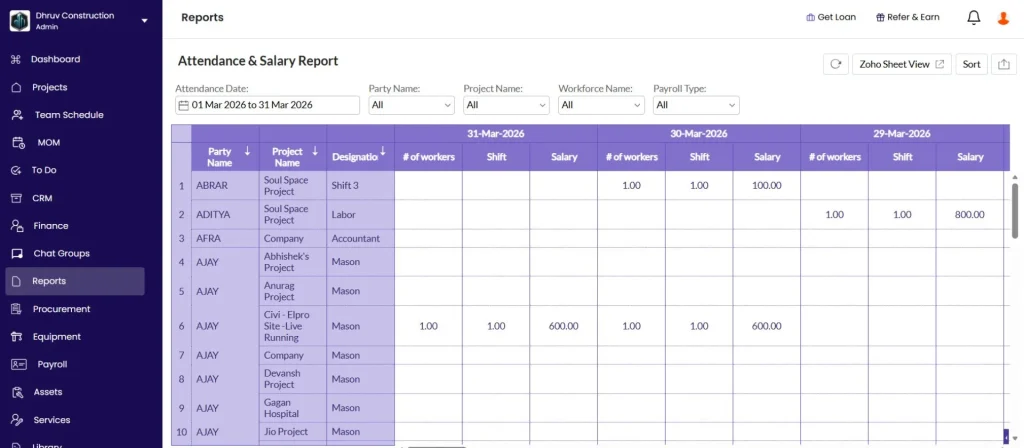
1. Attendance and Salary Report
Shows day-wise attendance and salary for all workers across projects for a selected period.
Filters:
| Filter | Options |
|---|---|
| Attendance Date | Date range (default: current month) |
| Party Name | Filter by a specific labour contractor or supervisor |
| Project Name | Filter by one project or show all |
| Workforce Name | Filter by a specific worker type (e.g. Mason, Carpenter) |
| Payroll Type | Daily, Monthly, or Hourly |
Columns:
| Column | What It Shows |
|---|---|
| Party Name | Labour contractor or party |
| Project Name | Project the attendance was recorded on |
| Designation | Worker type or designation |
| Per-date columns | One column per day showing: number of workers, shift, and salary for that date |
| Total Workers | Sum of worker-days across the period |
| Total Shifts | Sum of all shifts |
| Total Salary | Total payable salary for the period |
Best used for: Verifying attendance counts and salary amounts before approving payroll for a specific party, project, or date range.
2. OT and Shift Report
Shows day-wise overtime hours and shift counts per workforce type for a selected period.
Filters: Same as Attendance and Salary Report (Date, Party, Project, Workforce, Payroll Type).
Columns:
| Column | What It Shows |
|---|---|
| Project Name | Project the attendance was on |
| Party Name | Labour contractor or party |
| Designation | Worker type |
| Per-date columns | One column per day showing: number of workers, OT hours, and shift count |
| Total Workers | Sum of worker-days |
| Total OT (Hrs) | Total overtime hours for the period |
| Total Shifts | Total shifts for the period |
Best used for: Verifying overtime hours before payroll, or checking if OT is being recorded consistently across sites.
3. Staff Salary Report
Shows a consolidated monthly salary summary per staff member with earnings, deductions, and net payable.
Filters:
| Filter | Options |
|---|---|
| Date | Date range (default: current month) |
| Party Name | Filter by a specific staff member |
| Project Name | Filter by one project |
| Designation | Filter by staff designation |
| Payroll Type | Daily, Monthly, or Hourly |
Columns:
| Column | What It Shows |
|---|---|
| Party Name | Staff member name |
| Designation | Job title or role |
| Phone No. | Registered mobile number |
| Bank Name and Account No. | Bank details from the payroll profile |
| Shift | Total shifts worked |
| OT Hrs | Overtime hours for the period |
| Basic Payable | Basic salary earned based on attendance |
| Allowance | Total allowances for the period |
| OT Amount | Overtime pay amount |
| Late Fine | Deduction for late arrivals |
| Deduction | Other deductions (PF, TDS, etc.) |
| Salary Payable | Net amount payable to the staff member |
A Grand Summary row at the bottom totals all columns across all staff.
Best used for: Reviewing the full payroll for all staff before disbursement, or sharing salary data with the accounts team.
Direct Download Reports (Download Icon)
These four reports open a download dialog when you click the download icon. Choose your filters and click Download immediately.
4. Company Attendance Report
Downloads a company-wide attendance register as an Excel file.
Download dialog options:
| Option | Details |
|---|---|
| Date Range | Today, Last Week, Last Month, This Week, This Month, Month, or Custom |
Click Download Excel.
The downloaded Excel file has 5 sheets:
All sheets share the same row structure: Labour or Subcontractor, Workforce Type, Project Name, one column per date, and a Total column at the end.
| Sheet | What It Shows |
|---|---|
| Attendance | Day-wise attendance status per worker (e.g. P for Present, WO for Week Off) |
| No. of Workers | Worker count per day |
| Salary | Daily salary amount per worker |
| Shifts | Shift count per day per worker |
| OT | Overtime hours per day per worker |
Best used for: Sharing a full company-wide attendance register with HR, accounts, or management for a specific period.
5. Staff Monthly Salary Slip
Downloads individual salary slips as a PDF — one slip per staff member per page.
Download dialog options:
| Option | Details |
|---|---|
| Month | Navigate with arrows to select the month |
| Party Name | Search and select a specific staff member. Leave blank to download slips for all staff. |
Click Download PDF.
What the salary slip contains:
Header section: Employee name, Employee Code, Designation, Total Shifts, Bank Account No., Bank Name, PAN Number, OT Hours.
CTC and Salary Structure table: Shows the configured monthly amounts (not actual earnings — these are the template values):
| Column | What It Shows |
|---|---|
| Component | e.g. CTC, Basic Salary, Food Allowance, Fixed Allowance |
| Calculation | How the component is calculated |
| Configured Amount | The amount set in the salary template |
Earnings section: Actual amounts earned for the month per component (Basic Salary, Food Allowance, Fixed Allowances) summing to Gross Earnings.
Deductions section: All deductions for the month (e.g. PF, TDS, Late Fine, other configured deductions) summing to Total Deductions.
Net Salary: Net Salary = Gross Earnings minus Total Deductions. Shown in both figures and words.
Signature blocks: Employee Sign or Thumb, Manager Sign, Authorised Signatory.
Best used for: Distributing monthly salary slips to staff, or keeping PDF salary records for compliance.
6. Staff Punch Report
Downloads a punch-in and punch-out log per staff member as an Excel file.
Download dialog options:
| Option | Details |
|---|---|
| Date Range | Today, Last Week, Last Month, This Week, This Month, Month, or Custom |
| Party Name | Filter by a specific staff member (optional) |
| Project Name | Filter by project (optional) |
Click Download Excel.
Columns in the downloaded file:
| Column | What It Shows |
|---|---|
| S.No. | Row number |
| Party Name | Staff member name |
| Designation | Job title |
| Punch Date | Date of the punch entry |
| Punch In Time | Date and time of punch in (e.g. 12-Dec-25 09:30) |
| Punch In Location | Project name, latitude, longitude, and distance from site in meters |
| Punch Out Time | Date and time of punch out |
| Punch Out Location | Project name, latitude, longitude |
| Duration | Total time on site (e.g. 9H 08 MIN) |
| Punch In Photo Verified | Yes or No |
| Punch Out Photo Verified | Yes or No |
Best used for: Verifying attendance records against actual punch times, checking location compliance for geo-fenced sites, or auditing AI face recognition results.
7. Staff Muster Roll
Downloads the monthly payroll register as an Excel file — one row per staff member with full attendance, earnings, and deduction details.
Download dialog options:
| Option | Details |
|---|---|
| Month | Navigate with arrows to select the month |
Click Download Excel.
Columns in the downloaded file:
| Section | Columns |
|---|---|
| Employee Info | S.No., Party Code, Employee Name, Designation, Phone No., Bank Account No., Bank Name |
| Payroll | Salary Type, Gross Salary |
| Attendance | Work Days, PL (Paid Leave), WO (Week Off), Payable Days, OT Hours |
| Earnings | Basic, Food Allowance, HRA, Travel, Fixed Allowance, OT, Gross Earning |
| Deductions | Random Deduction, PF, TDS, Employer PF, Gross Deductions |
| Net | Net Salary |
A Total row at the bottom sums all columns across all staff.
Best used for: Sharing the full payroll register with accounts, auditors, or management, or keeping a monthly payroll archive.
Tips
- Use Attendance and Salary Report for day-wise verification of attendance counts and salary amounts before approving payroll for a party or project.
- Use OT and Shift Report to verify overtime before processing payroll. Compare OT hours against site supervisor records to catch discrepancies early.
- Use Staff Salary Report for a clean per-person monthly summary before disbursement. The Grand Summary row at the bottom gives instant totals across all staff.
- For individual salary slips: open Staff Monthly Salary Slip, select a party name to get one person’s slip, or leave it blank to get all staff slips in one PDF download.
- Use Staff Muster Roll for the complete monthly payroll register. This is the standard format for submitting to accounts or auditors.
- Use Staff Punch Report to audit geo-location compliance. The Punch In Location column shows the distance from the project site at the time of punch, making it easy to spot off-site punches.
- All interactive reports default to the current month. Always check the date range filter when the report opens to confirm it covers the period you need.
If Something Goes Wrong
| Problem | Likely Cause | What to Do |
|---|---|---|
| Report shows no data | Attendance not recorded for the selected period | Check that attendance has been marked in the Attendance module for the date range |
| Salary figures showing as zero | Payroll not configured for staff | Set up payroll for each staff member in the Payroll module before running salary reports |
| Punch Report showing no location data | Geo-location not enabled in Attendance Settings | Go to Settings, then Attendance Settings, and enable Geo Location Required |
| Salary slip showing incorrect amounts | Salary template not updated for the month | Check the staff member’s salary template in Payroll and ensure it reflects the correct CTC |
| Company Attendance Excel showing blank cells | No attendance recorded for those workers or dates | Verify attendance was marked in Onsite for those specific dates |
| Cannot access the reports | Role does not have Download Reports permission | Ask Admin to enable Download Reports on your role in Settings, then Roles and Access |
| OT hours not appearing in the report | OT not being recorded or Attendance Settings do not have OT configured | Check that OT is being marked during attendance entry and OT settings are configured in Payroll |