
How to Manage Project Stages and Categories
How to create custom Project Stages and Project Categories, enable or disable existing stages, and assign them to a project. Stages and categories help classify and organise projects for filtering, reporting, and workflow tracking.
Before You Start
- You must be inside a project
- Admin access is required to add or edit stages and categories
What Are Stages and Categories?
| Feature | What It Is | Examples |
|---|---|---|
| Project Stage | The current execution phase of the project | Planning, Civil, Structural, Finishing, Handover |
| Project Category | The type or classification of the project | Residential, Commercial, Interior, Infrastructure, Maintenance |
A project has one active Stage at a time. The stage is updated as the project moves through execution. Categories group similar projects together for filtering and reporting across the company.
Part 1 — Managing Project Stages
Adding a New Stage
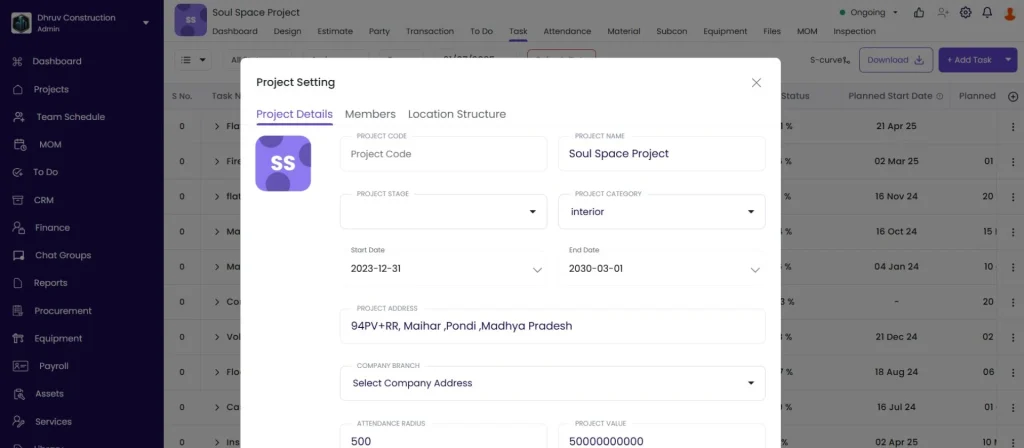
- Open the project and click the ⚙ Settings icon in the top right of the project header
- Click Project Details
- Click the Project Stage dropdown field
- Click the ⚙ icon next to the Project Stage field to open Stage Settings
- Click + New Stage
- Enter the stage name (e.g. “Pre-Construction”, “Foundation”, “Waterproofing”)
- Click Save
The new stage is now available in the Project Stage dropdown across all projects.
Enabling or Disabling a Stage
Stages can be disabled to hide them from the dropdown without deleting them. This is useful for keeping historical stage data intact while removing options that are no longer relevant.
In the Stage Settings panel:
- Toggle the switch next to any stage ON to make it available in the dropdown
- Toggle it OFF to hide it from the dropdown
Click Save to confirm.
Default stages: Civil, Structural, Finishing, Handover.
Assigning a Stage to the Project
After creating or enabling the stage:
- Stay in Project Details
- Click the Project Stage dropdown
- Select the stage
- Click Save on the Project Details panel
Part 2 — Managing Project Categories
Adding a New Category
- Open the project and click the ⚙ Settings icon
- Click Project Details
- Click the ⚙ icon next to the Project Category field to open Category Settings
- Click + New Category
- Enter the category name (e.g. “Maintenance Projects”, “Turnkey”, “Fit-Out”)
- Click Save
Editing a Category Name
Click the edit icon next to the category name, update the name, and click Save.
Deleting a Category
Click the delete icon next to the category and confirm. Projects previously assigned this category will have the category removed.
Assigning a Category to the Project
- In Project Details, click the Project Category dropdown
- Select the category
- Click Save
Changing the Project Status
The project status is separate from Stage and Category. It controls whether the project is active in operational views.
Click the status badge in the top right of the project header (e.g. Ongoing) and select:
| Status | When to Use |
|---|---|
| Ongoing | Project is active |
| On Hold | Temporarily paused |
| Not Started | Not yet begun |
| Completed | Finished |
Status can be changed at any time.
Tips
- Create stages that match your actual construction workflow from start to finish. A typical sequence: Mobilisation, Foundation, Structural, Brickwork, Plastering, Electrical and Plumbing, Finishing, Snagging, Handover.
- Use categories to group project types for company-level reporting. Filtering the Company Dashboard or Project-wise Summary by category shows revenue and expenses per project type.
- Disable stages rather than deleting them when they are no longer in use. Disabling preserves the historical record of projects that were previously assigned that stage.
- Keep stage and category names consistent across all projects so filtering and reporting work meaningfully.
- Stage and Category lists are company-wide. Any stage or category you add is available across all projects, not just the current one.
If Something Goes Wrong
| Problem | Likely Cause | What to Do |
|---|---|---|
| Cannot see Project Stage field | Insufficient access | Ask Admin for the required permissions |
| New stage not appearing in dropdown | Not saved or is disabled | Re-open Stage Settings, check the toggle is ON, and save again |
| Cannot edit project settings | Role does not have Project Settings access | Ask Admin to check your role permissions |
| Category was deleted but was assigned to existing projects | Deletion removes it from all projects | Re-create the category and re-assign to affected projects |