
How to Use the To Do Module in Onsite
How to create and manage To Do items at the company level and within a project — assigning items, setting due dates, filtering by status and type, creating recurring To Dos, adding custom types, and marking items complete.
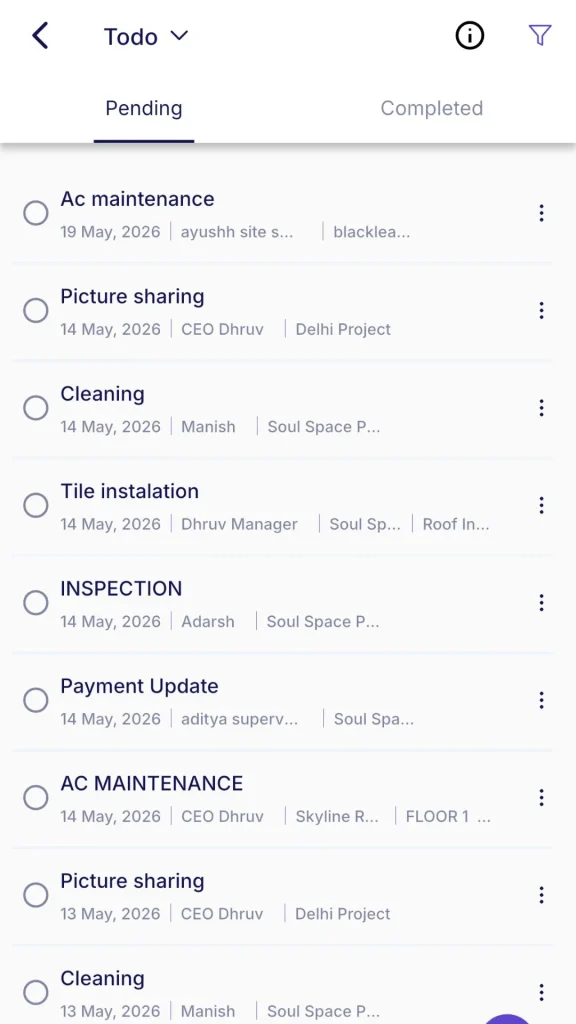
Before You Start
- For company-level To Do, access from the left sidebar
- For project-level To Do, you must be inside a project
- To assign a To Do to a team member, that person must be added to the project or company team
To Do vs Tasks — What to Use
| Use To Do | Use Tasks |
|---|---|
| Short action items, issues, or checklists (e.g. “Fix door frame”, “Order cement”) | Structured project activities with quantities, durations, and progress tracking |
| Snag lists and punch lists | BOQ-linked work packages |
| Maintenance checks and recurring site inspections | Work with Gantt scheduling and dependencies |
| Design issues or procurement follow-ups | Resource planning (material, labour, equipment) |
| Quick reminders assigned to a team member | Anything tied to the project’s progress percentage |
Company Level vs Project Level
| Feature | Company Level | Project Level |
|---|---|---|
| Access | Left sidebar, To Do | Project, To Do tab |
| Project field | Required, pick a project | Pre-filled with current project |
| Task link | Optional | Optional |
| Assignee | Optional | Optional |
| Due Date | Optional | Optional |
| Repeat To Do | Available | Available |
| Custom To Do Types | Shared across the app | Shared across the app |
| Filters | Status, Type, Assignee, Due Date | Status, Type, Assignee, Due Date |
Both levels show the same To Do items for a project. The company level lets you see and create items across all projects in one place.
Part 1 — Creating a To Do
At Company Level
- Click To Do in the left sidebar
- Click + To Do
- Fill in the form (see fields below)
- Click Save
At Project Level
- Open the project and click the To Do tab
- Click + To Do
- The Project field is pre-filled with the current project
- Fill in the remaining fields
- Click Save
To Do Form Fields
| Field | Required | What to Enter |
|---|---|---|
| Title | Yes | Short, clear name for the item (e.g. “Replace cracked tiles — Level 3”) |
| Project | Yes (company level only) | Select the project this item belongs to |
| Type | No | Category of the item (see types below) |
| Assigned To | No | Select the team member responsible |
| Due Date | No | Target completion date |
| Link Task | No | Search and link to a specific project task for context |
| Description | No | Add more detail or notes |
| Attachment | No | Upload a photo or document |
Part 2 — To Do Types
The Type field categorises To Do items for filtering and reporting.
Default Types
| Type | When to Use |
|---|---|
| Design Issue | Issues related to drawings, specifications, or design changes |
| Snag | Defects or incomplete work found during inspections or site walks |
| Maintenance | Scheduled or reactive maintenance tasks |
| Procurement Issue | Follow-ups on material orders, vendor delays, or supply problems |
| General Issue | Any item that does not fit the specific categories above |
Adding a Custom Type
- While creating a To Do, click the Type dropdown
- Click + Add Custom Type at the bottom of the list
- Enter the type name (e.g. “Safety Check”, “Electrical Punch List”)
- Click Theme Color and pick a colour for the tag
- Click Save
The custom type is now available in the Type dropdown for all To Dos across the app.
Part 3 — Filtering To Do Items
Use the filter bar at the top of the To Do list:
| Filter | What It Does |
|---|---|
| Status: Pending | Shows all open, not yet completed items |
| Status: Completed | Shows only completed items |
| Status: All | Shows both pending and completed items |
| Type | Filter by category (Design Issue, Snag, etc.) |
| Assignee | Show items assigned to a specific person |
| Due Date | Show items due within a specific date range |
Part 4 — Marking a To Do as Complete
Click the checkbox or status button on the To Do item.
The item moves to Completed status and disappears from the Pending view. Switch the Status filter to All or Completed to see it.
Part 5 — Repeat To Do
Use this to automatically create recurring To Do items on a set schedule, such as weekly safety walkthroughs or monthly maintenance checks.
Step 1 — Enable Repeat
When creating or editing a To Do, toggle on Repeat To Do.
Step 2 — Select Frequency
| Option | How It Works |
|---|---|
| Week Days | Repeats on selected days of the week (e.g. Monday, Wednesday, Friday) |
| Everyday | Repeats every day |
| Month Days | Repeats on specific dates of the month (e.g. 1st and 15th) |
Step 3 — Set End Option
| Option | Notes |
|---|---|
| Ends in 6 Months | Repeat stops automatically 6 months from today |
| Custom End Date | Pick a specific stop date |
Click Save. The To Do is automatically created on each scheduled occurrence.
Part 6 — Viewing and Commenting
Click any To Do item to open its detail panel. From here you can:
- See the full title, description, assigned person, due date, and type
- View any attachments
- Add a comment in the comment box. Comments are visible to all project team members with access.
- Edit or delete the item
Tips
- Use the Assignee filter during stand-up meetings to review each person’s pending items quickly
- Snag and Design Issue types are most useful during the finishing stage of a project when defect tracking becomes intensive
- Recurring To Dos are ideal for safety walkthroughs, daily housekeeping checks, or weekly review meetings
- Link To Dos to tasks to give the assignee context about which part of the project the action item belongs to
- Custom types created at the company level are available across all projects. Keep the list clean and purposeful to avoid cluttering the Type dropdown.
- A To Do is not the same as a project Task. Use To Dos for action items and follow-ups. Use Tasks for scheduled work with quantities, durations, and Gantt tracking.
If Something Goes Wrong
| Problem | Likely Cause | What to Do |
|---|---|---|
| Project not showing in the To Do form | No access to that project | Ask Admin to check your project access |
| Assignee not in dropdown | Person not added to the project or company team | Add the person to the team first |
| Repeat To Do not creating new items | End date has passed | Edit the To Do and update the end date |
| Custom type not appearing after saving | Page not refreshed | Reload the page and check the Type dropdown again |
| Cannot create or edit To Dos | Role does not have To Do permission | Ask Admin to check role permissions |
| Linked task not showing in the task dropdown | No tasks created in the project yet | Go to the Task tab, create tasks, then return to link the To Do |
| To Do not visible after creation | Status filter showing Pending but item is complete | Switch the Status filter to All |