
How to Use the Site Tab on the Onsite Mobile App
How to use the Site tab in a project on the Onsite mobile app — reading the daily site summary, checking site photos, viewing ongoing tasks, raising and viewing material requests, and creating and downloading the Daily Progress Report (DPR).
Before You Start
- You must be inside a project
Opening the Site Tab
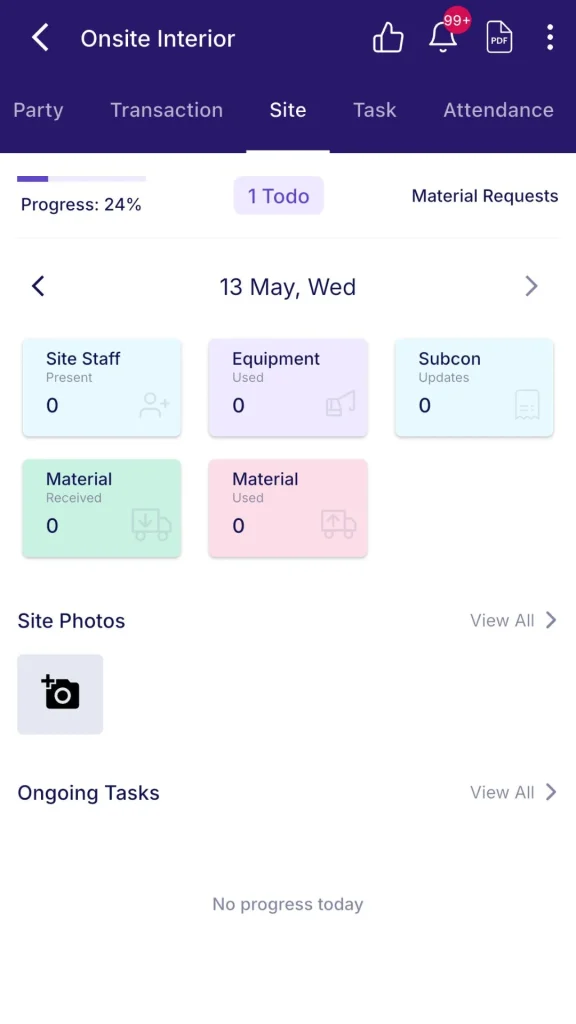
Open a project and tap the Site tab.
Top Bar
The top of the Site tab shows three items:
| Element | What It Shows |
|---|---|
| Progress % | Overall project completion percentage (e.g. 86%) |
| Todo | Count of pending To Do items assigned on this project. Tap to open them. |
| Material Requests | Shortcut to raise or view material requests. Tap to open the Material module. |
Use the left and right arrows (date navigator) to move between days and see the summary for any date.
Day Summary Tiles
The main section shows a snapshot of what was recorded on the selected day.
| Tile | What It Shows |
|---|---|
| Site Staff — Present | Number of site staff marked present that day |
| Equipment — Used | Number of equipment usage entries logged |
| Subcon — Updates | Number of subcontractor progress updates recorded |
| Material — Received | Number of material receipt (GRN) entries for the day |
| Material — Used | Number of material consumption entries for the day |
A 0 on any tile means nothing was recorded for that category on that day. Use this as a quick daily check — if Equipment shows 0 and machines were on site, the equipment log may be missing.
Tap the photo icon on any tile to add photos tagged to that category (e.g. tap the photo icon on Material Received to attach a delivery photo to that day’s GRN activity).
Site Photos
The Site Photos row shows a thumbnail strip of all photos uploaded for the selected day.
- Tap View All to see the full photo gallery for that day
- Tap the camera icon on the left to add a new photo for the selected date
Photos uploaded here are tagged to the project and date and appear in the DPR’s Site Photos section.
Ongoing Tasks
The Ongoing Tasks section lists tasks currently in progress, showing the task name and current progress (e.g. “Fan Installation — 85 nos completed”).
Tap View All to open the full task list for the project.
Material Requests
Tap the Material Requests button at the top of the Site tab to open the Material module.
Four sub-tabs appear:
| Sub-tab | What It Shows or Does |
|---|---|
| Request | Create a new material request. Select the date, tap + Add Material to add items, tap + Add Notes for context, then submit. |
| Inventory | View current stock levels for all materials on this project, grouped by category, with quantity on hand. |
| Received | View all GRN entries — materials received on site. |
| Used | View all material consumption entries — materials used from stock. |
The Material Requests shortcut on the Site tab means the supervisor does not need to navigate to a separate Material tab to raise a request — it is accessible directly from here.
Creating and Downloading a DPR
The DPR (Daily Progress Report) is a PDF summary of the project’s activity for a selected date. It compiles data already entered in the app — attendance, materials, equipment, subcontractor progress, and site photos — into a single shareable report.
Steps
- From the Site tab, scroll to the bottom and tap Create DPR
- A section selector appears. All sections are checked by default.
- Uncheck any sections you do not want to include in this DPR
- Tap Download PDF
- A preview of the DPR opens — tap Download to save it to your device
DPR Sections
| Section | What It Contains |
|---|---|
| Header | Company name, site name, and date |
| AI Recommendations | Automatically generated insights flagged as High, Medium, or Low priority — covering task delays, material gaps, labour status, and subcon updates |
| Work Summary | Task list with today’s progress quantity and overall completion vs target |
| Labour Report | Party name, workforce category, number of workers, shift count, overtime hours |
| Material Inventory | Opening stock, received, used, and closing stock per material |
| Material Requests | Pending material requests with item names, quantities, and status |
| Equipment | Equipment name, number, total hours used, and fuel added |
| Subcon Progress Summary | Subcontractor work order titles and current progress |
| Site Photos | All photos uploaded for the day |
Sharing the DPR
After downloading, tap the share icon to send the PDF directly to the project WhatsApp group or any other contact. Sharing the DPR with clients or management at the end of each working day keeps all stakeholders updated without requiring them to log into Onsite.
Tips
- The day summary tiles are the fastest daily check. A 0 on any tile signals a missing entry. If Material Received shows 0 but materials arrived that day, a GRN has not been created.
- Use the date navigator to go back and review previous days. If a report is being prepared for yesterday or last week, navigate to the correct date before creating the DPR.
- Uncheck sections in the DPR selector when only specific data is needed. A client update DPR can include just Work Summary and Site Photos, skipping Labour and Material details.
- The AI Recommendations section in the DPR highlights critical items automatically — tasks falling behind schedule, inventory running low, or pending material requests. Review this section before the daily team briefing.
- The photo icon on each day summary tile lets you attach photos to a specific activity category. Tagging a photo to Material Received connects it to that day’s GRN activity for the DPR.
If Something Goes Wrong
| Problem | Likely Cause | What to Do |
|---|---|---|
| Day summary shows 0 for everything | No entries recorded for that day | Check the Attendance, Material, and Equipment tabs for missing entries, then return to the Site tab |
| DPR PDF is blank for a section | No data recorded for that section on that date | Add the relevant entries in the app first, then regenerate the DPR |
| Material Requests shortcut shows no items | No requests raised for this project | Tap + Add Material in the Request sub-tab to create one |
| Cannot create DPR | Role does not have permission | Ask your Admin to check your role permissions |
| DPR photos missing | Photos not uploaded on the selected date | Go to Site Photos, tap the camera icon, upload photos, then regenerate the DPR |