
How to Navigate the Onsite Teams Mobile App
A walkthrough of the Onsite Teams mobile app home screen — what each section is, where to find key features, and how to get around the app.
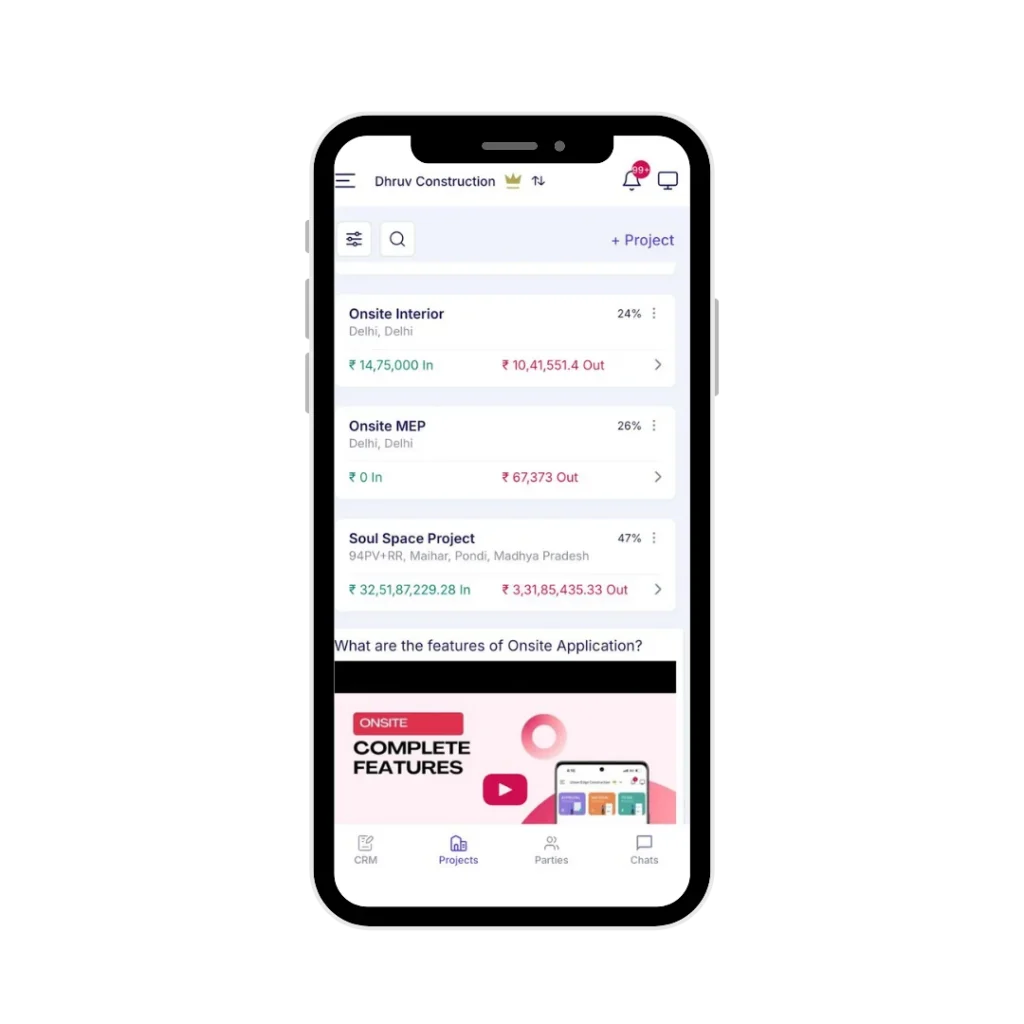
Before You Start
- You must be logged in to the Onsite app
- What you see on the home screen may vary depending on your role and the permissions your Admin has set
The Home Screen
When you open the app, you land on the home screen. It is divided into four areas — the Top Bar, Summary Counters, Quick Actions, and the Project List.
Top Bar
The top bar runs across the top of the screen and has three elements:
- Company Name — shows the company you are currently logged into. If you are part of multiple companies, tap the name to switch.
- Notifications (🔔) — tap to see pending approvals grouped by category such as material requests, expenses, and attendance. Tap any item to open it and take action.
- Chat (💬) — tap to open Chat Groups for company and project-level messaging.
Summary Counters
Below the top bar are three counters that show items needing your attention:
- Approvals Pending — items waiting for your approval
- Material Pending — material requests pending action
- To Do Pending — open To Do tasks assigned to you
Tap any counter to go directly to that list.
Quick Actions
Quick Actions are shortcuts for the most common tasks. Tap any button to go directly to that feature:
- Punch — record your attendance, punch in or punch out
- DPR — download the Daily Progress Report for a project
- Timesheet — log your time entries for the day
- My Wallet — open your personal financial ledger
- Help — watch tutorial videos or start a WhatsApp chat with the support team
Project List
Below the Quick Actions is a list of all projects you have access to. Use the search bar at the top of the list to find a project by name. Tap any project to open it.
Other Sections
The home screen also gives you access to company-wide tools and settings as separate tiles. These include:
- Party Balances — ledger showing balances across all parties such as vendors, subcontractors, and clients
- Warehouse — manage inventory, view stock, track movements, and record transfers
- CRM — manage leads and quotations
- Chat Groups — company and project-level messaging
- Master Library — company-wide master data including materials, equipment, and rate lists
- Payroll People — manage workforce and payroll records
- Roles & Access — manage user roles and permissions (Admin only)
- Company Settings — configure company-level settings
- My Asset — view assets assigned to you
- Business Card — your digital profile card in Onsite
- Customer Support — raise a support request or contact the Onsite team
- Backup — view the last backup time and trigger a manual backup
My Wallet
My Wallet is your personal financial ledger. Access it from the Quick Actions on the home screen. It has four tabs:
- Party Received — payments received from parties
- Paid — payments made to parties
- Site Expense — site-level expenses recorded against you
- Salary — your salary records
A Payment Summary view at the top shows a totals breakdown across all tabs.
Tips
- Use the Approvals counter on the home screen to quickly find everything waiting on you
- Use the Punch quick action to record attendance without opening a project
- Use the search bar in the project list to find a project quickly by name
- If you are part of multiple companies, tap the company name in the top bar to switch