
How to Log In to Onsite Teams
Onsite Teams supports two login methods — OTP and QR Code. OTP is sent to the registered mobile number.
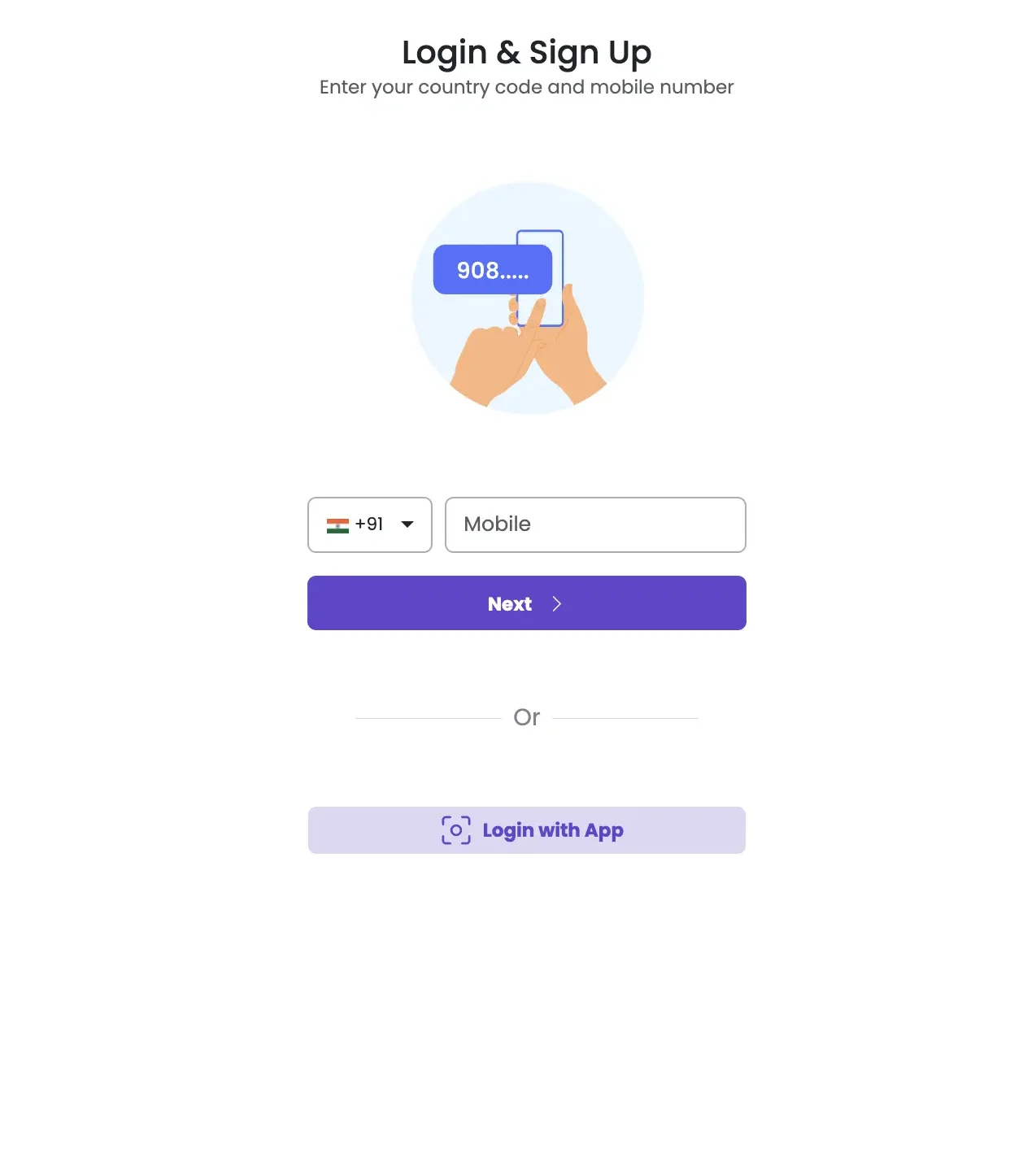
Login with OTP
- Open the app or go to https://web.onsiteteams.com/
- Enter your registered mobile number and tap Send OTP
- Enter the OTP received on your mobile number and tap Verify
Login with QR Code
- Open the Onsite app on your mobile
- On the web portal (https://web.onsiteteams.com/), a QR code will be displayed on the login screen
- Tap Scan QR in the app and scan the QR code shown on screen
- You are logged in on the web portal
If your account is linked to more than one company, you will be prompted to select a company after login.
If OTP Does Not Arrive
- Wait 30 seconds, then tap Resend OTP
- Check that you entered the correct mobile number
- Ensure you have network connectivity
- If the issue persists, contact your company Admin — they can verify that your mobile number is correctly registered in Onsite
If You Cannot Log In at All
| Problem | Likely Cause | What to Do |
|---|---|---|
| OTP not received | Wrong number or no network | Confirm the number and retry after 30 seconds |
| QR code not scanning | Camera permission not granted | Allow camera access in your phone settings and try again |
| QR code expired | QR codes refresh after some time | Refresh the web portal page to get a new QR code |
| Login screen shows error | Account not created | Ask your Admin to check if your number is registered |
| Logged into wrong company | Multi-company account | Log out and select the correct company on the company selection screen |
Tips
- OTP login works on both the mobile app and the web portal
- QR login is the fastest way to get into the web portal if you already have the app open on your phone
- Your login number must be the same number your Admin registered in Onsite — if it is wrong, only your Admin can correct it
- If you are part of multiple companies, you will see a company selector after login — tap the correct one to proceed