
How to Use the Transaction Tab (Project Level)
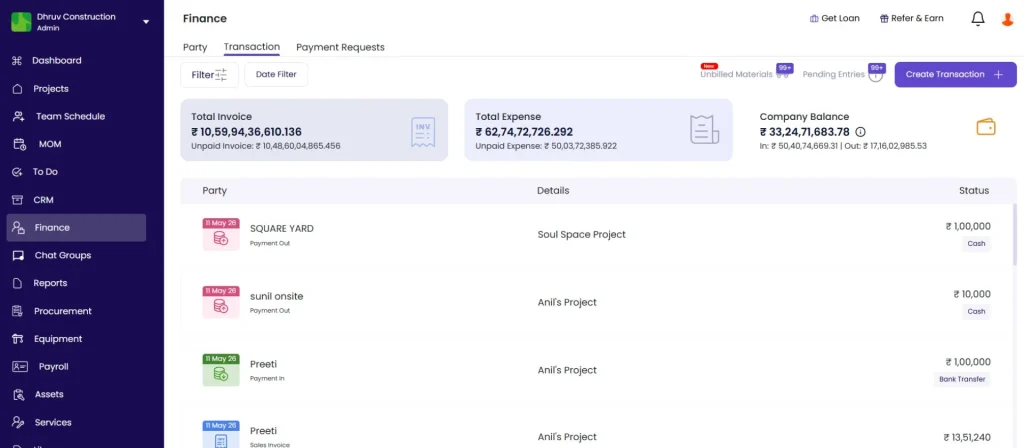
How to view and create all financial transactions in the project-level Transaction tab — understanding the header metrics and what they calculate, using the toolbar controls, and filling in forms for every transaction type. Also covers settling payments against bills and downloading transaction reports.
Before You Start
- You must be inside a project
- Relevant parties must be linked to the project via the Party tab before they appear in transaction dropdowns
- Bank accounts should be configured in Settings before recording bank transfer payments
- A subcontractor work order must exist before creating a Subcon Bill
Overview: Header Metrics
The top of the Transaction tab shows six metrics. Click the information icon next to any metric to see the formula tooltip.
| Metric | What It Shows | Formula |
|---|---|---|
| Project Balance | Net cash position of the project | In minus Out |
| In | Total money received into the project | Project Payment In plus Company Payment from project plus Invoices settled |
| Out | Total money paid out from the project | Project Payment Out plus Company Payment from project plus Expenses settled |
| Margin | Project profitability indicator | Sales minus Expense |
| Sales | Total revenue recognised on the project | Sales Invoice plus Material Sales minus Credit Note |
| Expense | Total expenses recorded on the project | Material Purchase plus Subcon Bill plus Salary Expense plus Other Expense plus Site Expense plus Equipment Expense plus Material Transfer In minus Material Return minus Material Transfer Out minus Debit Note |
💡 Margin is not cash profit. It is the difference between what you have billed and what you have spent on the project. A positive Margin means your billings exceed your costs. A negative Margin means costs are running ahead of billing.
Toolbar Controls
| Control | What It Does |
|---|---|
| Filter | Filter transactions by type, party, date, or status |
| Date | Set a date range for the transaction list |
| Unbilled Materials | Count of GRNs received but not yet linked to a Material Purchase invoice |
| Pending Entries | Count of transactions that are outstanding or unsettled |
| Download | Download a transaction report as PDF or Excel |
Unbilled Materials
Click Unbilled Materials to see all suppliers with GRNs not yet linked to a Material Purchase bill.
Each supplier shows how many GRN items are unbilled. Click a supplier to see the individual items and select which ones to include in a Material Purchase invoice.
Review Unbilled Materials regularly. GRNs without a matching invoice inflate your stock figures without a corresponding payable, which distorts accounts payable.
Pending Entries
Click Pending Entries to see all outstanding transactions in the project — Sales Invoices, Subcon Bills, and Payment Outs that are not fully settled.
Use this as a regular check to ensure old unsettled entries do not build up.
Transaction Sub-Tabs
| Sub-Tab | What It Contains |
|---|---|
| Transactions | Full list of all financial entries for this project |
| Payment Requests | All payment requests raised within this project |
Transaction List
Each row shows the date, party name, transaction category, description, status (Unpaid, Partially Paid, or Paid), and amount.
Click any transaction row to open its detail view and edit, settle, or view the entry.
Creating a Transaction
Click + Transaction and select the type from the dropdown.
All transaction types are grouped into four categories:
| Category | Types |
|---|---|
| Payment | Payment In, Payment Out, Party to Party Payment |
| Sales | Credit Note, Sales Invoice, Material Sales |
| Expense | Debit Note, Material Purchase, Material Return, Material Transfer, Subcon Bill, Other Expense, Equipment Expense |
| My Account | I Paid, I Received |
Payment Category
Payment In
Record money received from a party — for example, a client advance or a payment against an invoice.
| Field | Notes |
|---|---|
| Date | Transaction date |
| Party Name | Select from parties linked to this project |
| Amount | Amount received |
| Payment Method | Cash, Bank Transfer, or Cheque |
| Add Cost Code | Optional. Link to a budget cost code. |
| Reference No. | Optional. Cheque number or NEFT reference. |
| More Details | Category (Labour, Material, Transport, Equipment, Sub Contractor, Customer, Designer, Food and Travel, Others, Fuel, Salary), Note, Upload Files |
Payment Out
Record money paid to a party — for example, a vendor payment or advance to a subcontractor. Same fields as Payment In.
Party to Party Payment
Record a direct payment from one party to another, without the money going through your company’s accounts. This is used when one party settles a debt on behalf of another.
| Field | Notes |
|---|---|
| Date | Transaction date |
| Payment From | The party making the payment |
| Payment To | The party receiving the payment |
| Amount | Amount transferred |
| Description | Optional |
| Add Cost Code | Optional |
| Reference No. | Optional |
| More Details | Category and file upload |
Sales Category
Credit Note
Issue a credit note to a client to reduce what they owe you — for a billing adjustment, discount after invoicing, or work that was not completed.
| Field | Notes |
|---|---|
| Date | Date of the credit note |
| Party Name | Select the client |
| Items | Click + New Item and add line items with individual amounts |
| Total Amount | Auto-calculated from items |
| Reference No. | Optional |
| Notes | Optional |
| Upload Files | Optional |
Sales Invoice
Raise an invoice to a client for work completed. Two routes are available:
| Route | When to Use |
|---|---|
| From the Transaction tab | Standalone invoice, not linked to a BOQ |
| From the Estimate tab, Invoices sub-tab | Links the invoice to specific BOQ items and milestones. Recommended for milestone billing and progress-based invoicing. |
Creating from the Transaction tab:
- Select the client name and click Next
- Choose a BOQ and tick the items to include
- Enter Invoice Qty for each item
- Set Tax percentage, Discount, Additional Charges, Deduction, and Retention if applicable
- Click the settings icon to set Invoice No., Due Date, Bill To address
- Click Save
For full Sales Invoice guidance, see How to Create a Sales Invoice.
Material Sales
Record the sale of materials to a party from the project’s stock.
- Select the client and click Next
- Click + Add Item to open the Materials Inventory picker showing current stock and units
- Select materials and enter Unit Rate and Quantity
| Field | Notes |
|---|---|
| Item Subtotal, Tax %, Discount, Additional Charges | Standard invoice fields |
| Total Amount, Round Off | Auto-calculated |
| Invoice Date, Invoice No., Due Date | Set via the settings icon |
| E Way Bill No., Notes | Optional |
Expense Category
Debit Note
Raise a debit note against a party to record an amount they owe you — for materials returned, work not completed, or billing adjustments that reduce what you owe them.
| Field | Notes |
|---|---|
| Date | Date of the debit note |
| Party Name | Select the vendor or subcontractor |
| Items | Click + New Item and add line items with individual amounts |
| Total Amount | Auto-calculated |
| Reference No., Notes, Upload Files | Optional |
Material Purchase
Record a vendor bill for materials already received via GRN.
| Field | Notes |
|---|---|
| Purchase Invoice Date | Date on the vendor’s bill |
| Party Name | Select the supplier |
| Select Received Items | Links to GRNs from this supplier. Tick items to include. Quantities pre-fill from the GRN. |
| + Add Material | Add items directly from the Material Library if not received via a GRN |
| Per item fields | Tax percentage, Discount, Quantity, Unit Rate, Specifications |
| Sub Total, Additional Charges, Discount | Standard bill fields |
| Total Amount, Deduction, Net Amount, Round Off | Auto-calculated |
| Paid Amount | Enter the amount paid immediately if settling at the same time |
| Add Cost Code, Purchase Invoice No. | Optional |
| Bill To / Ship To, Note | Optional |
💡 Always use Select Received Items to link the bill to a GRN. This creates the three-way match between PO, GRN, and vendor invoice that keeps procurement records accurate and avoids double entry.
Material Return
Record materials returned to a supplier.
| Field | Notes |
|---|---|
| Date | Date of the return |
| Party Name | Select the supplier |
| + Add Materials | Select from the Material Library |
| Sub Total | Auto-calculated |
| Add Discount, Add Additional Charges, Add GST | Optional |
| Total Amount | Auto-calculated |
| Reference No., Note | Optional |
Material Transfer
Transfer materials from this project to another project or location.
| Field | Notes |
|---|---|
| Transfer Out No. | Auto-generated (e.g. MT-5) |
| Date | Transfer date |
| From | Current project (pre-filled) |
| To | Select the destination project |
| + Add Material | Opens the Materials Inventory picker showing current stock |
| Additional Charges | Optional |
| Total Amount | Auto-calculated |
| Reference No., E Way Bill No., Vehicle No., Note | Optional |
Subcon Bill
Record a bill from a subcontractor against a work order.
- Select the subcontractor’s work order from the Work Order picker
- Tick the work order items to bill. Each item shows Billed vs Un-Billed quantity.
| Field | Notes |
|---|---|
| Vendor, Date | Select and set |
| Invoice Qty per item | Enter the quantity being billed in this invoice |
| Item Subtotal, Tax %, Discount, Additional Charges | Standard bill fields |
| Total Amount, Deduction, Retention | Deductions and retention reduce Net Amount |
| Net Amount, Round Off | Auto-calculated |
| Add Cost Code | Optional |
| Vendor Bill Number | Optional. Reference from the subcontractor’s own invoice. |
| Bill To / Ship To, Upload Files | Optional |
| Item Level Tax toggle | Enable to set a different tax rate per line item |
Other Expense
Record a general project expense — site costs, miscellaneous overhead, or any expense without a material or subcontractor category.
| Field | Notes |
|---|---|
| Date | Expense date |
| Party Name | Select from parties linked to this project |
| Add Quantity and Unit Rate | Optional. Enable to calculate Sub Total as quantity multiplied by rate. |
| Sub Total | Enter directly, or auto-calculated if quantity and rate are used |
| Add Discount, Add Additional Charges | Optional |
| Enable GST Percent | Enable to show the GST percentage dropdown |
| Add Cost Code | Optional |
| Total Amount, Add Deduction | Deduction reduces Net Amount |
| Net Amount, Round Off, Paid Amount, Balance Due | Auto-calculated |
| Bill To / Ship To | Optional |
Equipment Expense
Record an expense for equipment used on the project.
| Field | Notes |
|---|---|
| Date | Date the expense covers |
| Party Name | Select the equipment provider |
| Date Range | Select the period for which the equipment was used |
| + Add Equipment | Opens the equipment picker showing available equipment |
| Sub Total, Add Discount | Standard fields |
| Enable GST Percent | Enable to show the GST percentage dropdown |
| Total Amount, Add Deduction | Deduction reduces Net Amount |
My Account Category
I Paid
Record a personal payment you made on behalf of the project — from your own pocket, without going through the company accounts.
Select the payment type:
| Type | When to Use |
|---|---|
| Site Expense | A direct site cost with no party linked (e.g. bought materials for cash at a local market) |
| Party Payment | Paid a specific party on the company’s behalf |
For Party Payment, fields include Party Name, Amount, Add Cost Code, Reference No., and More Details.
I Received
Record a personal amount you received on behalf of the project.
| Field | Notes |
|---|---|
| Date | Date received |
| Payment From | The party you received from |
| Amount | Amount received |
| Description, Add Cost Code, Reference No., More Details | Optional |
Settling Payments Against Bills
After recording a Payment Out or Payment In, you can link it to specific outstanding bills or invoices to mark them as settled.
This is called settling a payment. See How to Record a Payment and Settle Outstanding Bills for the full settlement workflow.
Downloading Reports
Click the Download icon in the Transaction tab toolbar.
A modal opens. Set the report type, date range, and view (Payment or Summary), then click Download PDF or Download Excel.
Tips
- For client invoices tied to milestones, use the Estimate tab rather than the Transaction tab. The Estimate route links invoices to BOQ items and tracks quantities automatically.
- Always use Select Received Items in Material Purchase to link bills to GRNs. This creates the three-way match and prevents quantities from being entered twice.
- Use Unbilled Materials weekly to ensure all received goods are invoiced. Unmatched GRNs leave vendor dues invisible in the accounts payable view.
- Use Pending Entries weekly to clear old outstanding transactions. Aged pending entries distort the To Pay and To Receive party balances.
- The Category field in More Details (on Payment In and Payment Out) classifies the cash flow for reporting. Fill it consistently so that payment reports are meaningful.
- I Paid and I Received are for personal fund tracking — recording when a team member uses personal funds for project expenses. They flow into the project’s financial totals.
- All transactions appear in the linked party’s ledger and update their balance immediately.
If Something Goes Wrong
| Problem | Likely Cause | What to Do |
|---|---|---|
| Party not showing in the dropdown | Party not linked to this project | Go to the Party tab and add the party to the project |
| Select Received Items shows zero items | No GRNs created for this supplier in this project | Create a GRN first in the Material tab under Received |
| Work order not showing in the Subcon Bill picker | Work order not created yet | Go to the Subcon tab and create the work order first |
| Cannot create certain transaction types | Role does not have transaction permission | Ask Admin to check your role permissions |
| Transaction not reflecting in party ledger | App not refreshed | Reload the page and check the party ledger |
| Balance or Margin figures look incorrect | Transactions posted to wrong project or incorrect amounts | Filter by date and review each transaction. Correct amounts or reverse incorrect entries. |
| Unbilled Materials count not reducing after creating a bill | GRN not linked during Material Purchase | Open the Material Purchase entry, check the Select Received Items section, and link the GRN |
| Deduction or retention not reducing Net Amount | Toggle or field not filled in | Check that the deduction amount is entered and the deduction toggle is enabled |
| Subcon Bill deducting wrong amount | Item-level tax toggled incorrectly | Review the Item Level Tax toggle and confirm the correct tax rate per line item |