
How to Use the Finance Tab (Company Level)
How to use the Finance tab at company level — the central hub for all financial activity across every project. Covers the Petty tab (party balances and cash tracking), the Transaction tab (all financial entries across the company), and the Payment Requests tab (PRs across all projects). Also covers the Balance Modal and how to create company-level transactions.
Before You Start
- You need Admin or Accountant access to use the Finance tab
- Set opening balances for all parties during initial setup so balances are accurate from day one
- Bank accounts should be configured in Settings before recording bank transfer payments
Finance Tab vs Project Transaction Tab
| Feature | Company Finance Tab | Project Transaction Tab |
|---|---|---|
| Scope | All projects combined | Single project only |
| Party balances | Across all projects | Within one project |
| Payment In / Payment Out | Available directly | Available directly |
| Expense transactions | Require project selection first | Created within the project automatically |
| Payment Requests | All projects in one list | Single project only |
| Best used for | Cross-project vendor payments, company-wide reconciliation | Day-to-day project accounting |
Accessing the Finance Tab
Click Finance in the left sidebar.
The Finance tab has three sub-tabs: Petty, Transaction, and Payment Requests.
Tab 1: Petty
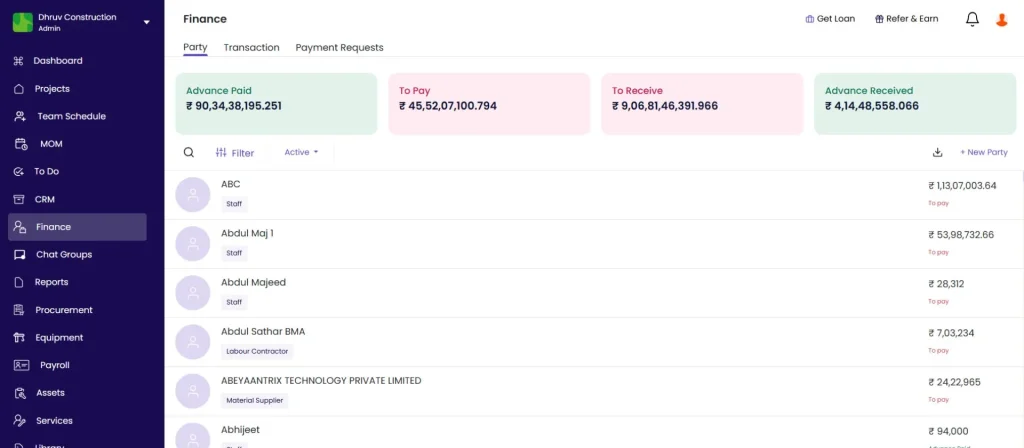
The Petty tab manages party-level balances and petty cash across all projects. Use it to check what any vendor, subcontractor, client, or staff member is owed or has outstanding, without going into individual projects.
Summary Cards
Four cards at the top show the company-wide financial position:
| Card | What It Shows |
|---|---|
| Advance Paid | Total advances given out to all parties across all projects |
| To Pay | Total amount your company owes to all parties |
| To Receive | Total amount all parties owe your company |
| Advance Received | Total advances received from all parties |
Party List (Left Panel)
Lists all parties across the company with their running balances.
| Column | What It Shows |
|---|---|
| Name | Party name |
| Party Type | Staff, Client, Contractor, Material Supplier, Labour Contractor, Worker |
| Balance | Net balance amount |
| Status Tag | To Pay, To Receive, Advance Paid, or Advance Received |
Use the Search box to find a party by name. Use the Filter button to narrow by party type or balance status.
Party Detail View (Right Panel)
Click any party in the list to open their detail view.
The detail view shows:
- Party name, type, and phone number
- Opening Balance field (click to set or edit)
- Balance summary row broken down by category: Petty Received, Petty Paid, Other Expense, Salary, Material Purchase, Material Return
- Full transaction history for this party across all projects
Recording a Payment from the Petty Tab
Inside a party’s detail view:
- Click Payment In (green) to record money received from this party
- Click Payment Out (red) to record money paid to this party
These payments at the Petty level are company-level transactions and are not tied to a specific project. Use this when the payment covers dues across multiple projects or is not linked to a single project.
Setting a Party’s Opening Balance
Click the Opening Balance field in any party’s detail view.
Enter the amount owed to or by this party before you started tracking in Onsite. This is a one-time entry per party and should be set during initial setup.
| Scenario | What to Enter |
|---|---|
| You owe the vendor Rs 40,000 from before going live on Onsite | Enter Rs 40,000 as To Pay |
| A client owes you Rs 75,000 from before going live | Enter Rs 75,000 as To Receive |
| No prior balance exists | Leave at zero |
Tab 2: Transaction
The Transaction tab is the main ledger for all financial transactions across the company.
Metric Cards
| Card | What It Shows |
|---|---|
| Total Invoice | Total invoice value raised (unpaid portion shown below) |
| Total Expense | Total expenses recorded (unpaid portion shown below) |
| Company Balance | Net company position — In vs Out across all projects |
Click the Balance icon next to Company Balance to open the Balance Modal (see below).
Toolbar Controls
| Control | What It Does |
|---|---|
| Date Filter | Filter the transaction list by a date range |
| Unbilled Materials | Count of GRNs received but not yet linked to a Material Purchase invoice |
| Pending Entries | Count of transactions that are unsettled or outstanding |
| Create Transaction | Opens the transaction type selection menu |
Transaction List
Each row shows the date, party name, transaction type and description, status (Paid, Partially Paid, or Unpaid), and amount.
Creating a Transaction
Click Create Transaction to open the type menu.
Payment types (no project required)
| Type | When to Use |
|---|---|
| Payment In | Record money received from a party at company level |
| Payment Out | Record money paid to a party at company level |
| Party to Party Payment | Transfer a balance from one party to another (e.g. when one party settles a debt on behalf of another) |
| Upload Payments (bulk) | Import a batch of Payment In or Payment Out entries via CSV — useful when clearing multiple vendor payments at once |
Accounting notes (no project required)
| Type | When to Use |
|---|---|
| Debit Note | Issue a debit note to a party to record an amount they owe you |
| Credit Note | Issue a credit note to a party to reduce an outstanding amount |
Expense types (project selection required)
For all expense types, a Select Project modal appears first. Choose the project the expense belongs to, then the form opens.
| Type | When to Use |
|---|---|
| Sales Invoice | Raise a client invoice linked to a specific project |
| Material Sales | Record a material sale |
| Material Purchase | Record a vendor bill for materials received |
| Material Return | Record materials returned to a vendor |
| Material Transfer | Transfer materials between projects or stores |
| Subcon Bill | Record a subcontractor bill for completed work |
| Other Expense | Record a project overhead or miscellaneous expense |
| Equipment Expense | Record equipment hire or maintenance costs |
💡 Expense transactions created here appear in both the company Finance tab and the selected project’s Transaction tab. They are the same entry, not duplicates.
For full form field details on each transaction type, see How to Use the Transaction Tab (Project Level).
Balance Modal
Click the Balance icon next to Company Balance in the metric cards row.
The Balance Modal shows all cash and bank accounts in a three-column layout:
| Column | What It Shows |
|---|---|
| Accounts | Cash Balance and all bank accounts configured in Settings |
| Opening Balance | Starting balance per account (click the edit icon to adjust) |
| Current Balance | Live running balance per account |
Use the Balance Modal to reconcile your cash and bank positions at a glance. If a current balance does not match your bank statement, check for unrecorded transactions or an incorrect opening balance.
Unbilled Materials
Click the Unbilled Materials badge in the toolbar.
A list of suppliers who have GRNs received but not yet linked to a Material Purchase invoice appears. Each supplier shows how many GRN items are unbilled.
Click a supplier to see the individual GRN items. Select the items to include in a Material Purchase invoice and proceed.
Review this regularly to ensure all received goods are invoiced and your accounts payable stays accurate.
Pending Entries
Click the Pending Entries badge in the toolbar.
Lists all outstanding transactions across the company — Sales Invoices, Subcon Bills, Payment Outs, and other entries that are not yet fully settled.
Use Pending Entries as a weekly reconciliation check to ensure no old unsettled transactions are building up across projects.
Tab 3: Payment Requests
Lists all payment requests raised across all projects in one view.
Payment Request List
| Column | What It Shows |
|---|---|
| Request ID | Auto-generated reference (e.g. PR-3) |
| Party Name | The party the payment is for |
| Type | e.g. Request Against PO, Request Against Other |
| Amount | Requested amount |
| Status | PAID (green) or UNPAID (red) |
Creating a Payment Request from the Finance Tab
- Click the create button
- A Select Project modal appears. Choose the project this PR belongs to and click Next.
- Fill in the PR form (see How to Use Payment Requests in Onsite for full field guidance)
- Click Save
⚠️ Payment Requests created at company level are always linked to a specific project. The system always asks for project selection first.
Tips
- Use the Petty tab to quickly check any vendor or subcontractor’s running balance across all projects without navigating into individual projects. This is the fastest way to answer “how much do we owe X?”
- Set Opening Balances for all parties as the first task when going live on Onsite. Without accurate opening balances, party ledgers show incorrect totals from day one.
- Use company Finance for Payment In and Payment Out when a single payment covers dues across multiple projects. Settling bills from multiple projects in one payment is only possible from the Finance tab, not from inside a project.
- Check Unbilled Materials weekly. GRNs received without a corresponding Material Purchase invoice inflate your stock without a matching payable — this distorts both inventory and accounts payable.
- Check Pending Entries weekly to keep unsettled transactions from ageing. Old pending entries make party balances look higher than the actual outstanding amount.
- The Balance Modal is your quick reconciliation tool. Compare the Current Balance against your physical cash count and bank statement at the end of each week.
If Something Goes Wrong
| Problem | Likely Cause | What to Do |
|---|---|---|
| Cannot see the Finance tab | Insufficient role access | Ask Admin to check your role permissions. Admin or Accountant roles have Finance tab access. |
| Party not appearing in the Petty tab | Party not added to the company | Add the party via the Party tab in any project or via CRM first |
| Opening Balance field not editable | Already saved with a value | Click the edit icon next to the opening balance field to update it |
| Expense transaction types not available | Finance tab does not create expenses without a project | Click Create Transaction, select the expense type, and select the project in the modal that appears |
| Transaction created but not appearing in the project | App not refreshed | Go to the project’s Transaction tab and reload. The entry should appear under the correct date. |
| Current Balance in the Balance Modal does not match bank statement | Incorrect opening balance or unrecorded transaction | Check the opening balance for the account and review whether all transactions are recorded |
| Unbilled Materials count not reducing after invoicing | Invoice not saved against the correct GRN | Re-open the Unbilled Materials panel, check the GRN is linked to an invoice |
| Payment Request not visible in the list | PR created in a project that is not accessible | Check role permissions and project access. All PRs across all accessible projects appear in this tab. |