
How to Record Expenses That Are Not Part of Any Project
How to record company-level expenses that are not linked to any specific project — including office rent, utilities, admin salaries, loan EMIs, and other overheads. Covers the one-time setup, how to record individual expenses, how to set up cost codes, and how to view monthly expense totals.
Before You Start
- You need Admin or Accountant access
- Plan your cost codes before recording expenses. Without consistent cost codes, monthly expense reports cannot be broken down by category.
Why a Dedicated Project Is Needed
Onsite is built around projects. Every transaction — including Other Expense, Payment Out, and Salary Expense — must be linked to a project.
For expenses that are not part of any construction project (office rent, loan EMIs, utilities, admin costs), the recommended approach is to create a dedicated project called Head Office or Admin and Overhead and record all company-level expenses there.
This keeps overhead costs separate from project costs and ensures that project-level profit and expense reports are not distorted by unrelated overheads.
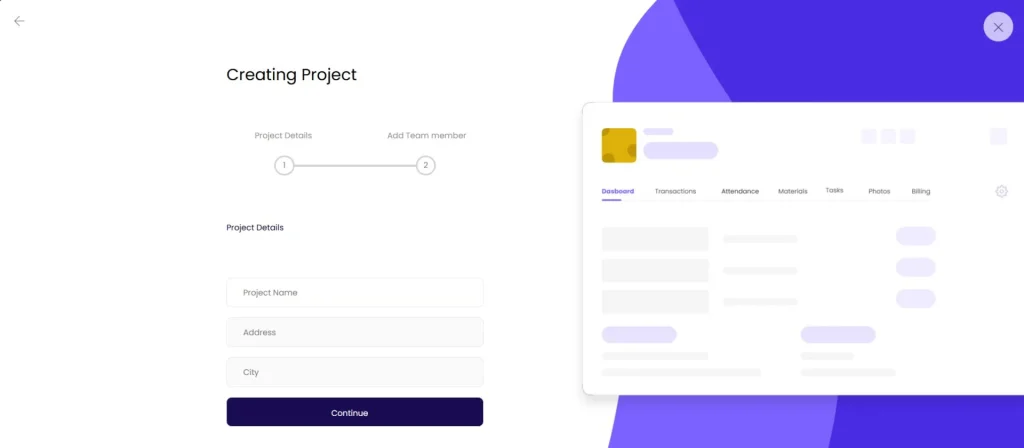
Step 1: Create the Head Office Project (One Time)
- Go to Projects in the left sidebar
- Click + New Project
- Name it Head Office or Admin and Overhead
- Set any client as the project owner, or leave the client field blank if not required
- Click Save
This project does not need a BOQ or tasks. It is used only as a container for recording company-level expenses.
⚠️ Do this setup only once. If multiple team members each create their own overhead project, expenses will be scattered across several projects and monthly reports will be inaccurate.
Step 2: Set Up Cost Codes (One Time)
Cost codes are the categories you assign to each expense. Without them, all expenses appear as a single undifferentiated total in reports with no breakdown.
Recommended cost codes for overhead expenses:
| Cost Code | What to Record Here |
|---|---|
| Office Rent | Monthly rent for the office or warehouse |
| Utilities | Electricity, water, internet, telephone |
| Admin Salary | Salaries for admin and back-office staff not linked to a project |
| Stationery and Supplies | Office consumables |
| Loan Repayment — Principal | Principal portion of monthly loan EMI |
| Loan Interest | Interest portion of monthly loan EMI |
| GST Absorbed | GST paid on behalf of clients who do not reimburse GST |
| Insurance | Office or equipment insurance premiums |
| Professional Fees | Accountant, consultant, or legal fees |
| Fuel and Travel | Admin-level vehicle or travel costs |
| Miscellaneous | Any overhead that does not fit a specific category |
How to add cost codes
- Go to Settings
- Click Finance Settings
- Scroll to the Cost Codes section
- Click + Add Cost Code, enter the name, and click Save
Repeat for each cost code you need. Cost codes are available across all projects once saved.
Step 3: Record an Overhead Expense
- Open the Head Office project
- Click the Transaction tab
- Click + Transaction and select Other Expense
- Fill in the form:
| Field | What to Enter |
|---|---|
| Date | Date the expense was incurred |
| Party Name | The vendor or payee (e.g. landlord’s name, bank name, electricity board) |
| Amount | Full expense amount |
| Add Cost Code | Select the relevant cost code (e.g. Office Rent, Utilities) |
| Notes | Optional. Add context such as the month covered (e.g. “May 2026 rent”) |
| Upload Files | Optional. Attach invoice or receipt for record keeping |
- Click Save
Repeat for each expense as it is incurred.
Step 4: View Monthly Expense Totals
- Go to Reports in the left sidebar
- Click Company Expense Report
- Set the filters:
- Project: Head Office
- Date: Select the month or date range you want to review
- The report shows all overhead expenses for that period, broken down by cost code
Use this report at the end of each month to review total overheads and compare against the previous month.
What Types of Expenses Belong Here
| Expense Type | Record in Head Office | Record in Project |
|---|---|---|
| Office rent | Yes | No |
| Electricity and utilities for office | Yes | No |
| Admin staff salary | Yes | No |
| Loan EMI (principal and interest) | Yes | No |
| GST paid on behalf of a client | Yes | No |
| Site electricity or water | No | Yes, in the relevant project |
| Site supervisor salary | No | Yes, through Payroll linked to the project |
| Material purchased for a site | No | Yes, as Material Purchase in the project |
| Equipment hired for a project | No | Yes, as Equipment Expense in the project |
Tips
- Set up all cost codes before recording the first expense. Going back to recategorise old entries takes significant time.
- Record expenses consistently each month. A Head Office project with two months of clean data and one month missing is harder to report on than a project with no records at all.
- For loan EMIs, record the principal and interest as two separate Other Expense entries with different cost codes. This allows you to filter and see total interest paid for the year separately from the principal repaid.
- Add a Note on each expense entry indicating the billing period or invoice reference (e.g. “April 2026 electricity bill”, “HDFC Bank EMI — May 2026”). This makes the transaction list readable without having to open each entry.
- If multiple people in your company are responsible for recording overhead expenses, make sure all of them use the same Head Office project and the same cost codes. Inconsistent categorisation defeats the purpose of the system.
- Do not mix project-related expenses into the Head Office project. If an expense is for a specific site or construction project, record it in that project’s Transaction tab.
If Something Goes Wrong
| Problem | Likely Cause | What to Do |
|---|---|---|
| Cannot find the Head Office project | Not created yet, or you do not have access | Create the project or ask Admin to add you to it |
| Cost code not appearing in the dropdown | Not added in Finance Settings | Go to Settings, then Finance Settings, then add the cost code |
| Expense saved but not appearing in the Company Expense Report | Wrong project selected in the report filter | Set the Project filter to Head Office and check the date range |
| Party not appearing in the dropdown when recording an expense | Party not added to the Head Office project | Go to the Party tab in the Head Office project and add the party first |
| Monthly report showing all expenses in one line without breakdown | Cost codes not assigned on individual expenses | Edit each expense entry and assign the correct cost code |
| Overhead expenses appearing in project profit reports | Expenses were recorded inside a construction project instead of Head Office | Reverse the incorrect entries and re-record them in the Head Office project |