
How to Manage Design Files and Approvals
How to upload design files, manage versions, add comments and pins, and approve or reject design versions in the project Design tab.
Before You Start
- You must be inside a project
- Only users with the Design permission enabled on their role can upload and manage design files
- Only users with approval permission can approve or reject design versions
Design Tab Overview
Open a project and click the Design tab.
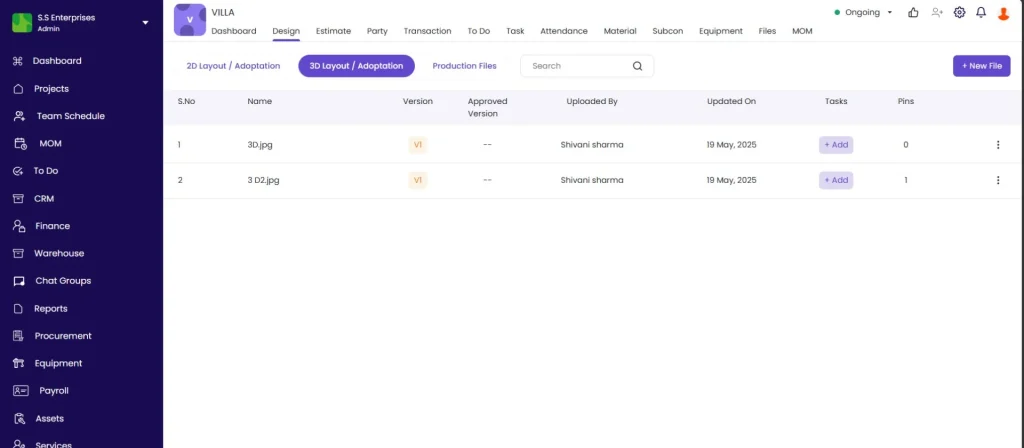
The Design tab has three sections:
| Section | What It Contains |
|---|---|
| 2D Layout / Adoption | 2D drawings, floor plans, and site layouts |
| 3D Layout / Adoption | 3D models and renderings |
| Production Files | Files related to on-site production and fabrication work |
Each file in the list shows its version number, approval status, who uploaded it, the number of pins, and upload date.
Supported File Types and Size Limits
| Supported Formats | Maximum File Size | |
|---|---|---|
| Design Module | JPG, JPEG, PNG, PDF | 100 MB per file |
How to Add a New Design File
- Click the Design tab inside the project
- Select the section: 2D Layout / Adoption, 3D Layout / Adoption, or Production Files
- Click + New File
- Click + Add
- Check the checkbox to select the file to upload
- Click Next
- Complete any remaining details and click Save
The file uploads and appears in the section with status Pending.
How to Upload a New Version
When a design file already exists and an updated version is ready:
- Open the design file from the Design tab
- Click Upload New Version
- Select and upload the new file
The version number increments automatically (V1, V2, V3, and so on). The new version shows Pending status until it is approved.
How to View and Switch Between Versions
- Click on a design file to open it in the viewer
- The viewer shows: version number, approval status, page count, and pin count
- To view a previous version: click the version number selector and choose a different version (e.g. Version 2)
All previous versions remain accessible. Version history is never deleted.
How to Add a Pin or Comment on a Design
Pins let you annotate specific areas of a drawing and notify relevant team members.
- Open the design file in the viewer
- Click anywhere on the drawing where you want to add a note
- Type your comment (e.g. “This doorway width needs to be revised”)
- To tag a team member: type @ followed by their name and select from the dropdown (e.g. @Ravi)
- Click Submit
The tagged person receives a notification. The pin appears as a marker on the drawing and is visible to all users with Design access.
Design File Statuses
| Status | What It Means |
|---|---|
| Pending | Uploaded and awaiting review by an approver |
| Approved | Reviewed and approved — the current authorised version |
| Rejected | Reviewed and rejected — a revised upload is needed |
How to Approve or Reject a Design Version
From the Approvals Panel
- Click the Approvals icon in the project header (top right)
- Click Design Version — a count shows how many are pending (e.g. “Design Version (3)”)
- Click on a pending item to open it
- Review the design
- Click Comment to add a remark before approving or rejecting
- Click Approve or Reject
Directly on the File
- Open the design file in the viewer
- Click the current status badge (e.g. Pending)
- Select the new status from the dropdown
Tips
- Use version control instead of uploading over the same file. Uploading a New Version keeps all previous versions accessible, while the latest version is always shown by default.
- Use @mentions in pins to notify the right person directly. A pin without a tag is visible but does not send a notification.
- Check the Approvals panel regularly if you are an approver. The count badge shows pending items so nothing gets missed.
- Each section (2D, 3D, Production Files) is independent. Upload drawings to 2D, models to 3D, and fabrication or shop drawings to Production Files to keep files organised.
- The Files tab is for general project documents without version tracking. Use the Design tab specifically for drawings and models that need version history and formal approval.
If Something Goes Wrong
| Problem | Likely Cause | What to Do |
|---|---|---|
| File not uploading | Unsupported file type or file is too large | Design tab accepts JPG, JPEG, PNG, and PDF only. Maximum file size is 100 MB per file. |
| Cannot see the Design tab | Role does not have Design access | Ask your Admin to check your role permissions and enable Design access |
| File stuck on Pending | Not yet reviewed by the approver | Ask the designated approver to open the Approvals panel and review it |
| Cannot approve or reject a design | Role does not have approval permission | Ask your Admin to grant design approval permission on your role |
| Previous version not visible | Version selector not used | Click the version number in the viewer and select the earlier version from the list |