
How to Manage CRM Quotations in Onsite
How to create, edit, and manage client quotations in the CRM — adding sections and items, setting tax type, tracking quotation status, downloading and sharing with clients, and using the rate library for faster item entry.
Before You Start
- The client must be added as a party before they can be selected on a quotation
- Add items to the Rate Library in advance for faster quotation creation
- Configure Terms and Conditions in Settings if you want default terms to pre-fill on quotations
Accessing Quotations
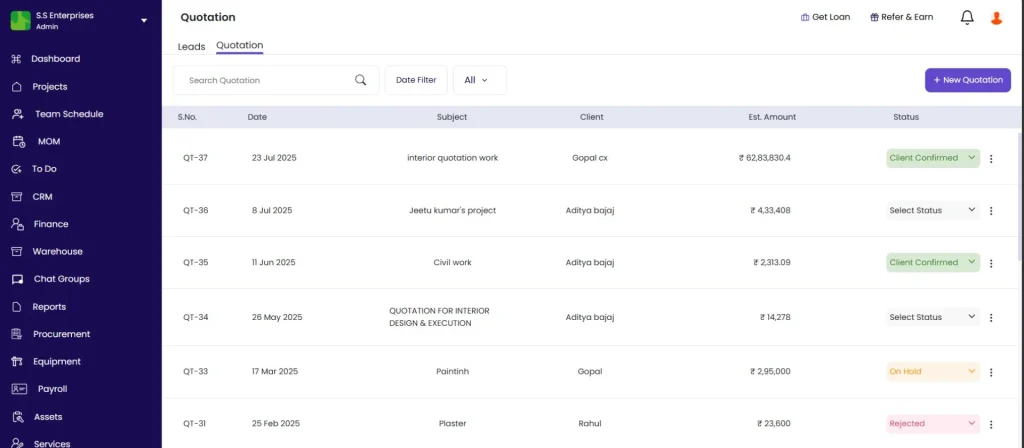
Click CRM in the left sidebar, then click the Quotation tab.
Quotations can also be created from within a lead: open the lead, click the Quotation tab, and click + New Quotation. This links the quotation to the lead automatically.
The Quotation List
| Column | What It Shows |
|---|---|
| S.No | Auto-generated quotation number (e.g. QT 2025/23) |
| Date | Date the quotation was created |
| Subject | Quotation title |
| Client | Client name |
| Est. Amount | Total estimated value in Rs |
| Status | Current quotation stage |
Filters
| Filter | Options |
|---|---|
| Search | Search by quotation subject or client name |
| Date Filter | Filter by date range |
| Status | All, Draft, Sent, In Discussion, On Hold, Client Confirmed, Rejected |
Quotation Status Values
| Status | What It Means |
|---|---|
| Draft | Being prepared, not yet shared with the client |
| Sent | Shared with the client |
| In Discussion | Client is reviewing or negotiating |
| On Hold | Paused — waiting on client or internal decision |
| Client Confirmed | Client has approved the quotation |
| Rejected | Client declined |
Update the status directly from the list by clicking the status badge on any row.
Creating a New Quotation
Click + New Quotation in the top right.
Create Quotation Form
| Field | Required | What to Enter |
|---|---|---|
| Quotation Subject | Yes | Descriptive title (e.g. “Full Home Interior — Sector 22”) |
| Client Name | Yes | Search and select from existing parties |
| Select Tax Type | Yes | Item Level Tax (tax per line item) or Bill Level Tax (single tax applied to the total) |
⚠️ Tax Type cannot be changed after the quotation is saved. Choose carefully before clicking Save. Item Level Tax is used when different items attract different GST rates. Bill Level Tax is used when a single rate applies to the entire quotation.
Click Save Quotation. The quotation opens in edit mode.
Quotation Detail View
Header Fields
| Field | What It Shows or Does |
|---|---|
| QT No. | Auto-generated reference (e.g. Qt 2025/23) |
| QT Date | Date of the quotation |
| Client | Client name |
| GST | Client’s GST number (auto-filled from party profile) |
| Mobile | Client’s phone number |
| Address | Client’s address |
| Status | Current stage — change via dropdown |
| Priority | High, Medium, or Low |
Action Buttons
| Button | What It Does |
|---|---|
| Download | Export the quotation as a PDF or file |
| Edit | Enter edit mode to update items, prices, or details |
| Print the quotation directly | |
| Share | Share the quotation with the client via WhatsApp or email |
Adding Sections and Items
Add a Section
Click + Section to create a grouping row (e.g. “Civil Work”, “Electrical”, “Plumbing”, “Interior Finishes”). Items added below a section become sub-items (2.1, 2.2, etc.) under that section heading.
Use sections to organise large quotations by trade or scope. Clients find sectioned quotations significantly easier to read and approve.
Add an Item
Option A — From Library: Click + Add Item, then + Add Item from Library. Search and select a predefined item. All fields pre-fill from the library entry.
Option B — New Item (manual): Click + Add Item and enter all fields manually.
Items Table Fields
| Column | What to Enter |
|---|---|
| Item | Item name or description |
| N x L x W x H | Dimensions (for area or volume-based items, e.g. flooring in sqft, concrete in cum) |
| Cost Price | Your internal cost for this item in Rs |
| Selling Price | Price charged to the client in Rs |
| QTY | Quantity with unit (e.g. 100 sqft, 5 points, 12 nos) |
| Tax (%) | Tax rate for this item (e.g. 18%, 12%, 5%) |
| Amount | Auto-calculated as Selling Price multiplied by QTY, adjusted for tax |
Click the three dots (⋮) on any item row to Edit or Delete that item. Collapse or expand sections using the arrow icon on the section row.
Financial Summary
| Field | What It Shows |
|---|---|
| Item Sub Total | Sum of all item amounts before tax adjustment |
| CGST | Central GST portion (typically 9%) |
| SGST | State GST portion (typically 9%) |
| Additional Discount | Manual discount applied to the total in Rs |
| Total Amount | Final amount after tax and discount |
| Cost Price | Total internal cost to your company across all items |
| Markup | Total Amount minus Cost Price — your profit on this quotation |
Review the Markup before sharing with the client. If the Cost Price and Selling Price were set correctly on each item, the Markup shows your net margin for the full quotation scope.
Terms and Conditions
A Terms and Conditions section appears at the bottom of the quotation. Edit the text to reflect your payment terms, change request policy, validity period, or any contractual notes specific to this quotation.
Default terms from Settings are pre-filled if configured. See How to Add Terms and Conditions for setup guidance.
Duplicate or Delete a Quotation
Click the three dots (⋮) on any quotation row in the list:
| Action | What It Does |
|---|---|
| Duplicate | Creates an identical copy of the quotation — useful for similar projects where only prices or quantities differ |
| Delete | Permanently removes the quotation |
Tips
- Use Sections to organise by trade. A quotation with sections for Civil, Electrical, Plumbing, and Interior is much easier for a client to review than a flat list of 40 items.
- Set Tax Type before saving. Item Level Tax applies different rates per item — use it for mixed-trade quotations. Bill Level Tax applies one rate to the total — use it for single-scope work.
- Add items from the Rate Library for consistency and speed. Library items carry pre-set cost and selling prices, so you only need to enter the quantity.
- Check the Markup before sharing. The financial summary shows total Cost Price and Markup. Send the quotation only when the margin is within your target.
- Move status to Client Confirmed once approved. This makes it easy to filter all confirmed quotations and convert them to projects.
- Create quotations from within the lead record, not from the Quotations tab directly, whenever possible. This keeps the lead and quotation linked for pipeline tracking.
If Something Goes Wrong
| Problem | Likely Cause | What to Do |
|---|---|---|
| Client not appearing in the dropdown | Not added as a party | Add the client as a party first, then create the quotation |
| Tax not calculating | Tax percentage not entered on items, or Tax Type not set | Check the Tax (%) column on each item and confirm the Tax Type was selected at creation |
| Item not in Library | Not yet added | Add the item manually in this quotation, or ask Admin to add it to the Rate Library |
| Quotation not visible in list | Status filter is active | Set the Status filter to All |
| Cannot change Tax Type after saving | Tax Type is locked after save | Delete the quotation and recreate it with the correct Tax Type selected |
| Markup showing zero or negative | Selling Price set equal to or below Cost Price | Review each item’s Cost Price and Selling Price and correct the margins |