
How to Manage CRM Leads in Onsite
How to create and manage CRM leads in Onsite — filling in lead details, setting source and category, tracking pipeline status, scheduling follow-ups, adding comments, and linking quotations to leads.
Before You Start
- You need a role with CRM Lead access (Admin, Sales Manager, or a custom role with CRM permissions)
- Set up custom lead sources and categories before the team starts logging leads — consistent sources make the Lead Status Report more useful
Accessing CRM Leads
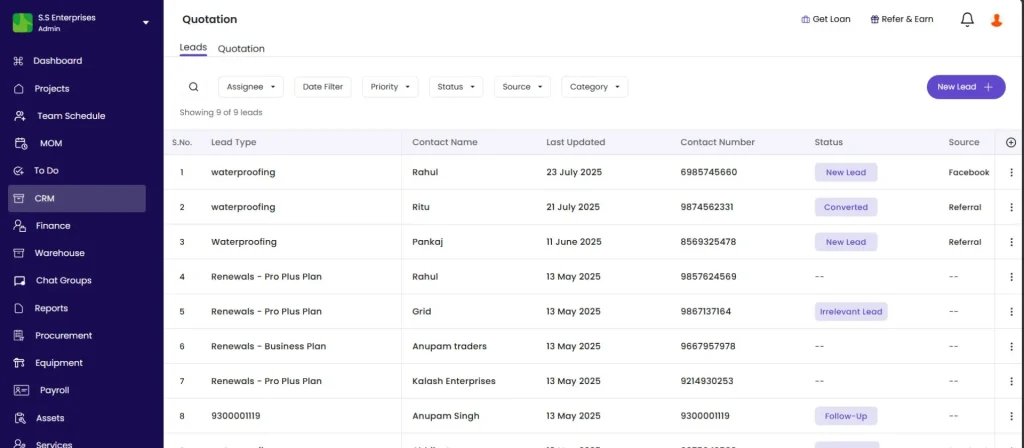
Click CRM in the left sidebar, then click the Leads tab.
The CRM module has two tabs: Leads and Quotation.
The Leads List
| Column | What It Shows |
|---|---|
| Lead Type | Category of the lead (type of project or enquiry) |
| Contact Name | Name of the contact person |
| Last Updated | Date the lead was last modified |
| Contact Number | Phone number |
| Status | Current pipeline stage (badge) |
| Source | Where the lead came from |
Filters
| Filter | Options |
|---|---|
| Search | Search by contact name or lead type |
| Assignee | Filter by the team member the lead is assigned to |
| Date Filter | Filter by creation date range |
| Priority | High, Medium, or Low |
| Status | New Lead, Follow-up, Proposed Stage, Interested Lead, No Response, Lost |
| Source | Filter by lead source (Instagram, Google, Referral, etc.) |
| Category | Filter by lead category |
Creating a New Lead
Click New Lead in the top right.
New Lead Form
| Field | Required | What to Enter |
|---|---|---|
| Lead Assignee | No | Team member responsible for following up on this lead |
| Date | Yes | Auto-filled with today’s date — change if entering a past lead |
| Lead Type | Yes | Select from the dropdown (type of project or enquiry) |
| Contact Name | Yes | Full name of the contact person |
| Phone No. | Yes | Mobile number with country code (e.g. +91 98765 43210) |
| No | Contact email address | |
| Company Name | No | Client’s company or firm name |
| Address | No | Site or office address |
| Source | No | Where this lead came from — select existing or create new (see below) |
| Category | No | Type of project — select existing or create new (see below) |
| Lead Status | No | Current pipeline stage — defaults to New Lead |
| Priority | No | High, Medium, or Low (default: Medium) |
| Last Contacted Date | No | Date you last spoke with the contact |
| Follow Up Date | No | Date to follow up next |
| Expected Closure Date | No | Target date for winning or closing this lead |
| Budget | No | Client’s approximate project budget in Rs |
| Description | No | Notes, context, site requirements, or other details |
Click Save.
Lead Source
Predefined sources: Instagram, Google, Referral, Cold Call, Facebook, Website, WhatsApp, Email Campaign.
Adding a Custom Source
- Click the Source dropdown
- Click + New Source
- Enter the source name (e.g. “Builder Mela”, “LinkedIn”, “Newspaper Ad”)
- Click Save
The new source is available across all leads immediately.
Lead Category
Predefined categories: Residential Projects, Civil Work.
Adding a Custom Category
- Click the Category dropdown
- Click + New Category
- Enter the category name (e.g. “Commercial Interior”, “Infrastructure”, “Industrial”)
- Click Save
Custom categories are available across all leads once created.
Lead Status Values
| Status | What It Means |
|---|---|
| New Lead | Just added, not yet contacted |
| Follow-up | In conversation, follow-up date scheduled |
| Interested Lead | Contact has shown genuine interest |
| Proposed Stage | Quotation or proposal has been shared |
| No Response | Contact is not responding to outreach |
| Lost | Lead did not convert |
Update the status by clicking the status badge on any row in the list, or by editing the lead.
Lead Detail View
Click any lead row to open the full detail panel. Three tabs are available.
Overview Tab
Shows all lead fields: Contact Name, Phone, Email, Company, Address, Status, Source, Category, Assignee, Priority, Budget, Creation Date, Next Follow Up, Expected Closure, Last Contacted.
Click Edit (top right) to update any field and click Save.
Comments Tab
Use this tab to log all communication and activity on the lead:
- Call summaries
- Meeting notes
- WhatsApp conversation notes
- Internal team updates
Click + Add Comment, type the note, and click Save. All comments appear in chronological order with the commenter’s name and date.
💡 Logging comments consistently creates a complete history of every touchpoint with the client. When a lead is reassigned to a new team member, they can read the comment history and pick up where the previous person left off without needing a briefing.
Quotation Tab
Lists all quotations linked to this lead.
| Column | What It Shows |
|---|---|
| Subject | Quotation title |
| Client | Client name |
| Est. Amount | Estimated quotation value in Rs |
| Status | Draft, Sent, In Discussion, On Hold, Client Confirmed, or Rejected |
Click + New Quotation to create a quotation directly linked to this lead.
💡 Always create quotations from within the lead record rather than from the standalone Quotation tab. This keeps the quotation and lead linked for reporting and pipeline tracking. The Lead Status Report shows where quotations stand across the pipeline only when they are linked to leads.
Tips
- Set Follow Up Date on every lead. Without a follow-up date, leads sit in the list indefinitely and go cold. Use the Date Filter to see all leads whose follow-up date has passed.
- Use Source tracking from the first lead. After a few months of consistent source tracking, the Lead Status Report shows which channels bring the highest-converting leads — this shapes where to invest in marketing.
- Update Status regularly. The Status filter is only useful when statuses are current. A lead that has received a quotation should be moved to Proposed Stage, not left as New Lead.
- Use Priority = High for leads with imminent decisions or large budgets. Filter by High Priority in the leads list to surface the ones that need the fastest response.
- Use Description for site-specific details — plot size, floor count, client preferences, known constraints. These notes are visible to everyone with CRM access and avoid repeated conversations.
- Set Expected Closure Date on every active lead. It creates accountability for the sales team and feeds into revenue forecasting.
If Something Goes Wrong
| Problem | Likely Cause | What to Do |
|---|---|---|
| Cannot save a new lead | Required field (Lead Type, Contact Name, or Phone No.) is blank | Fill all required fields marked with asterisks before clicking Save |
| Source or Category not in dropdown | Not yet created | Click + New Source or + New Category inside the dropdown to add it |
| Lead not appearing after applying a filter | Status, Source, or other filter is active | Click clear all filters or reset each filter to see all leads |
| Assignee not in dropdown | Person not added to the company team | Ask Admin to add the person to the team in Settings, Roles and Access |
| Cannot see CRM Leads | Role does not have CRM Lead access | Ask Admin to check your role permissions and enable CRM Lead access |
| Comments not saving | Browser issue or empty comment | Type at least one character and click Save again |