
How to Use the Party Tab (Project Level)
How to view all parties on a project, check their outstanding balances, browse full transaction history, and create payments and expense transactions directly from the Party tab.
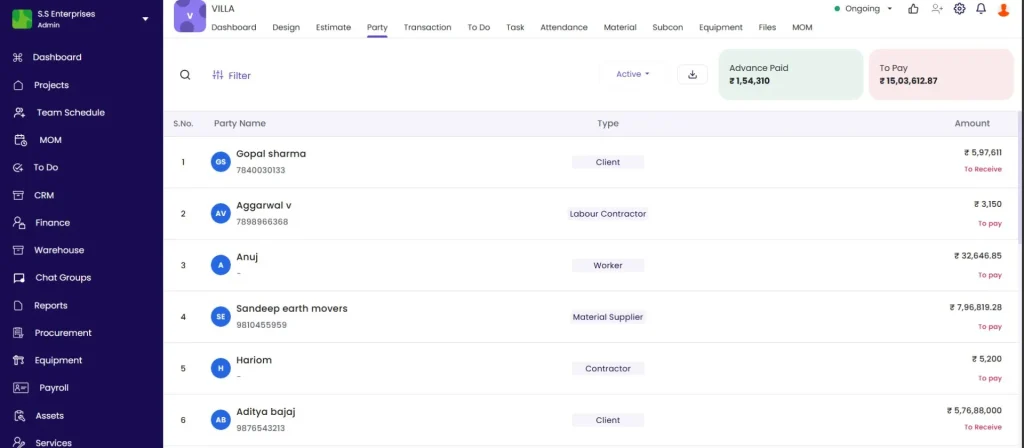
Before You Start
- You must be inside a project
- Parties (clients, suppliers, workers, subcontractors) must be linked to the project before they appear here
What the Party Tab Shows
Open a project and click the Party tab.
Header summary:
| Element | What It Shows |
|---|---|
| Advance Paid | Total advance amount paid across all parties on this project |
| To Pay | Total outstanding balance to be paid across all parties |
Each party row shows:
| Field | What It Shows |
|---|---|
| Party name and type | Who the party is and their category |
| Balance amount | Amount outstanding |
| Status label | To Pay, To Receive, Advance Paid, Advance Received, or Settled |
Balance status meanings:
| Status | What It Means |
|---|---|
| To Pay | Your company owes this party money |
| To Receive | This party owes your company money |
| Advance Paid | You have paid an advance to this party not yet matched to a bill |
| Advance Received | You have received an advance from this party not yet matched to an invoice |
| Settled | Balance is zero in both directions |
Filtering and Searching the Party List
Active / Inactive toggle: Switch between Active and Inactive parties using the dropdown at the top.
Export: Click the export icon to download the party list.
Filter: Click the Filter icon to narrow the list.
Payment Type Filter
| Option | Shows Parties Where |
|---|---|
| To Pay | Your company owes them money |
| To Receive | They owe your company money |
| Advance Paid | An advance has been paid to them |
| Advance Received | An advance has been received from them |
Party Type Filter
Available types: Client, Staff, Vendor, Worker, Labour Contractor, Material Supplier, Equipment Supplier, Contractor, Investor.
Select one or more types and click Apply.
Viewing a Party’s Ledger
Click any party row to open their transaction ledger in a side panel.
At the top of the panel:
- Party name and current balance with status (e.g. “Rs 28,227 To Pay”)
- Summary tabs showing totals by category:
| Example Party Type | Summary Tabs Shown |
|---|---|
| Worker or Staff | Party Received (salary paid so far), Salary (total salary due) |
| Material Supplier | Party Received (payments made), Material Purchase (total bills), Debit Note (deductions) |
| Client | Sales Invoice (total invoiced), Party Received (payments received from client) |
Transaction list below shows all entries for this party with: date, description (e.g. “Material Purchase”, “March Salary”), amount, and payment status (Unpaid, Partially Paid, or Paid).
Click Filter to narrow the ledger by date range or transaction type.
Creating a Transaction from the Party Tab
From the party’s ledger panel, you can record transactions in two ways.
Quick Payment Out
Click – Payment Out at the bottom left of the panel to quickly record a payment to this party.
Full Transaction Menu
Click + Create Transaction to see all available transaction types:
Payment types:
| Type | When to Use |
|---|---|
| Payment Out | Record a payment made to this party |
| + Debit Note | Raise a debit note against this party |
Expense types:
| Type | When to Use |
|---|---|
| + Subcon Bill | Record a subcontractor bill |
| + Other Expense | Record a general expense against this party |
| + Equipment Expense | Record an equipment-related expense |
Payment Form Fields
| Field | What to Enter |
|---|---|
| Party Name | Pre-filled from the party — editable |
| Date | Transaction date |
| Amount | Amount being paid |
| Payment Type | Petty cash or Salary |
| Payment Method | Cash, Bank Transfer, or Cheque |
| Cost Code | Link this payment to a budget cost code (optional) |
| Reference No. | Optional reference number |
| More Details | Expandable section for additional notes |
Click Save to record.
Tips
- Use the Payment Type filter to quickly surface only parties with outstanding balances (To Pay) or advances. This is the fastest way to prepare a payment priority list without scrolling through all parties.
- Use the Party Type filter to focus on a specific category (e.g. only Material Suppliers or only Subcontractors).
- The summary tabs at the top of the ledger panel give an instant financial snapshot — for a worker, total salary paid vs total salary due; for a supplier, total purchases vs total payments made.
- Creating transactions from the Party tab links them directly to the party’s ledger. This is faster than navigating to the Transaction tab when you are already looking at a party’s balance.
- The Active / Inactive toggle lets you view parties that have been deactivated but whose history you still need to check.
If Something Goes Wrong
| Problem | Likely Cause | What to Do |
|---|---|---|
| Party not visible in the list | Not linked to this project | Add the party to the project via the + Add Party option in the Party tab |
| Balance status showing incorrectly | Recent transactions not yet synced | Refresh the page and check again |
| Cannot create a transaction | Role does not have transaction permission | Ask your Admin to check your role permissions |
| Ledger history appears incomplete | Date or type filter is active on the ledger | Click Filter inside the ledger panel and clear all active filters |