
How to Use Chat Groups in Onsite
How to use the Chat Groups module in Onsite — creating groups, sending messages, attaching files, and mentioning team members.
Overview
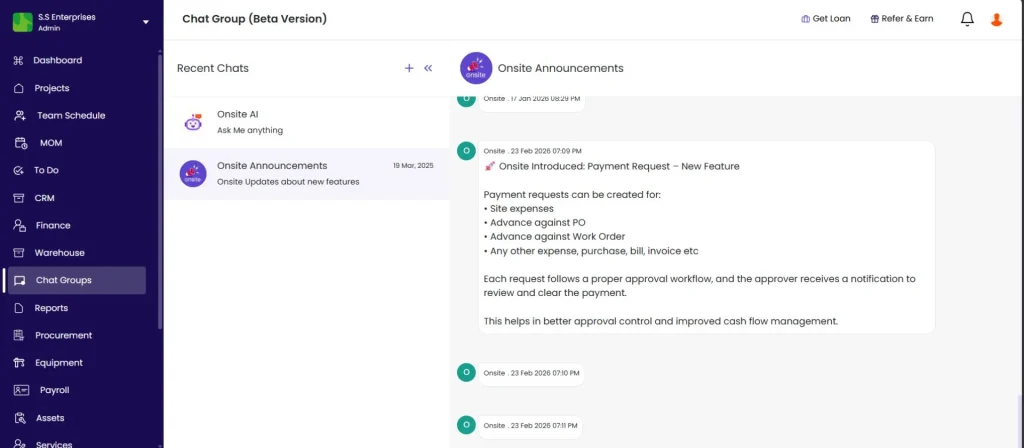
Chat Groups is the built-in team messaging feature in Onsite. You can create any number of groups — by project, department, or any other grouping. All company members can be added to groups.
Default system groups:
| Group | What It Is |
|---|---|
| Onsite AI | Ask questions to the Onsite AI assistant about the app |
| Onsite Announcements | Product updates and new feature announcements from the Onsite team |
The Chat Group List
The left panel shows all your groups under Recent Chats. Each row shows the group avatar, group name, description or last message preview, and date of last activity.
Click any group to open the chat.
Creating a New Chat Group
Click the + icon in the Chat Groups header.
| Field | What to Enter |
|---|---|
| Group Image | Upload a group photo (optional) |
| Group Name | Required |
| Group Description | Optional — e.g. “HR Team” or “Site B Project Chat” |
Click Create Chat Group.
Groups can be created for any purpose: project teams, departments (HR, Accounts, Site), or cross-project coordination.
Sending Messages
Inside a chat group, click the Enter Message field at the bottom, type your message, and click the Send button or press Enter.
Bottom toolbar icons:
| Icon | What It Does |
|---|---|
| @ | Tag or mention a team member |
| Paperclip | Upload a file or media |
| Emoji | Open the emoji picker |
| Send (blue) | Send the message |
Mentioning a Team Member
To tag someone so they receive a notification:
- Type @ in the message field
- Start typing the person’s name — a dropdown of matching members appears
- Click their name to insert the mention
- The mention appears highlighted in the message (e.g. @Ravi)
- Send the message
The tagged person receives a notification regardless of whether they have the chat open.
Tips
- Use descriptive group names and descriptions so team members know the group’s purpose (e.g. “Finance Team” or “NH-15 Site Updates”).
- Use @mentions to notify specific people rather than sending a general message and hoping the right person sees it.
- The Onsite AI group lets you ask questions about the app directly in chat — useful for quick how-to queries without leaving Onsite.
- Attach documents, photos, or site drawings directly in the chat using the paperclip icon. The file is shared with all group members immediately.
If Something Goes Wrong
| Problem | Likely Cause | What to Do |
|---|---|---|
| Team member not appearing in @mention dropdown | Not added to the company team | Ask Admin to add them via Settings, then Roles and Access |
| Cannot send a message | Network issue | Check your internet connection and try again |
| Group not visible | Not yet created or not a member | Create the group or ask the group admin to add you |