
How to Manage Subcontractor Work Orders in Onsite
How to create and manage Subcontractor Work Orders in Onsite — adding scope items and sections, linking tasks for automated progress tracking, setting payment milestones, raising subcontractor bills, viewing materials issued, and creating payment requests.
Before You Start
- The subcontractor must be added as a party in the project’s Party tab before creating a work order
- Tasks must exist in the Task tab before you can link them to work order items
- Materials must be in the project’s Material tab before they can be issued to the subcontractor
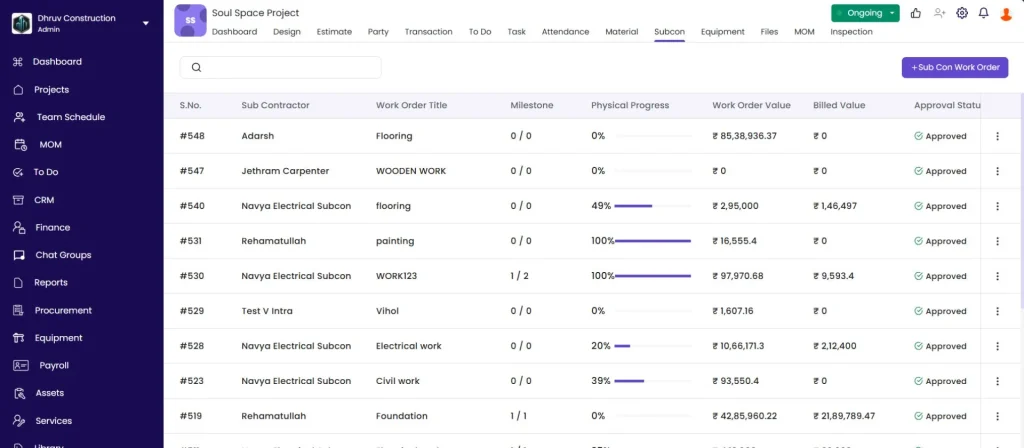
The Subcon Work Order List
Open the project and click the Subcon tab.
| Column | What It Shows |
|---|---|
| S.No. | Auto-generated work order number (e.g. WO-12) |
| Sub Contractor | Subcontractor party name |
| Work Order Title | Title of the work order |
| Milestone | Milestones completed vs total (e.g. 1/3) |
| Physical Progress | Percentage of work completed — auto-calculated from linked tasks |
| Work Order Value | Total value of the work order |
| Financial Progress | Amount billed against this work order so far |
| Approval Status | Approved or Pending |
Creating a Work Order
Click + Sub Con Work Order in the top right.
| Field | Required | What to Enter |
|---|---|---|
| Subcontractor | Yes | Select the party |
| Work Order Title | Yes | Name for this work order (e.g. “Civil Structure — Block A”) |
| Work Order Date | Yes | Date of the work order |
Click Save. The work order opens with four tabs: Items, Milestones, Bills, and Materials.
Work order header shows:
| Field | What It Shows |
|---|---|
| Order Value | Total value of all items in the work order |
| Work Done (%) | Physical progress auto-calculated from all linked task progress |
| Billed | Total amount billed against this work order to date |
Part 1 — Items Tab
The Items tab defines the scope of work for the subcontractor — what they are contracted to do, at what rates, and against which project tasks.
Adding Items
Click + Add Item or use the dropdown to choose a faster import option:
| Option | When to Use |
|---|---|
| + Add Item (manual) | Enter a new item from scratch |
| From Library | Pick items from the company Rate Library with rates pre-filled |
| From BOQ | Import items directly from the project’s BOQ |
| From Other Subcon | Copy items from another work order on the same project |
New Item Form
| Field | Required | What to Enter |
|---|---|---|
| Item Name | Yes | Name of the work item (e.g. “Brickwork in CM 1:4”) |
| Unit | No | Unit of measurement (sqft, RMT, nos, cum, etc.) |
| GST % | No | Applicable GST rate for this item |
| Add Measurement | No | Toggle to enter dimensions (N x L x W x H) instead of a plain quantity |
| Estimated Qty | No | Total expected quantity for this item |
| Unit Price | No | Rate per unit in Rs |
| Add Supply and Installation Rate | No | Toggle if supply and installation are priced separately |
| Add Cost Code | No | Links this item to a project budget line |
| Item Code | No | Optional internal reference code |
Items List View
Once saved, each item row shows:
| Column | What It Shows |
|---|---|
| Item | Item name |
| N x L x W x H | Dimensions if measurement mode was used |
| Unit Price | Rate per unit in Rs |
| QTY | Total quantity |
| Progress | Actual quantity completed (from linked task) |
| Amount | Unit Price multiplied by QTY |
Adding Sections
Click Add Section to group items under a heading (e.g. “Civil Work”, “MEP”, “Finishing Works”). Enter the Section Name and click Save.
Sections organise large work orders with multiple categories of work and make bills easier to read.
Linking a Task to an Item
Linking a task to a work order item automatically updates physical progress as the site team records progress on the task. No manual progress entry is needed on the work order.
- Click Link Task on the item row
- A task picker opens showing all project tasks with their dates
- Tick the checkbox for the relevant task
- Click Next
Once linked:
- The item’s Progress column shows the actual quantity completed from task entries (e.g. 266 sqft)
- The work order header’s Work Done % updates automatically whenever task progress is updated
💡 Link all work order items to tasks whenever possible. This removes manual progress tracking from the work order and ensures that the Physical Progress percentage in the work order header is always live and accurate.
Part 2 — Milestones Tab
Milestones define when payment is due to the subcontractor — at what completion stage and for what amount. Each milestone is tied to a percentage of the work order value and has a due date.
Milestone List Columns
| Column | What It Shows |
|---|---|
| Name | Milestone label (e.g. “Mobilisation”, “50% Complete”, “Final Payment”) |
| Value | Percentage of order value |
| Amount | Calculated rupee amount based on the percentage |
| Due Date | When this milestone payment is due |
| Dependencies | Milestones that must be completed before this one triggers |
| Status | Pending or Completed |
| Invoice | Linked subcon bill (if billed) |
Adding a Milestone
Click + Add Milestone.
| Field | Required | What to Enter |
|---|---|---|
| Milestone Name | Yes | Clear label (e.g. “Mobilisation Advance”, “Slab Completion”, “Handover”) |
| Milestone Value | Yes | Enter as a percentage of the Order Value (e.g. 30 for 30%). The Rs amount calculates automatically. |
| Due Date | Yes | When this milestone payment is due |
| + Add Dependency | No | Link to another milestone that must be completed first before this one becomes payable |
| Upload Files | No | Attach supporting documents or approval letters |
Click Save.
💡 Total milestone percentages should not exceed 100% of the Order Value. Set milestones at clear project checkpoints — mobilisation (10 to 15%), structural completion (40 to 50%), finishing (30 to 40%), and defect liability period end (5 to 10%). This controls cash outflow against measurable progress.
Part 3 — Bills Tab
The Bills tab shows all subcontractor bills raised against this work order.
| Column | What It Shows |
|---|---|
| Sub Contractor | Subcontractor name |
| Invoice Date | Date of the bill |
| Total Amount | Bill amount |
Adding a Subcon Bill from the Work Order
Click + Subcon Bill.
- The work order is pre-selected
- Items appear with Billed and Un-Billed quantity columns per item — showing how much of each item has already been billed and how much remains
- Tick the items to include in this bill
- Enter the Invoice Qty for each item — the quantity being billed in this invoice
- Configure tax, discount, deduction, and retention as needed
- Toggle Item Level Tax if different items attract different GST rates
- Click Save
The bill appears in:
- The Bills tab of this work order
- The project’s Transaction tab
- The subcontractor’s Party ledger as a payable entry
💡 The Billed vs Un-Billed quantity columns prevent overbilling. Before adding a bill, review these columns to confirm how much scope remains unbilled. A subcontractor should not be billed more than the estimated quantity for any item.
Subcon Bills can also be created from the project’s Transaction tab directly. Go to Transaction, click + Transaction, and select Subcon Bill. The work order picker will appear. Both routes create the same bill — use whichever starting point is faster.
Part 4 — Materials Tab
The Materials tab shows all materials that have been issued from the project’s stock to this subcontractor for this work order.
| Column | What It Shows |
|---|---|
| Material | Material name |
| Total Received | Total quantity issued to the subcontractor so far |
| Current Stock | Current quantity the subcontractor holds |
Click + Subcon Issue to issue additional materials from the project inventory to this work order.
For full guidance on issuing materials to a subcontractor, see How to Manage the Complete Material Flow in Onsite — Step 6.
Part 5 — Payment Requests
A Payment Request is an advance or pre-bill payment request raised for the subcontractor. It goes through the approval workflow before a payment can be made.
Raising a Payment Request from the Work Order
From the work order’s Items tab, click + Payment Request.
| Field | Required | What to Enter |
|---|---|---|
| Request No. | Read only | Auto-generated (e.g. PR-3) |
| Date | Yes | Auto-filled with today’s date |
| Party Name | Read only | Auto-filled from the work order |
| Type | Yes | Select request type (e.g. Advance against Subcon Work Order) |
| Amount | Yes | Amount being requested in Rs |
| Due Date | Yes | When payment is expected |
| Notes | No | Context or reference (e.g. “Mobilisation advance as per clause 4.2”) |
| Upload Files | No | Attach supporting documents |
Click Save.
After saving:
- The Payment Request appears in the project’s Transaction tab under the Payment Requests sub-tab
- The approver sees it in their Pending Approvals queue
- Once approved, a payment can be recorded against it
For full guidance on the approval and payment flow, see How to Use Payment Requests in Onsite.
Tips
- Add sections for large work orders. If a subcontractor covers multiple categories of work (e.g. Civil plus MEP plus Finishing), sections make billing and progress tracking significantly easier to manage.
- Link all items to tasks to automate physical progress updates. Without task links, physical progress must be updated manually on the work order.
- Use milestones to control cash flow. Setting milestones at measurable checkpoints (not just dates) ensures the subcontractor is paid against verified progress rather than elapsed time.
- Subcon Bill vs Payment Request: a Subcon Bill is the formal invoice the subcontractor submits for completed and certified work. A Payment Request is an advance or a pre-certification request. Both appear in the Transaction tab but serve different purposes — use Bills for certified work, Payment Requests for advances.
- The Materials tab is read-only here. Materials are issued from the project’s Material tab under + Create, + Subcon Issue. The work order’s Materials tab only displays what has already been issued.
If Something Goes Wrong
| Problem | Likely Cause | What to Do |
|---|---|---|
| Subcontractor not appearing when creating a work order | Party not added to the project | Add the subcontractor as a party via the project’s Party tab first |
| Link Task picker showing no tasks | Tasks not created yet | Go to the Task tab and create tasks first |
| Physical progress not updating | Task not linked to the work order item | Click Link Task on the item and link to the correct task |
| Payment Request not appearing in Transaction tab | Not saved correctly | Re-open the work order and create the Payment Request again |
| Subcon Bill not appearing in the Bills tab | Bill was created without selecting this work order | Edit the bill from the Transaction tab and link it to the correct work order |
| Materials tab showing no items | No materials issued to this work order | Go to Material, click + Create, + Subcon Issue, and select this work order |
| Milestone amount not calculating | Value entered as a Rs amount instead of a percentage | Edit the milestone and enter the value as a percentage (e.g. 30 for 30%) |
| Billed quantity exceeds estimated quantity | Invoice qty entered higher than the estimated qty | Verify the correct quantity. If scope has changed, update the estimated qty on the item first. |