
How to Record a Payment and Settle Outstanding Bills
How to record payments in and out in Onsite, settle those payments against outstanding bills and invoices, make partial settlements, and recover advance payments in stages across future bills. Covers both project-level payments and company-level payments across multiple projects.
Before You Start
- The party (vendor, client, subcontractor) must be added to the system
- The bill or invoice you want to settle against must already be recorded
- Bank account details should be configured in Settings if recording bank transfer payments
Understanding Payment Settlement
When you record a Payment Out to a vendor, or a Payment In from a client, Onsite lets you link that payment to specific outstanding bills or invoices. This is called settling a payment.
Settling keeps party balances accurate. An unsettled payment sits as a floating balance — money paid but not yet matched to a bill. A settled payment reduces the outstanding amount on the specific bills it is linked to.
| Term | What It Means |
|---|---|
| Payment Out | Money your company pays to a vendor, subcontractor, or supplier |
| Payment In | Money your company receives from a client |
| Settling | Linking a payment to specific outstanding bills or invoices it is paying off |
| Partial Settlement | Settling only a portion of a payment against a specific bill |
| Advance | A payment made before any bill exists, settled against future bills as they arrive |
Which Route to Use
| Situation | Route |
|---|---|
| Paying a vendor with bills only in one project | Project Transaction tab |
| Paying a vendor with bills across multiple projects | Company Finance tab |
| Receiving a client payment for invoices in one project | Project Transaction tab |
| Receiving a client payment for invoices across multiple projects | Company Finance tab |
| Recovering a subcontractor advance against future bills | Company Finance tab (recommended) |
Route A — Record a Payment from the Project Transaction Tab
Use this when the party has outstanding bills only within a single project.
Step 1: Open the Transaction Tab
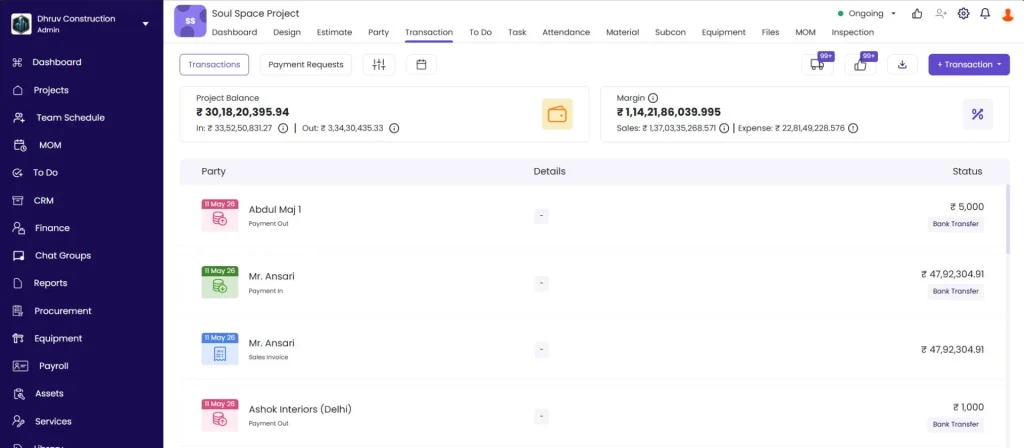
Inside the project, click the Transaction tab.
Step 2: Create a New Transaction
Click + Transaction and select Payment Out (for vendor payments) or Payment In (for client receipts).
Step 3: Fill in Payment Details
| Field | What to Enter |
|---|---|
| Date | Date the payment was made or received |
| Party Name | Select the vendor or client from the dropdown |
| Amount | The total payment amount |
| Payment Method | Cash, Bank Transfer, or Cheque |
| Reference No. | Optional. Cheque number, NEFT reference, or transaction ID |
| Description | Optional. Notes about the payment (e.g. “Part payment against Bill 3”) |
Step 4: Settle Against Outstanding Bills
Below the payment amount, the Settle outstanding bills section appears, listing all unsettled bills or invoices for this party within the project.
Each bill shows:
- Bill type and date
- Bill total amount
- Remaining unsettled amount
Tick the checkbox next to each bill you want to settle with this payment.
As you check bills, the payment amount is distributed across them. If the full payment amount is used up before all bills are checked, the message Payment amount exhausted appears. Uncheck some bills or increase the payment amount.
Step 5: Partial Settlement (Optional)
To settle a different amount against a specific bill rather than the full remaining balance:
- Check the bill
- Click Edit Settlement Amount
- The settlement screen opens showing each checked bill with a Settled Amount field
- Edit the amount for each bill as needed
- The Remaining amount updates as you adjust
- Click Save on the settlement screen
Step 6: Save
Click Save to record the payment.
The bill’s status updates to Partially Paid or Paid depending on how much was settled. The party balance updates immediately.
Route B — Record a Payment from the Company Finance Tab
Use this when a vendor has outstanding dues across more than one project, or when making a single payment to cover bills from multiple projects.
Step 1: Go to Finance
Click Finance in the left sidebar.
Step 2: Open the Party Tab
Click the Party tab inside Finance.
Step 3: Find the Party
Search for the vendor or client name. Click on their name to open their detail view.
The detail view shows:
- Total outstanding balance across all projects
- Full transaction history across all projects
Step 4: Record the Payment
Click Payment Out (for vendor) or Payment In (for client).
A Select Project modal appears. If this payment is not tied to one specific project, click Skip. If it belongs to a specific project, select it.
Step 5: Fill in Payment Details
Fill in the same fields as Route A: Date, Amount, Payment Method, Reference No., and Description.
Step 6: Settle Against Outstanding Bills
The Settle outstanding bills section now lists all outstanding bills for this party across all projects. Each bill shows its project, bill type, date, and remaining amount.
Tick the checkboxes next to the bills you want to settle. Bills from different projects can be checked in the same payment.
Step 7: Partial Settlement (Optional)
Click Edit Settlement Amount to set specific settled amounts per bill, same as Route A Step 5.
Step 8: Save
Click Save to record the payment.
How Project Totals Work for Company-Level Payments
When a payment is made from the Finance tab and settled across multiple projects, each project’s totals reflect only the portion settled against its bills.
Example: You pay Rs 1,00,000 to a vendor and settle Rs 40,000 against Project A bills and Rs 60,000 against Project B bills. Project A shows Rs 40,000 as Payment Out. Project B shows Rs 60,000 as Payment Out.
This keeps each project’s financial reports accurate even when payments are made at the company level.
Recovering an Advance Payment Against Future Bills
Use this when you paid an advance to a subcontractor or vendor before any bills existed, and want to recover it gradually as bills come in.
Step 1: Record the Advance as a Payment Out
Record the advance payment as a Payment Out from either the project Transaction tab or the Finance tab. At this point, there are no bills to settle it against, so leave the settlement section blank.
The advance sits as an unsettled Payment Out in the party’s balance.
Step 2: When a Bill Arrives
When the first bill comes in (e.g. a Subcon Bill for Rs 15,000), the full bill amount shows as payable in the party balance.
Step 3: Open the Advance Payment and Edit Settlement
Go to the advance payment record in the transaction list. Click to open it.
Click Edit Settlement.
Select the new bill from the list. Enter the partial recovery amount (e.g. Rs 5,000).
Click Save.
The bill’s payable amount reduces by Rs 5,000. Only Rs 10,000 needs to be paid in cash for that bill now.
Step 4: Repeat for Each New Bill
When the next bill arrives, return to the same advance payment record and repeat Step 3, settling another portion against the new bill.
Continue until the full advance amount is fully recovered.
Example:
| Event | Advance Remaining | Cash Paid |
|---|---|---|
| Advance paid: Rs 40,000 | Rs 40,000 | Rs 0 |
| Bill 1 (Rs 15,000) — settle Rs 5,000 from advance | Rs 35,000 | Rs 10,000 |
| Bill 2 (Rs 20,000) — settle Rs 15,000 from advance | Rs 20,000 | Rs 5,000 |
| Bill 3 (Rs 25,000) — settle Rs 20,000 from advance | Rs 0 | Rs 5,000 |
Recovering a Client Advance Against Sales Invoices
The same logic applies when a client pays you an advance before invoices are raised.
- Record the client advance as a Payment In. Leave settlement blank.
- When a Sales Invoice is raised later, go to the advance Payment In record.
- Click Edit Settlement and settle a portion against the invoice.
- The invoice’s receivable (To Receive) reduces by the settled amount. Only the remaining balance needs to be collected in cash.
This lets you track exactly how much of the client advance has been adjusted and how much remains.
Tips
- Use the Finance tab (Route B) whenever a vendor or client has dues across more than one project. Trying to settle cross-project dues from inside a project’s Transaction tab will not show bills from other projects.
- Always settle payments against specific bills rather than leaving them unsettled. Unsettled payments make party balances look higher than they are and make reconciliation difficult.
- For advance payments, record the advance first and leave it unsettled. Do not try to settle it at the time of recording if no bill exists yet.
- The Pending Entries icon in the Transaction tab shows all outstanding unsettled transactions for the project. Check this regularly to avoid aged unsettled entries building up.
- Partial settlements are useful when making part-payments on large bills. You can settle any amount up to the bill’s remaining balance.
- Payment methods available are Cash, Bank Transfer, and Cheque. Always record the correct payment method and reference number so the party ledger matches your bank statement.
- TDS and other deductions are handled at the bill level, not at the payment level. See Managing Deductions in Transactions for guidance on how TDS reduces the net payable on a bill before payment is recorded.
If Something Goes Wrong
| Problem | Likely Cause | What to Do |
|---|---|---|
| Party not appearing in the Finance tab search | Party not added to the system | Add the party in CRM or via the Party tab before recording the payment |
| Bill not showing in the settlement list | Bill is from a different project and you are in the project Transaction tab | Use Route B (Finance tab) to access bills across all projects |
| Payment amount exhausted before all bills are checked | Payment is less than the total of all selected bills | Uncheck some bills or increase the payment amount |
| Settlement not saving | Required fields are empty | Ensure Date, Party, and Amount are all filled in before clicking Save |
| Party balance not updating after payment | Page not refreshed | Reload the page and check the party balance again |
| Advance payment not reducing bill payable | Settlement not edited after advance was recorded | Open the advance payment record, click Edit Settlement, select the bill, enter the recovery amount, and save |
| Payment status still showing Unpaid after settling | Settlement saved but full amount not covered | Open the payment, check the settlement, and settle the remaining bill amount |
| Cannot find an old payment to edit settlement | Transaction not visible in the list | Use the date filter or search by party name in the Transaction tab to find it |