
How to Use Team Schedule in Onsite
How to use the Team Schedule module to view a company-wide Gantt of all staff project assignments, and how to log and review timesheet entries for individual team members.
Before You Start
- You need Admin or Senior Manager access to view the full team schedule
- Team members must be assigned to projects before they appear in the Schedule tab
Accessing Team Schedule
Click Team Schedule in the left sidebar.
The module has two tabs: Schedule and Timesheet.
Part 1 — Schedule Tab (Team Gantt View)
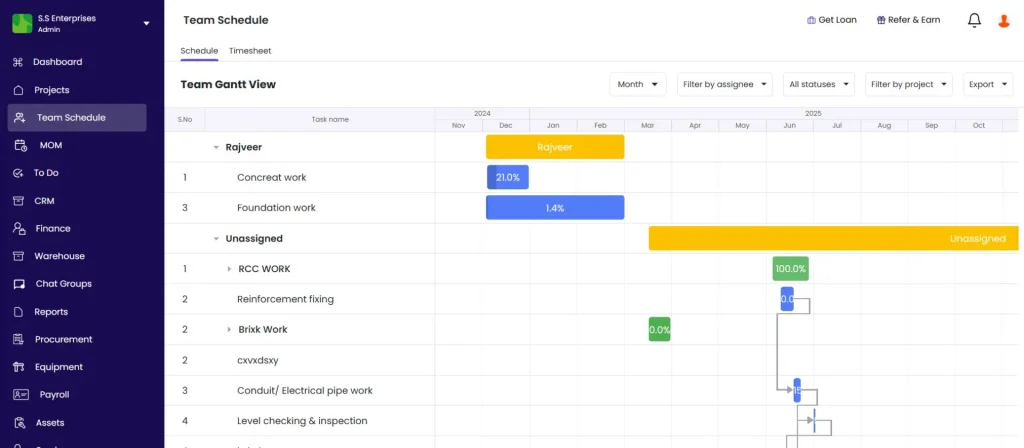
The Schedule tab shows a Gantt-style calendar of all team members’ project assignments across the company.
Reading the Gantt
Each row represents one team member. Coloured bars across the calendar show when they are assigned to a project. The bar spans the assignment period.
Use this view to:
- See which team members are currently deployed and where
- Identify gaps in deployment (unassigned periods)
- Spot overlapping project assignments before adding new ones
- Plan manpower before starting a new project phase
Filters
| Filter | What It Does |
|---|---|
| Project | Show only team members assigned to a specific project. Default shows all projects. |
| Date / Week | Navigate forward or backward by week to see different time periods |
Part 2 — Timesheet Tab
The Timesheet tab lists all timesheet entries logged across the company.
Timesheet List Columns
| Column | What It Shows |
|---|---|
| Name | Team member who logged the timesheet |
| Project | Project the work was logged against |
| Date | Date of the timesheet entry |
| Hours | Hours worked |
| Notes | Description of work done |
Timesheet Filters
| Filter | Options |
|---|---|
| Project | Filter by project |
| Date | Set a date range |
| Team Member | Filter by a specific person |
Part 3 — Creating a New Timesheet Entry
Click + New Timesheet in the top right of the Timesheet tab.
| Field | Required | What to Enter |
|---|---|---|
| Team Member | Yes | Select the person from the dropdown |
| Project | Yes | Select the project the work was done on |
| Date | Yes | Date the work was performed |
| Hours | Yes | Number of hours worked |
| Notes | No | Brief description of tasks completed (e.g. “Brickwork, Ground Floor, 8 hours”) |
Click Save. The entry appears in the Timesheet list immediately.
Tips
- Use the Schedule tab before assigning someone to a new project. Check whether they already have overlapping assignments during the same period.
- Filter the Schedule tab by project to see the full deployed team for a specific project at a glance.
- Log timesheet entries same-day. Entries entered days later are harder to verify against attendance records and may be disputed.
- Timesheet entries feed into project cost reporting. Always log against the correct project to keep project-level cost data accurate.
- Use the Notes field in timesheets to record what was done. Vague entries (“site work”) make cost analysis less useful than specific ones (“Plastering — Floors 2 and 3”).
If Something Goes Wrong
| Problem | Likely Cause | What to Do |
|---|---|---|
| Team member not appearing in Schedule tab | Not assigned to any project | Add them to a project via Settings, then Roles and Access |
| Timesheet entry missing from the list | Date filter is restricting the view | Reset the date filter to a wider range |
| Cannot save timesheet — validation error | Required field left blank | Fill in Team Member, Project, Date, and Hours before saving |
| Cannot see another team member’s schedule | Role does not have full team visibility | Ask Admin to check your role permissions |
| Gantt bar not showing for a team member | Assignment dates not set or member just added | Check project assignment dates and reload the Schedule tab |