
How to Mark Attendance for Site Workers
How to mark daily attendance for site workers in a project — individually or in bulk using punch in and punch out — including shift marking, overtime, task assignment, half-day entries, and handling workers who appear across multiple projects.
Before You Start
- Workers must already be added to the project under Site Staff or Labour Contractor
- You need Admin or Supervisor access
- For face recognition punch-in, face photos must be uploaded for each worker in Payroll
Accessing Attendance
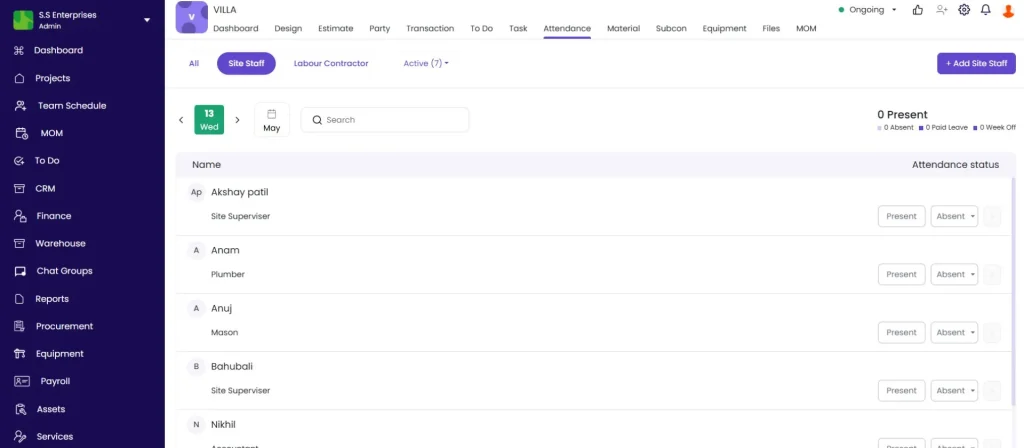
Open the project and tap the Attendance tab.
The attendance screen has three sub-tabs:
| Sub-tab | What It Shows |
|---|---|
| All | Site staff and labour contractors combined |
| Site Staff | Named staff members with individual profiles |
| Labour Contractor | Daily labour grouped by contractor |
Use the left and right arrows at the top to navigate between dates. Always confirm the date before marking.
Method 1 — Mark Attendance Individually
Each worker row shows the worker name, role, and attendance options.
For Site Staff
Tap Present or Absent for each worker to record their attendance for the day.
Tap the dropdown arrow (v) on a Present entry to open the full daily detail form:
| Field | What to Enter |
|---|---|
| Shift | 0.25 (quarter), 0.5 (half), 0.75 (three-quarter), 1 (full), or Custom (any decimal) |
| Overtime | Number of overtime hours worked (e.g. 2 hours) |
| Punch In / Punch Out | Actual clock-in and clock-out times |
| Daily Allowance | Click + Add Allowance to add a one-off daily allowance (e.g. Travel, Food) with an amount |
The system shows a live salary calculation as you fill in these fields (e.g. Rs 1,000 x 1 shift + Rs 200 allowance = Rs 1,200).
Click Save to record the entry.
For Labour Contractors
Tap the contractor row and enter the number of workers present for the day.
Method 2 — Bulk Punch In and Punch Out (Camera)
Use this method to punch in or out multiple workers quickly using the camera. Face recognition matches each face to the worker’s profile.
Punch In
- Tap Punch In at the bottom of the attendance screen
- The camera opens. The counter at the top shows People Punched In (0)
- Point the camera at a worker’s face — the system captures it
- Select the worker’s name from the dropdown that appears
- The counter updates to People Punched In (1), then (2), and so on
- Tap Capture and repeat for each worker
- Tap Done when all workers are punched in
The attendance list updates immediately showing each worker’s punch-in time and 1 Shift.
Punch Out
Tap Punch Out at the bottom and follow the same camera flow to record when workers leave.
💡 Bulk Punch In and Punch Out is the fastest method for large teams at the start and end of the workday. Face recognition prevents proxy attendance.
Marking 2 Shifts for a Worker
If a worker completes two shifts in a day (e.g. morning and evening), mark a second shift in addition to the first.
To enable 2-shift mode for the project:
- Go to Project Settings
- Find the Attendance section
- Enable 2 Shift Attendance
Once enabled, each worker row shows a shift indicator (e.g. 1 Shift). Tap the indicator to add a second punch-in and punch-out for the same worker on the same day.
Marking a Half Day
To mark a worker as present for half a shift:
- Mark the worker as Present
- Tap the dropdown arrow on their row
- In the Shift field, select 0.5
- Click Save
The salary calculation adjusts automatically to half the daily rate.
Assigning Tasks to Attendance
After marking a worker Present, you can record which task they worked on that day. This links attendance to project progress and feeds into the task’s Labour resources tracking.
- Tap + Add Task on the worker’s row
- Select the task from the list and tap Next
- Enter No. of Workers deployed on this task
- Enter Work Hours for this task
- Tap Save
Repeat + Add Task to split the worker’s time across multiple tasks in the same day. Total hours across all tasks cannot exceed the worker’s total workforce hours for the day.
Workers Present Across Multiple Projects
If the same worker is already marked present in another project and you mark them present here, the system shows a warning:
“Present marked elsewhere.”
You can confirm and override this to mark them present in the second project. This is the correct workflow when a worker splits their day across two sites — for example, working the morning shift on Project A and the afternoon shift on Project B.
Both records are maintained separately in each project’s attendance log.
Week Off and Not Marked
| Status | When to Use |
|---|---|
| Present | Worker attended site |
| Absent | Worker did not attend |
| Week Off | Scheduled weekly off day |
| Not Marked | Attendance not yet recorded for this date |
Week Off days are included in salary calculations based on the payroll settings configured for the worker.
Tips
- Use Punch In and Punch Out for large teams. It is faster than tapping Present for each worker individually.
- Mark attendance daily. Records can be backdated but require Admin access and Back Dated Entry Control must permit it. Same-day marking avoids this dependency.
- Always check the date before marking. Use the arrows at the top to confirm the correct date.
- Add tasks to attendance entries to build accurate labour cost per task. The Resources tab on each task shows planned vs actual labour hours — this data only comes from attendance entries with tasks assigned.
- The cross-project warning is expected for workers splitting their day across sites. Confirm and override; both records are valid.
- Mark overtime on the same day it occurs. Overtime recorded after the day is closed may require Admin correction.
If Something Goes Wrong
| Problem | Likely Cause | What to Do |
|---|---|---|
| Worker not showing in attendance list | Not added to the project | Add the worker under Site Staff or Labour Contractor in the project first |
| Punch In button not visible | Wrong sub-tab or no workers added | Confirm you are in the Attendance tab with workers added to the project |
| Face not being recognised during bulk punch | Poor lighting or angle, or no face photo uploaded | Ensure good lighting, ask the worker to face the camera directly, and confirm their face photo is uploaded in Payroll |
| Cross-project warning appears | Worker already marked present in another project | This is expected. Confirm and override if the worker is splitting their day across sites. |
| Cannot mark 2 shifts | 2-shift mode not enabled for this project | Go to Project Settings, Attendance section, and enable 2 Shift Attendance |
| Work hours validation error when adding task | Task hours exceed total workforce hours for the day | Reduce the task hours — total across all tasks cannot exceed daily workforce hours |
| Overtime not saving | Shift not marked as Present before editing | Mark the worker as Present first, then tap the dropdown to add overtime |
| Attendance saved but not showing in salary expense | Salary expense generated once per month | Salary expenses are generated monthly. The attendance is recorded correctly — the expense appears at month-end. |