
How to Create a Salary Template
How to create a salary template in Onsite — setting the CTC, configuring salary components (Basic salary), adding allowances (HRA, Food Allowance, etc.), and adding deductions (PF, TDS). Templates are applied to staff members in Payroll to auto-calculate their monthly salary breakup.
Before You Start
- You need Admin access
- Decide the salary structure before creating the template — once assigned to staff, changes to the template affect future payroll calculations
- If different groups of staff have different salary structures, create one template per structure (e.g. “Senior Engineers”, “Site Supervisors”, “Office Admin”)
Why Use Salary Templates
A salary template defines a reusable salary structure that can be applied to multiple staff members. Instead of manually configuring each person’s Basic, HRA, PF, and allowances individually, you create the structure once and assign it to everyone in that category.
| With Templates | Without Templates |
|---|---|
| Set up the structure once, apply to many | Configure every staff member individually |
| Consistent structure across similar roles | Risk of inconsistent components per person |
| Edit the template to update all assigned staff | Edit each staff member’s profile separately |
Step 1: Go to Settings
Click Setting in the left sidebar.
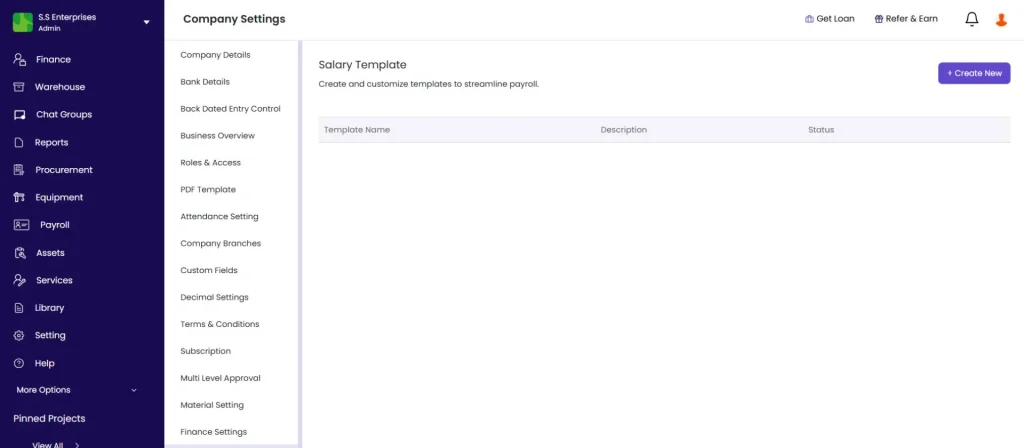
Step 2: Open Salary Template
Click Salary Template from the Settings menu.
The list shows all existing templates with their Template Name, Description, and Status (Active or Inactive).
Step 3: Create a New Template
Click + Create New.
The New Salary Template panel opens.
Step 4: Fill in Template Details
| Field | Required | What to Enter |
|---|---|---|
| Template Name | Yes | A clear name that identifies which staff group this is for (e.g. “Senior Engineers”, “Site Supervisors”, “Office Admin”) |
| Description | No | Optional note (e.g. “For all engineers above 5 years experience”) |
Step 5: Set the Monthly CTC
| Field | What to Enter |
|---|---|
| Amount | Total monthly CTC in Rs (e.g. 50000) |
| Frequency | Monthly or Daily |
| Day Off | Select the weekly off day(s) for staff on this template (e.g. Sunday, or Saturday and Sunday) |
The CTC amount set here is the base for all percentage-based components. When the template is applied to a specific staff member, the CTC can be overridden to match their individual package.
Step 6: Configure Salary Components (Basic Salary)
Under Salary Components, configure the Basic salary:
| Option | How It Calculates |
|---|---|
| % of CTC | Basic = the entered percentage of the CTC amount (e.g. 40% of Rs 50,000 = Rs 20,000) |
| Fixed Amount | Basic = a fixed monthly Rs amount regardless of CTC |
Enter the percentage or amount and click Save on the component row.
💡 Standard practice in India is Basic salary at 40 to 50% of CTC. PF is calculated on Basic salary, so a lower Basic means lower PF deduction — confirm with your CA what percentage to use.
Step 7: Add Allowances
Under Allowances, click + New Allowance.
A Monthly Allowance panel opens listing available allowance types. Check the boxes for the allowances to include and click Next.
For each selected allowance, configure:
| Field | What to Enter |
|---|---|
| Amount or Percentage | The value for this allowance |
| Calculation Type | % of CTC, % of Basic, or Fixed Amount |
Common allowances and typical setups:
| Allowance | Typical Setup |
|---|---|
| HRA (House Rent Allowance) | 40 to 50% of Basic salary |
| Food Allowance | Fixed Amount (e.g. Rs 2,000 per month) |
| Travel Allowance | Fixed Amount (e.g. Rs 1,500 per month) |
| Medical Allowance | Fixed Amount (e.g. Rs 1,250 per month) |
| Special Allowance | Remaining CTC after all other components |
Click Save on each allowance row.
The Fixed Allowance and Gross Salary totals update automatically after each addition.
⚠️ If the total of Basic plus all Allowances exceeds 100% of CTC, the Fixed Allowance will show a negative value and saving will fail with “Fixed Allowance Amount should be greater than 0.” Reduce the percentage values of one or more components so the total stays at 100% or below.
Step 8: Add Deductions
Under Deductions, click + New Deduction.
A Monthly Deduction panel opens listing available deduction types. Check the boxes for the deductions to include and click Next.
For each selected deduction, configure:
| Field | What to Enter |
|---|---|
| Amount or Percentage | The value for this deduction |
| Calculation Type | % of CTC, % of Basic, % of Gross, or Fixed Amount |
Common deductions and typical setups:
| Deduction | Typical Setup |
|---|---|
| PF (Employee Contribution) | Fixed Amount Rs 1,800 (12% of basic salary up to Rs 15,000 basic) |
| Employer PF | Fixed Amount Rs 1,800 (employer’s matching contribution) |
| TDS | % of Gross or Fixed Amount depending on the staff member’s tax slab |
| Random Deduction | Fixed Amount for one-off deductions |
The Net Amount (Per Month) updates automatically after each deduction:
Net Amount = Gross Salary minus Total Deductions
Step 9: Save
Click Save.
The template is saved and appears in the list with Active status.
Managing Existing Templates
Edit a Template
- Find the template in the list
- Click the three dots (⋮) icon next to it
- Click Edit
- Update the required fields and click Save
⚠️ Editing a template affects future payroll calculations for all staff members assigned to it. Salary expenses already generated for past months are not changed.
Duplicate a Template
- Click the three dots (⋮) next to the template
- Click Duplicate
A copy is created with the same structure. Rename it and adjust the components as needed. Use this when creating a similar template for a slightly different staff group.
Deactivate a Template
- Click the three dots (⋮) next to the template
- Click Deactivate
The template moves to Inactive status and no longer appears in the dropdown when adding or editing staff. Staff already assigned to it retain their salary configuration — deactivating does not remove it from existing staff profiles.
Tips
- Create separate templates for each distinct salary structure in your company. One template for all staff causes problems when different groups have different Basic percentages or PF structures.
- The most common structure for Indian construction companies: Basic 40 to 50% of CTC, HRA 40 to 50% of Basic, Food Allowance as Fixed, PF Employee at Rs 1,800, PF Employer at Rs 1,800, Special Allowance as the remaining balance.
- Employer PF is a cost to the company but not a deduction from the employee’s salary. Including it in the template keeps CTC-to-take-home calculations accurate.
- If TDS varies by person, set it as Fixed Amount per individual rather than % of Gross in the template. Override it when applying the template to each staff member.
- The Fixed Allowance field auto-fills the gap between Gross Salary and the sum of all other allowances. If it shows a negative number, your configured components exceed 100% of CTC — reduce one or more values.
- Use the Duplicate function when a new department or role joins and has a similar structure to an existing group. Duplicate the closest template, rename it, and adjust only what differs.
If Something Goes Wrong
| Problem | Likely Cause | What to Do |
|---|---|---|
| Cannot see Salary Template in Settings | Not an Admin | Ask your Admin to configure the template or grant Admin access |
| “Fixed Allowance Amount should be greater than 0” error on save | Basic plus Allowances exceeds 100% of CTC | Reduce the percentage of one or more components so the total is 100% or below |
| Net amount showing incorrectly | Wrong calculation type selected for a component | Check the type (% of CTC vs % of Basic vs Fixed Amount) for each deduction and allowance |
| Template not appearing in Payroll dropdown | Template was deactivated | Go to Salary Template settings, click the three dots on the template, and click Activate |
| PF amount calculating incorrectly | Wrong calculation type for PF | Set PF Employee and Employer PF as Fixed Amount at Rs 1,800 each, not as a percentage |
| Cannot edit a template assigned to staff | No restriction — templates can always be edited | Edit the template. Changes apply to future payroll calculations only, not past salary expenses. |